P350 Operation Manual 64
There are 6 commands available:
1. START: Activates the current job and exits to the main screen with live video. If pressed when defining a new
job it also saves the details entered so far.
2. STOP: De-activates the job (if active) and return to the Job Browser menu.
3. SAVE: Saves details you have entered or edited. This command is only available when selecting a job’s detail.
4. DEL: Deletes the job’s details or file selected.
5. SEWER: Creates a SEWER.DAT (MSCC 3) report file. This command is only available when selecting a job
file and providing that the controller’s Job template it has not been customized.
6. EXIT: Exit and returns to the Job Browser menu. A warning message will appear if you are exiting without
having saved your changes.
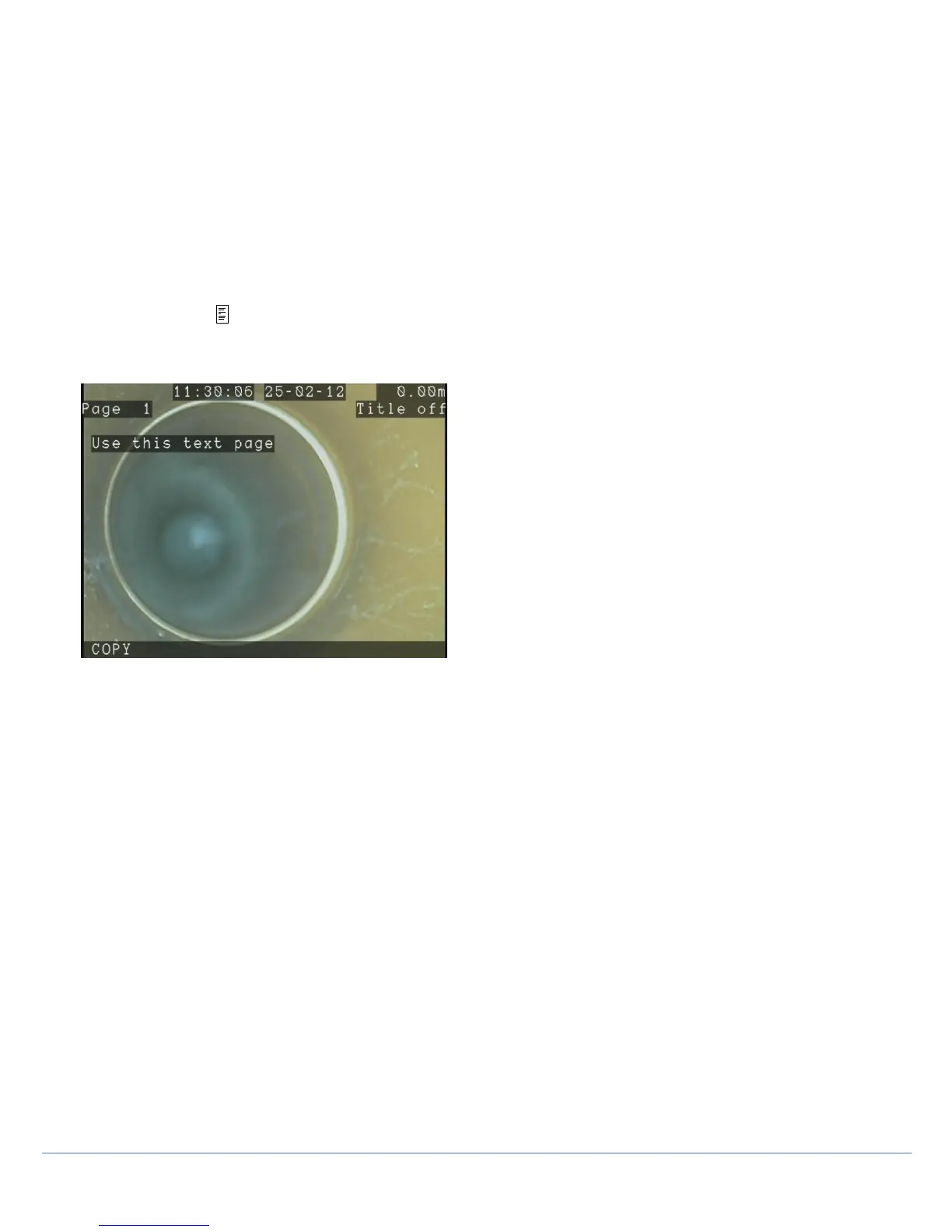
Job details can be copied to a text page, which can then be recorded in a video. In order to do that, select client, site
or survey, and press on the keypad. A text page selector will be displayed, as shown on Figure 9.6. Select the page
you wish to use with the keys, and press COPY.
NOTE: the previous content of the page will be overwritten.
Figure 6.3: Text Copy screen
Active Jobs
To activate a job, press START. All recordings and observations will be saved in the active’s job survey folder.
The current active jobs is identified by the letter “A” in the Job Browser menu.
To de-activate a Job, press STOP.



 To Next Page