P350 Operation Manual 66
SEND
Use this function to send files via Bluetooth (to compatible devices).
Press SCAN to search for nearby Bluetooth devices. KNOWN to search previously used devices. Ensure your device
is active and searchable. Press PAIR to sync devices, you may need to enter a pass-code and accept the file transfer.
Folders cannot currently be sent via Bluetooth. Follow the on-screen instructions.
Deleting files and folders
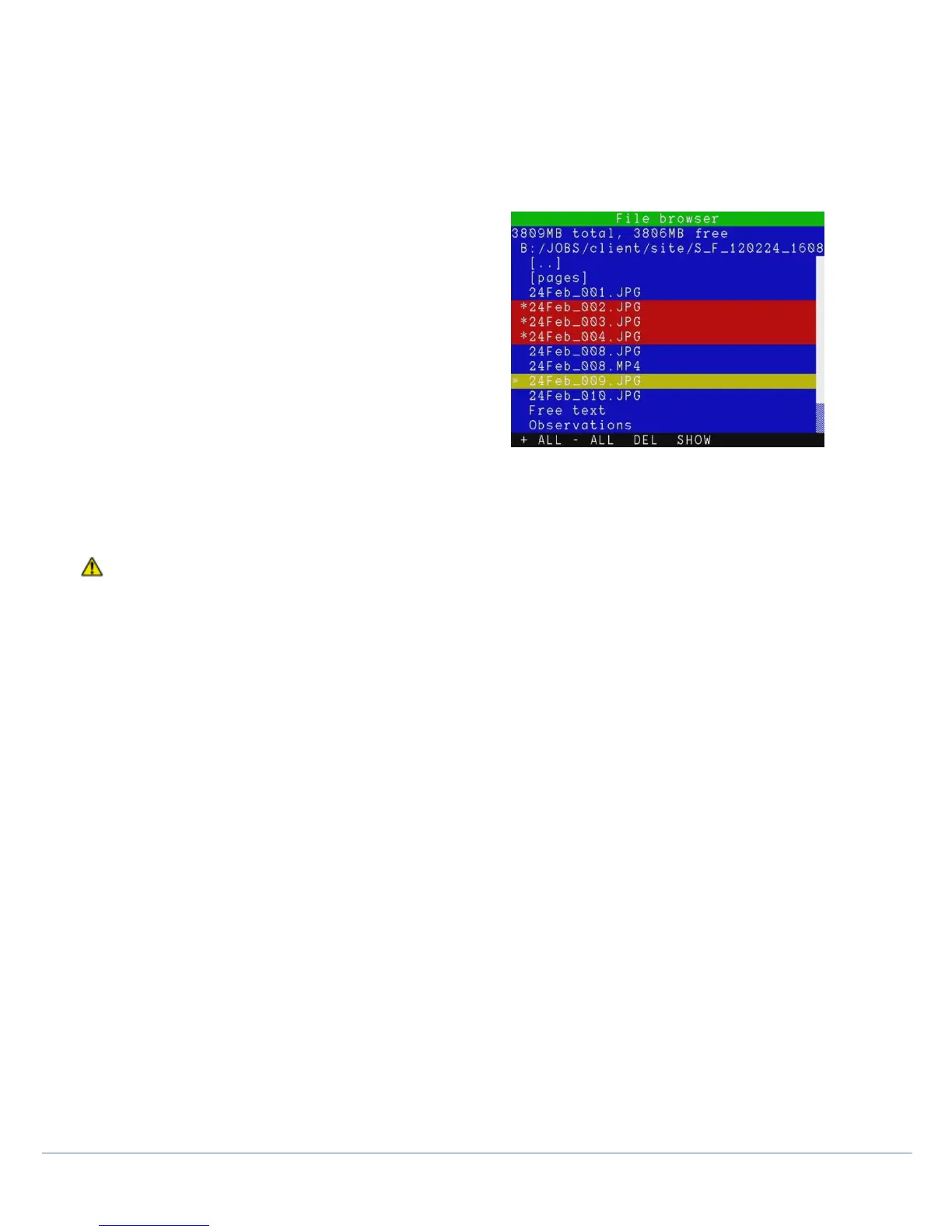
You can delete any file or folder on the storage device..
1. Select the file or folder you wish to delete.
2. Press the ► arrow to mark the file for deleting.
3. Repeat the previous two steps if you wish to delete
multiple files or folders.
4. Alternatively, press +ALL to mark all the files and folders
included in the current folder or -ALL to deselect them all.
5. Press DEL, select YES to confirm the delete operation or NO to cancel.
CAUTION! This operation will delete user files. It cannot be undone!
NOTE: You can also use the Delete button on the keyboard.
Creating folders
Create new folders in any location on your storage device. Enter the folder where you wish to create the new subfolder.
Press DIR, type in the new folder name and press OK.
Once the folder is created you can move or copy files to it as with any folder on the storage device.
Information
To access file and folders information:
Select the file or folder and press INFO to access the information:
File Extension or Folder.
File Size.
Read-only attribute.
Hidden attribute.
Date and time of creation.
Press OK to exit.



 To Next Page