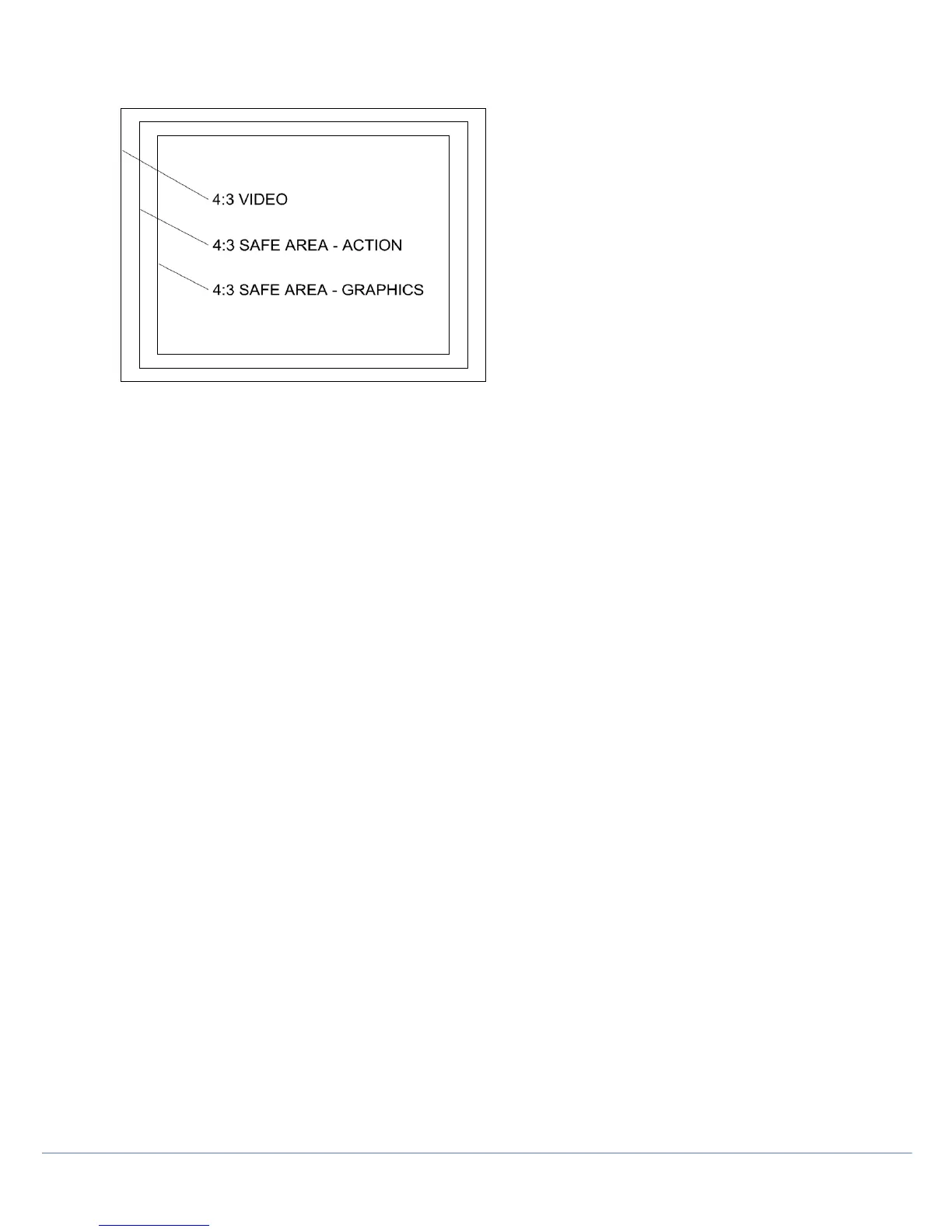
Figure 8.2: 4:3 aspect ratio video space usage
The P350 Command Module offers a number of different OSD and text layouts that will optimize your video recordings
and analog video output signals to suit your desired target audience.
Setting the P350 for PC or TV screen:
To produce a DVD or digital video file recording to be played on a TV screen set your OSD layout to TV
layout.
To produce a DVD or digital video file recording to be played on a PC screen set you OSD layout to Normal
layout.
See Section 3 Command Module and System setup for more information on how to set OSD layouts.
Producing a DVD video
The quickest ways to produce a DVD disc from a P350 recording are:
• using a DVD recorder or
• using a PC or Mac computer.
Using a DVD recorder
If you have a domestic DVD recorder with composite video inputs, you can copy the video direct to a blank DVD using
the following procedure:
1. Ensure you have recorded your survey with the OSD set to TV layout.
2. Connect any of the P350 flexitrax video outputs to your DVD recorder’s video input sockets using a suitable
composite video cable.
3. Switch on the command module and locate the file you wish to convert using the file browser. Do not play the file
at this stage.
4. Insert a blank DVD into the DVD recorder and begin recording.
5. Play the file on the command module.
NOTE: if your recordings were not set to TV mode use the digital zoom function on the command module to match the
P350 video picture size to the one captured by your DVD recorder and displayed by your TV.
6. When the file is finished playing, stop the DVD writer and, if required, finalize the DVD disc following the DVD
recorder’s user documentation.



 To Next Page