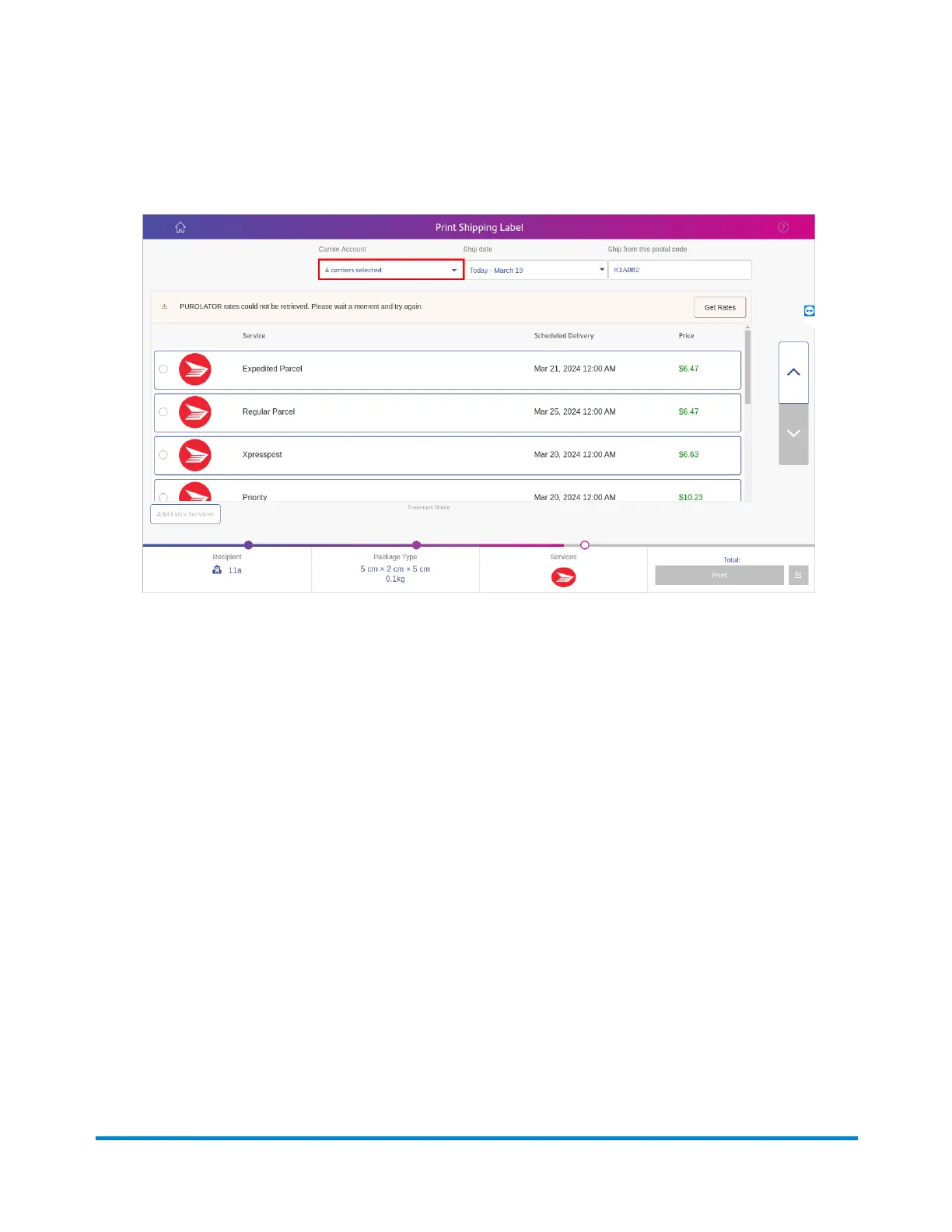
11. Select the carrier and rate you want to use. Tap the Carrier Account menu to select which
carriers you want to use for rate shopping.
12. If necessary, you can select the down arrow on the right side of the screen to add extra services.
When you finish selecting the shipping services, the total cost for the shipping label appears at
the bottom of the screen.
13. Tap Print. This opens his opens the Label Options screen which allows you to define how you
want to print the label.
Running mail
Use the Run Mail screen to select your job or review current job settings.
If you have accounts enabled on your system, you must select an account before you can run a mail
job.
1. Select the Run Mail button in the Mailing tile on the Home screen.
2. Ensure that the appropriate job is open and selected on the Run Mail screen.
3. Load the envelopes.
4. Check the postage amount on the screen.
5. Check the sealer setting.
6. Select Start or Tape to run the job.
Mailing and Shipping
Pitney Bowes User Guide April 2024 35












 To Next Page