Button, Icon, or Link Touching or Selecting:
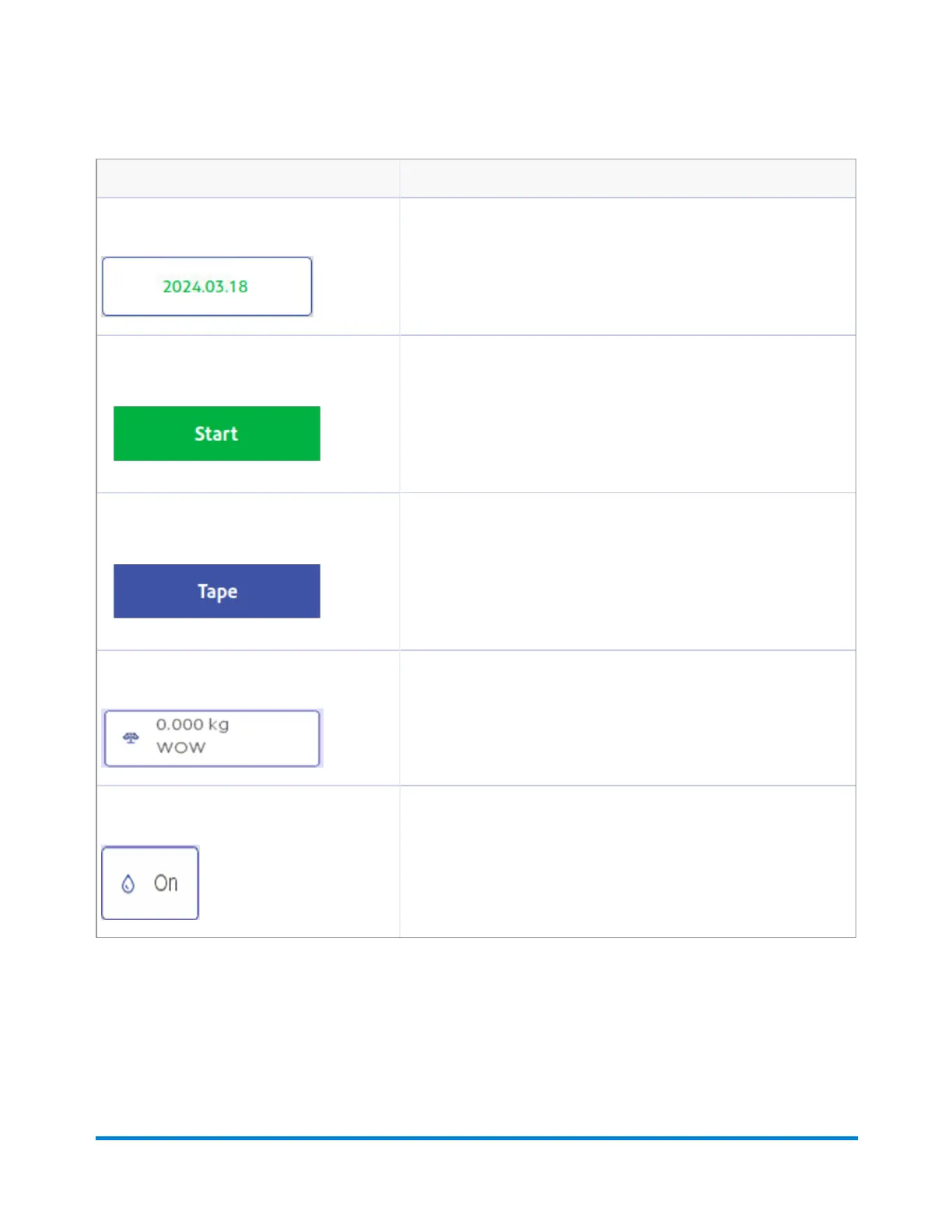
Date image Opens the Print Date dialog box within the Edit Envelope screen so you
can modify the date printed on tape or envelope.
Start button If the job is selected and envelopes loaded, this starts the job running.
Tape button If the job is selected and ready, this results in running the job.
Weighing icon The weighing icon opens the weighing method dialog screen. The shape
of this icon varies depending on the weighing method for the current job.
Sealer icon The sealer icon opens the sealing method dialog screen. The icons
shown here indicates sealing is on.
Run Mail options
Select Options button at the bottom of the Run Mail screen and select the appropriate option.
Mailing and Shipping
Pitney Bowes User Guide April 2024 37












 To Next Page