Point Grey Flea3 GigE Technical Reference 2 Flea3 GigE Installation
2.2 Installing Your Interface Card and Software
1. Install your Interface Card
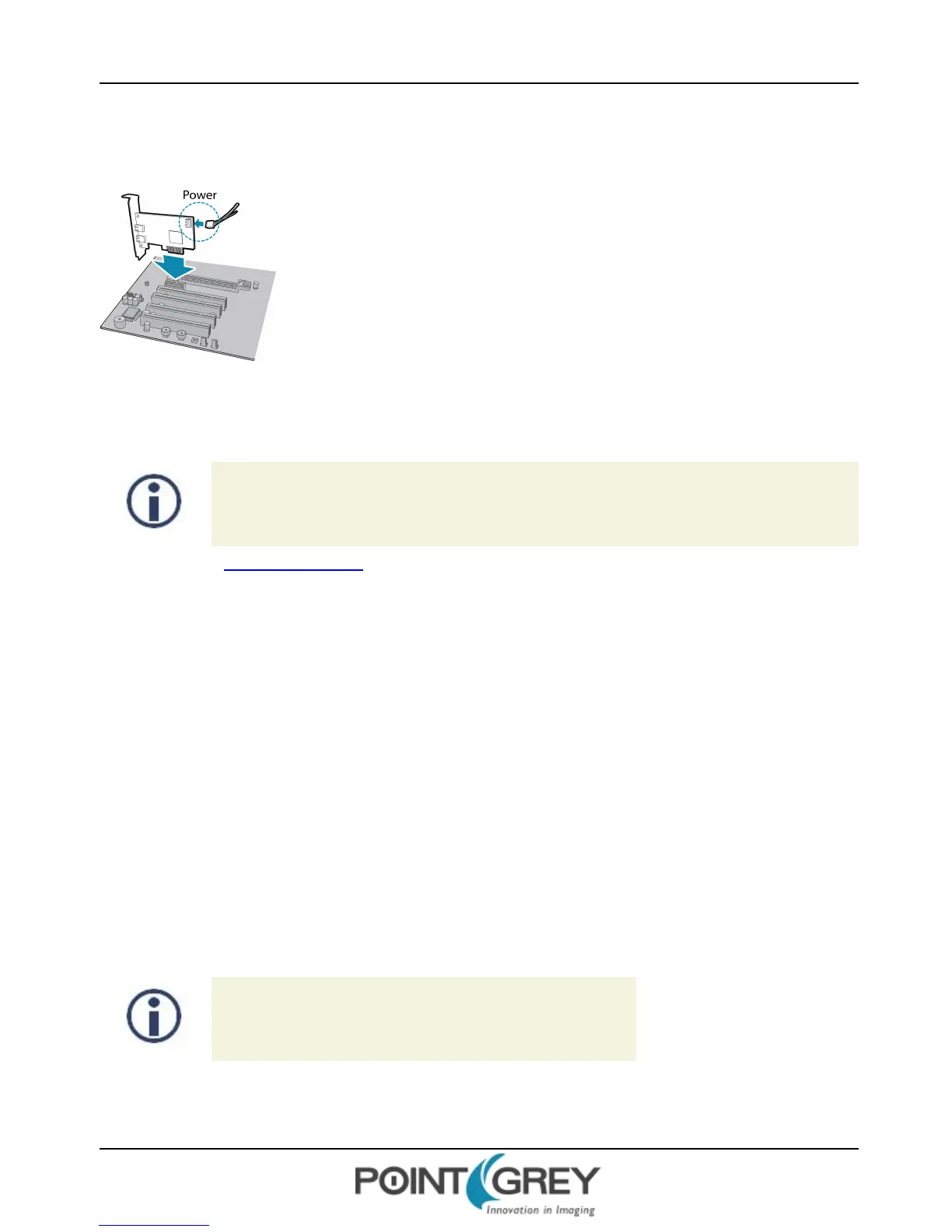
Ensure the card is installed per the manufacturer's instructions.
Connect the internal IDE or SATApower connector on the card to the computer power
supply.
Alternatively, use your PC's built-in host controller, if equipped.
Open the Windows Device Manager. Ensure the card is properly installed under Network Adapters. An exclamation
point (!) next to the card indicates the driver has not yet been installed.
2. Install the FlyCapture® Software
For existing users who already have FlyCapture installed, we recommend ensuring you have the
latest version for optimal performance of your camera. If you do not need to install FlyCapture, use
the DriverControlGUI to install and enable drivers for your card.
a. Login to the Point Grey downloads page.
b. Select your Camera and Operating System from the drop-down lists and click the Search button.
c. Click on the Software search results to expand the list.
d. Click the appropriate link to begin the download and installation.
After the download is complete, the FlyCapture setup wizard begins. If the wizard does not start automatically, double-
click the .exe file to open it. Follow the steps in each setup dialog.
3. Enable the Drivers for the card
During the FlyCapture installation, you are prompted to select your interface driver.
In the Interface Driver Selection dialog, select the I will use GigE cameras.
This selection ensures the Point Grey Image Filter driver is installed and enabled. The Image Filter Driver
operates as a network service between GigE Vision cameras and the Microsoft built-in UDP stack to filter out
GigE Vision stream protocol (GVSP) packets. Use of the filter driver is recommended, as it can reduce CPU load
and improve image streaming performance.
Alternatively, Point Grey GigEVision cameras can communicate directly with the Microsoft UDP stack.
GigEVision cameras on Linux systems use native Ubuntu drivers.
To uninstall or reconfigure the driver at any time after setup is complete, use the DriverControlGUI (see Configuring
Camera Setup).
Revised 10/29/2013
Copyright ©2010-2013 Point Grey Research Inc.
7


 To Next Page