Edition: A03 September 6, 2018
44
If image pixels are greater than 300*10000 (H*W), it will prompt an import failure.
Supports a maximum of 100 images. Supported image formats: bmp/jpg/png/gif single bit
picture.
Export images: Insert a USB and click Export to export all images, the default path is (
Inkjet/Logo/ )
Delete images: Select images and click Delete to delete images.
All selected: Click All to select all.
Cancel selection: Click None to cancel selection.
3.6.2 Upgrade Management
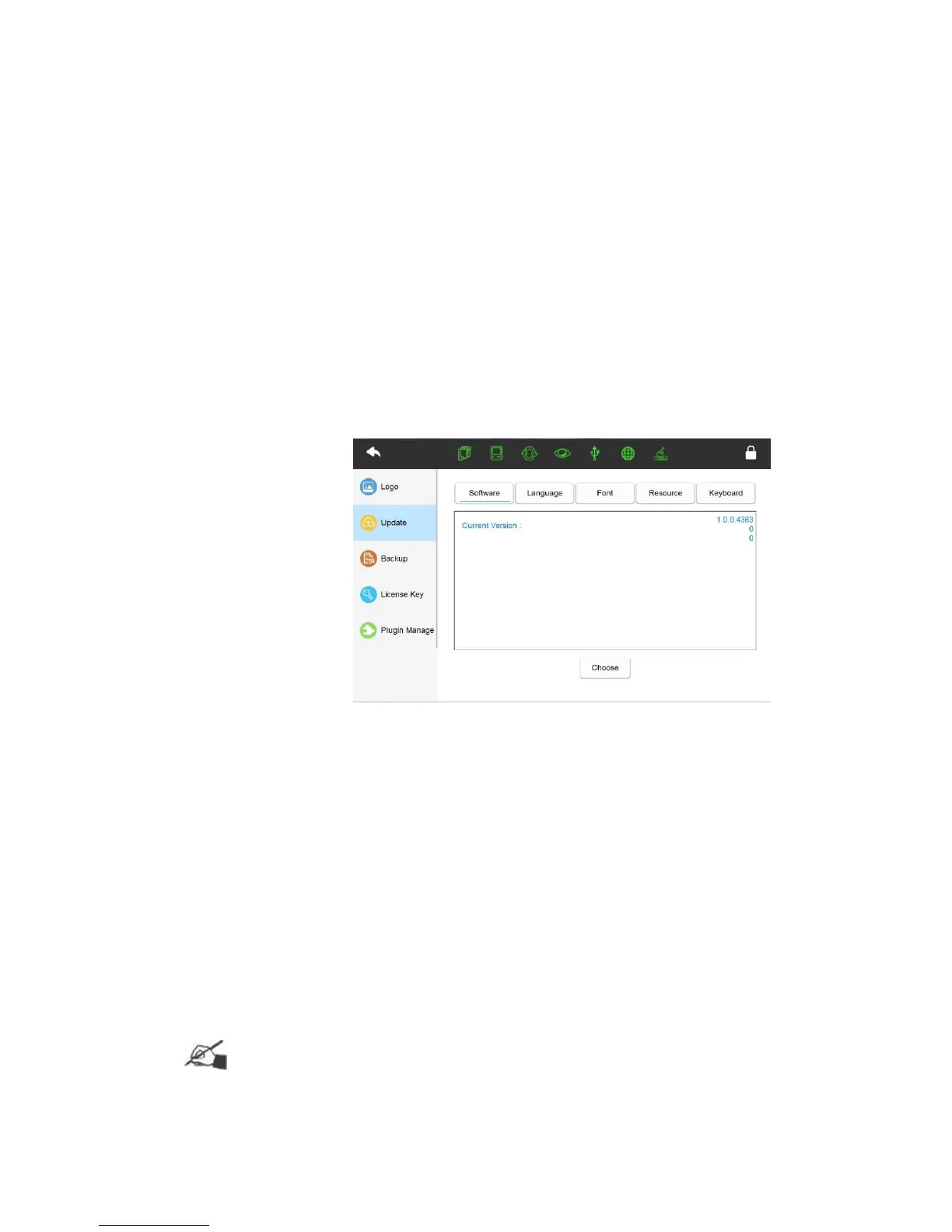
Upgrade software version
First save the installation package to the USB disk path 【
Inkjet/Upgrade/Application/ 】.
Insert the USB disk into the USB port of the device. Once the USB icon displays
green in the status bar, the USB disk has been identified by the device and ready to use.
Click【Tools】>【Upgrade】>【Software】, click the button【Upgrade】 to
enter the list of upgrade package.
Find your required upgrade installation package in the list, click confirm to
upgrade.
After upgrading successfully, the device will restart automatically. You can check
whether the software version upgraded correctly by checking 【Setting】>【About】
Tips:
There are different software upgrades for each printer type, please ensure the
correct upgrade file is used to avoid the wrong software upgrade.


 To Next Page