User’s Manual 21
3.4 Configuring TPC7050 Settings
3.4.1 Calibrating Touch Screen Alignment
Pressing the Power key
The TPC7050 welcome screen appears. The
Windows CE® screen appears shortly after.
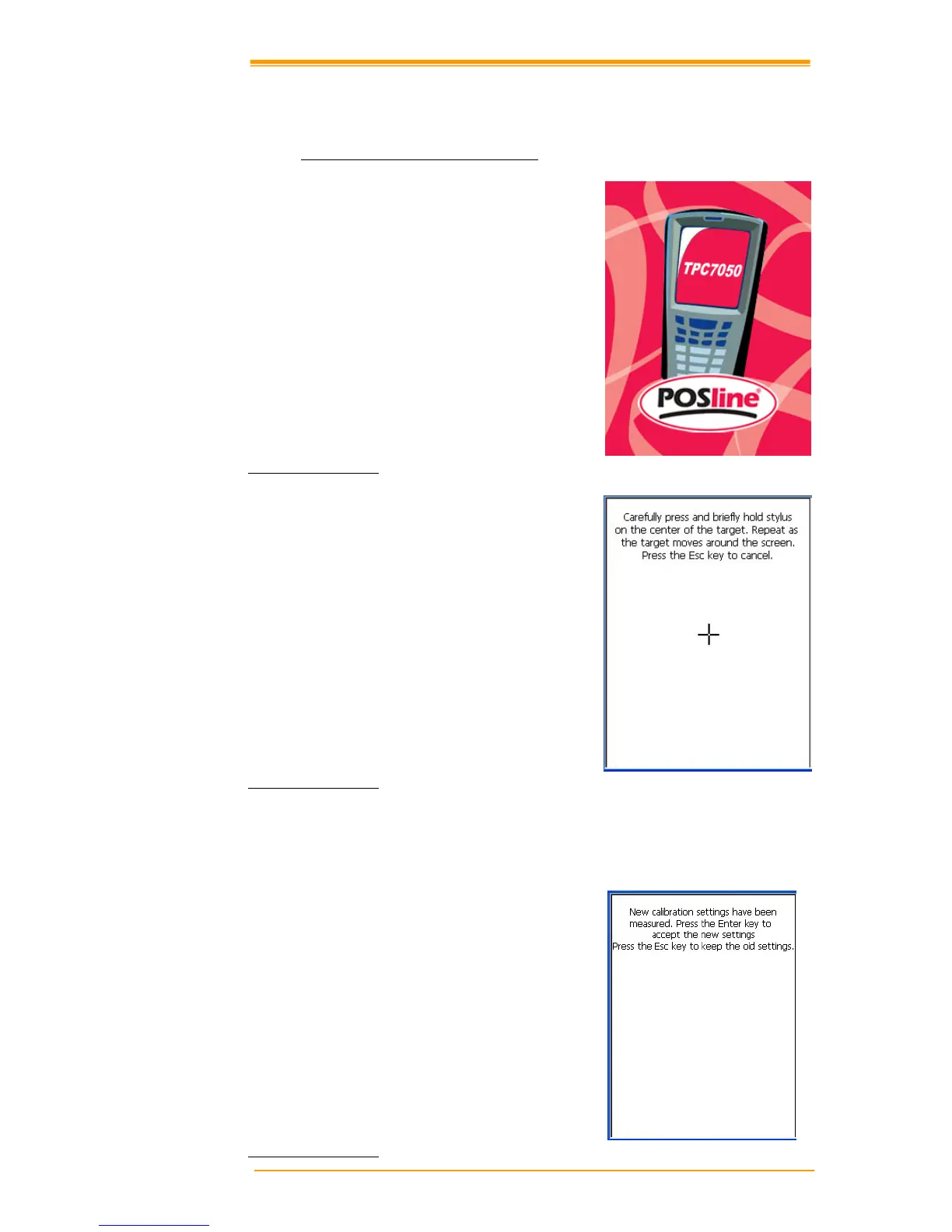
Figure 3-4 Calibration
Calibrating the TPC7050
This screen automatically appears when the
unit is powered on for the first time or after
the system is reset. This screen can be
accessed at any time by pressing the hot key
“FN” and “TAB” key. Or by accessing the
menus and tab in order of Start" # Settings"
# Stylus" # Calibration.
Figure 3-5 Calibration
Whenever the response of the touch screen is poor, or the operations executed do not match
your tapping on the touch screen, please recalibrate the alignment of the touch screen using the
following method.
1. Press the stylus against the center of the
target mark (+ mark) as indicated on the
screen. The screen shown to the right
appears after you press the stylus against
the target at five different locations.
2. Press the Execute key or tap anywhere on
the touch screen
Figure 3-6 Calibration



 To Next Page