User’s Manual 43
7.4 Setting up a Partnership
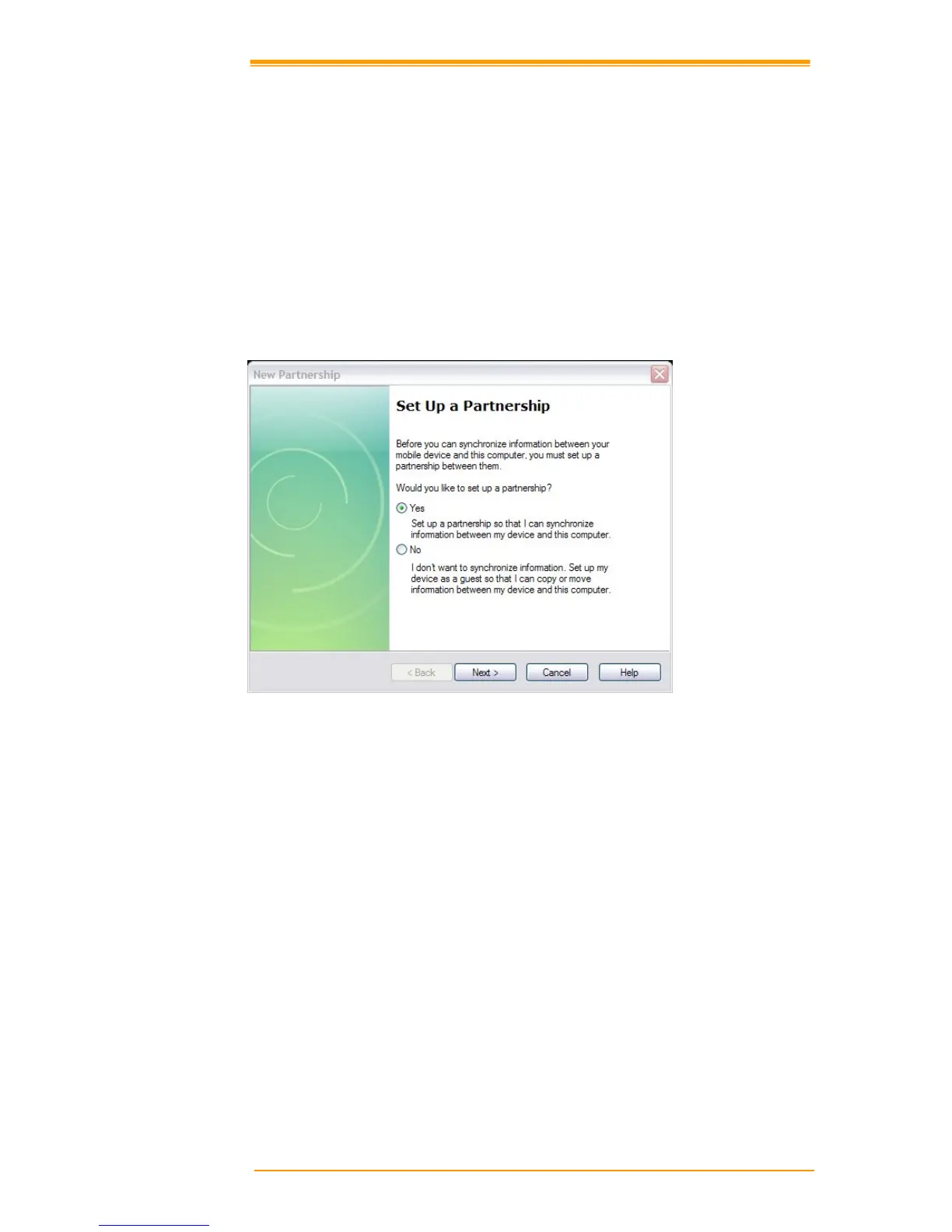
When you first connect the TPC7050to the desktop computer, Microsoft ActiveSync asks if you
are
going to set up a partnership. Once the partnership set-up is finished, you can synchronize
data with th
e TPC7050. While the TPC7050 can set up the partnership with two desktop computers,
email messages can be received only through one computer.
To set-up a partnership:
1. Insert the TPC7050 into the docking cradle connected to the desktop PC. It automatically
starts the New Partnership wizard on the desktop PC screen. When it asks if you would
like to set up the partnership, select Yes and click Next.
2. Key in the name of the device (for instance, Windows CE1, MyPDA, etc.) then click
Next.
3. If the TPC7050 has already set up a partnership with another desktop computer but no longer
uses it, select “Yes, I want to synchronize with only this computer” in the dialog box
named “Select Number of Partnerships.” It removes the other partnership set-up so that
the TPC7050 no longer recognizes the previous desktop computer. Click Next.
4. The window for setting up synchronization appears. To synchronize specific kinds of
data, select the item then click Next. Most popular items include Calendar, Contacts,
Tasks, and Inbox. We recommend you select and use these items. In the item list, two
types of email items are available: Inbox and Inbox. While the inbox is an email program
provided by Microsoft Corporation, Inbox is offered by a software provider. In the TPC7050,
Inbox offers special functions such a connecting to “Today” set-up function button, etc.
5. Complete the set-up process by clicking End.
When the partnership set-up between desktop PC and
TPC7050 is completed, ActiveSync
automatically synchronizes the selected data.



 To Next Page