User’s Manual 54
8.3.5 Display
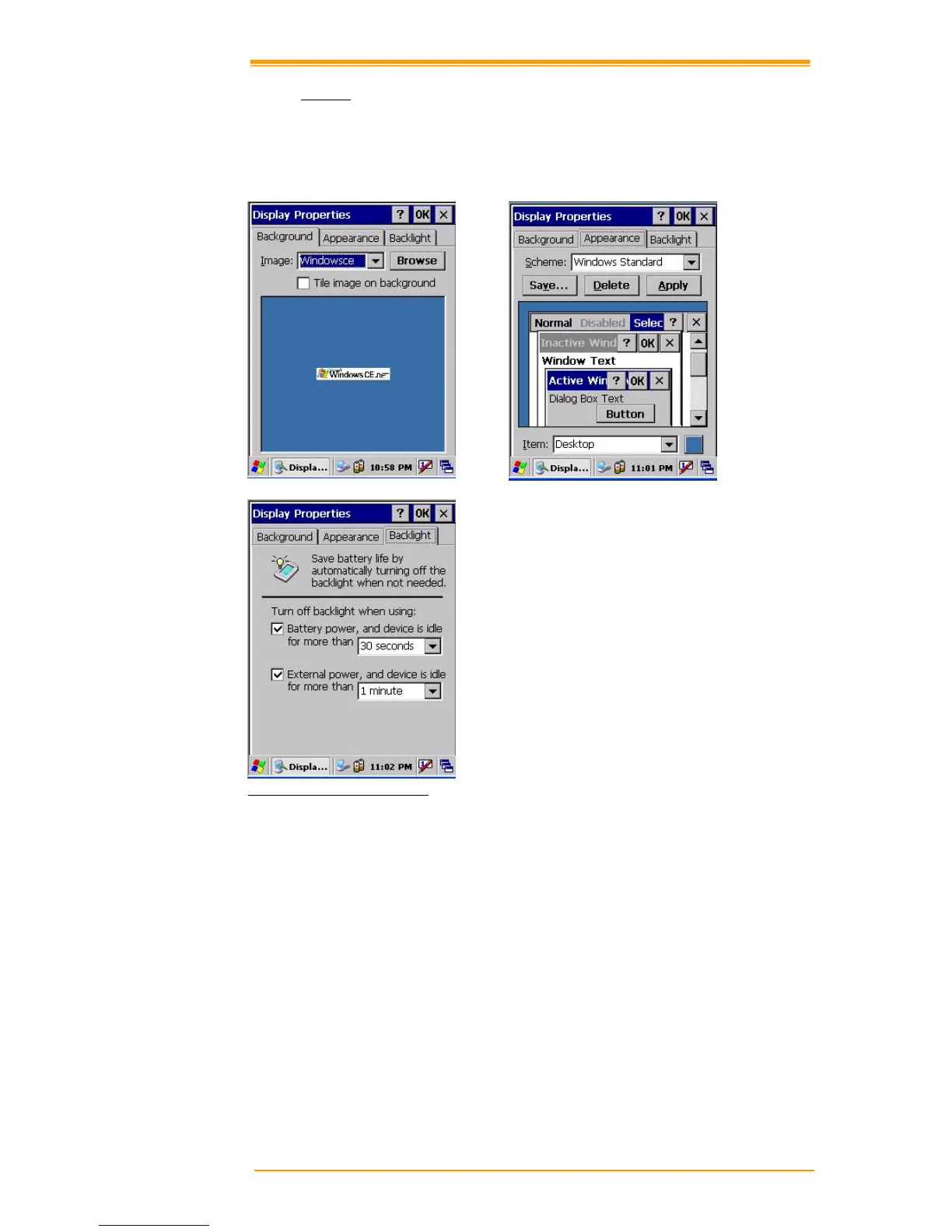
This screen lets you set the wallpaper image of the TPC7050, change the color of the background
screen, or change the backlight setting. Call up the right button menu and select “properties”
and you can check the Display Properties window.
Figure 8-10 Display Properties
Desktop
Change the desktop image of the background screen as follows:
1. Select the desktop with a tap.
2. Select an image to use for your background from the image list. The image list shows you
image files in a Windows folder. If you want to use images from other folders, click
Search.
3. To arrange the desktop image in a checked format, choose a checkered pattern.
Setting
You can adjust the contrast and brightness of the LCD screen.


 To Next Page
 Loading...