User’s Manual 65
8.3.22 Stylus
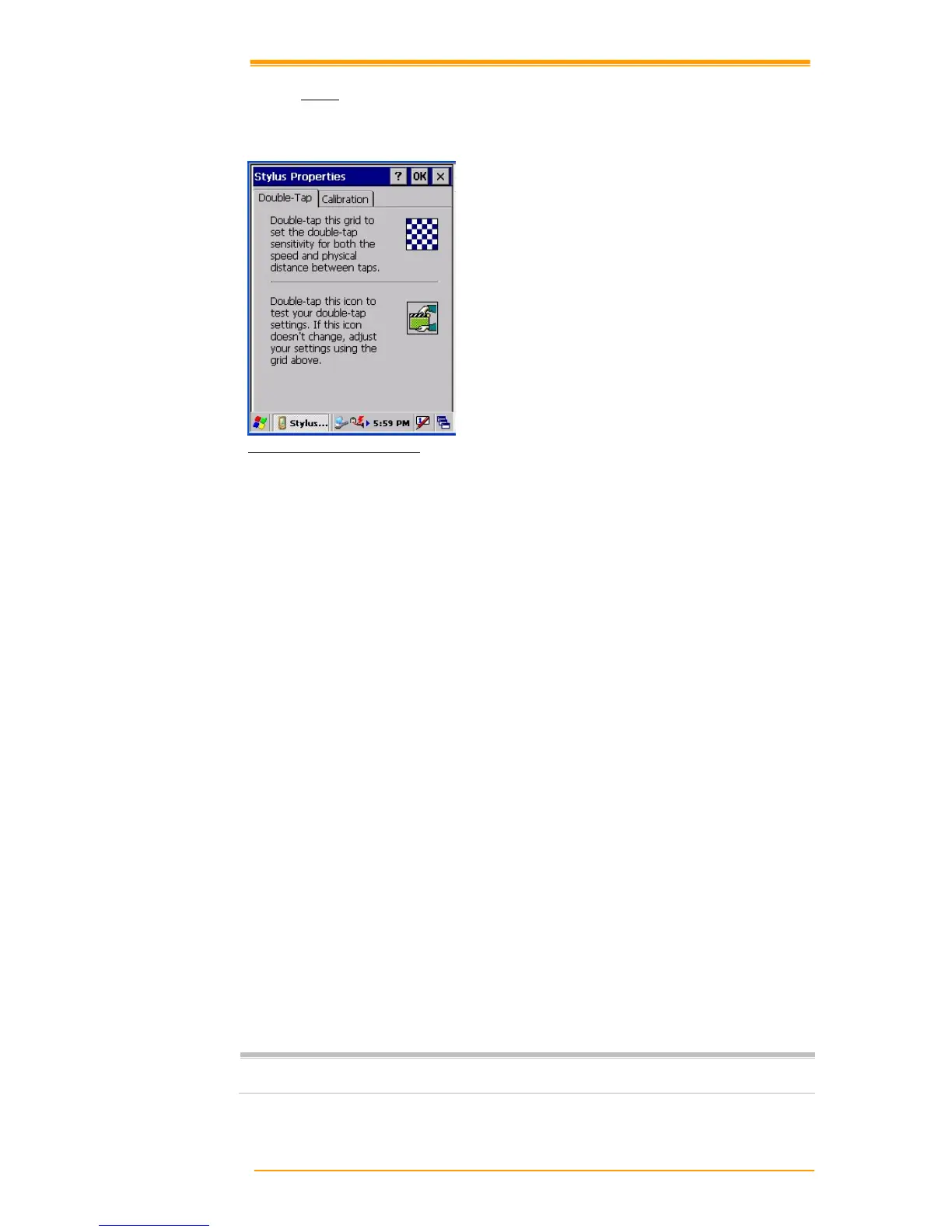
This screen sets double-tap sensitivity and calibration.
Figure 8-23 Stylus Properties
Double Tap
To set double-tap sensitivity:
1. Select Go to Start"# Setting"# Control Panel.
2. Activate the stylus and select Double Touch-Tap. Tap the grid and the color of the grid
changes.
3. It automatically records the speed of the Double-Tap.
To test the sensitivity of double touch:
1. Select Go to Start"# Setting"# Control Panel.
2. Activate the stylus and select Double Touch-Tap.
3. Touch the icon twice. The icon changes.
4. If the icon does not change, adjust the setting using the grid above.
Calibration
If th
e TPC7050 screen does not respond properly, adjust the screen with the calibration function.
To start calibration:
1. Select Go to Start"# Setting"# Control Panel.
2. Activate the stylus and select calibration tap.
3. Press calibration again and the adjustment process begins.
Caution:
Sometimes touching the screen with the stylus triggers the right mouse function.
You can solve this problem by adjusting the double touch sensitivity.



 To Next Page