21
Export A Work Order:
How To Allow Users To Add Work Orders:
Once the work order has been completed, the information can be exported via Email or USB.
1. Select the work order you wish to export from the Work Order Menu and press Export in the top-right.
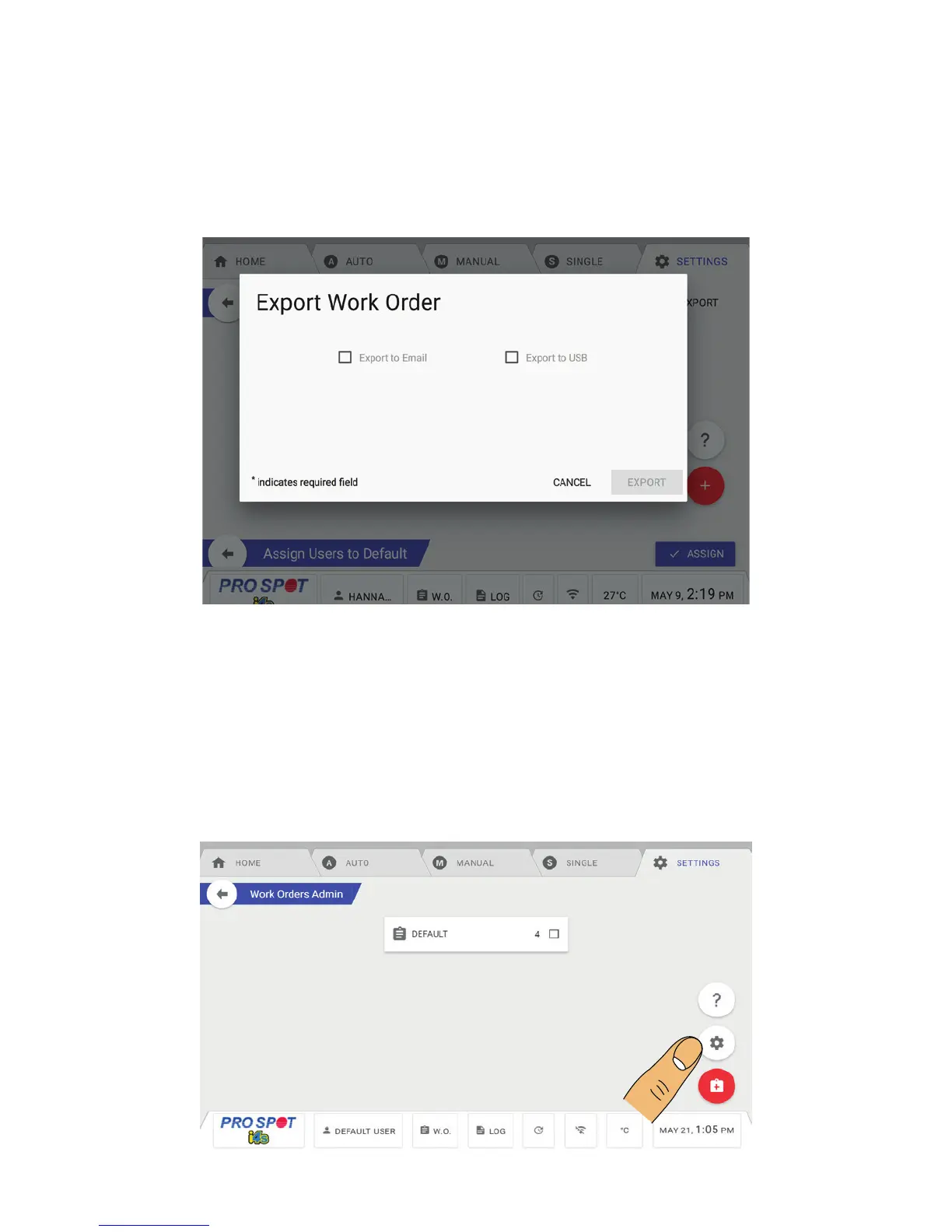
2. Once you press the export button you will be taken to the Export Work Order prompt (Figure 4.28).
3. You have two choices on how to export the work order: Export to Email and Export to USB.
4. Select your option and export.
5. If using the Export to Email option, the Select Email button takes you to a list of previously entered emails,
or you can manually enter any email address then Export.
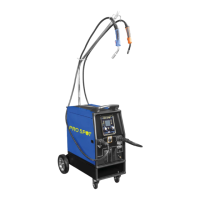
1. Navigate to the Work Orders Admin Menu (Figure 4.29).
2. Select the Settings Button located above the Add Work Order Button.
3. This will bring up the Work Order Settings (Figure 4.30).
4. To select the option to allow users to add work orders, toggle the button to the right (it will turn green) and
press the Save Button (Figure 4.32). To turn off the option, toggle the button to the left.
5. Now when users access the Work Orders Menu they will also have the option to add work orders. You can
see if this feature is activated by the red Create Work Order Button located on the bottom-right. (Figure 4.32).
Figure 4.28
Figure 4.29



 To Next Page