20
Make A Work Order Active:
Make A Work Order Active: Once work orders are assigned to a particular user login, the user would login
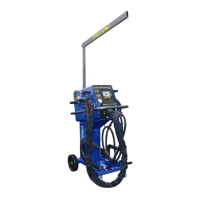
with their username and then press the W.O. button in the lower status bar. Ther user will be presented with
a list of work orders including the default work order. The green star next to the default work order indicates
that the default work order is active (Figure 4.27). When a work order is active, it means that, every weld
performed is logged into that active work order. If the user needs to make a different work order active, they
simply press the work order they wish to make active and press the Make Active button.
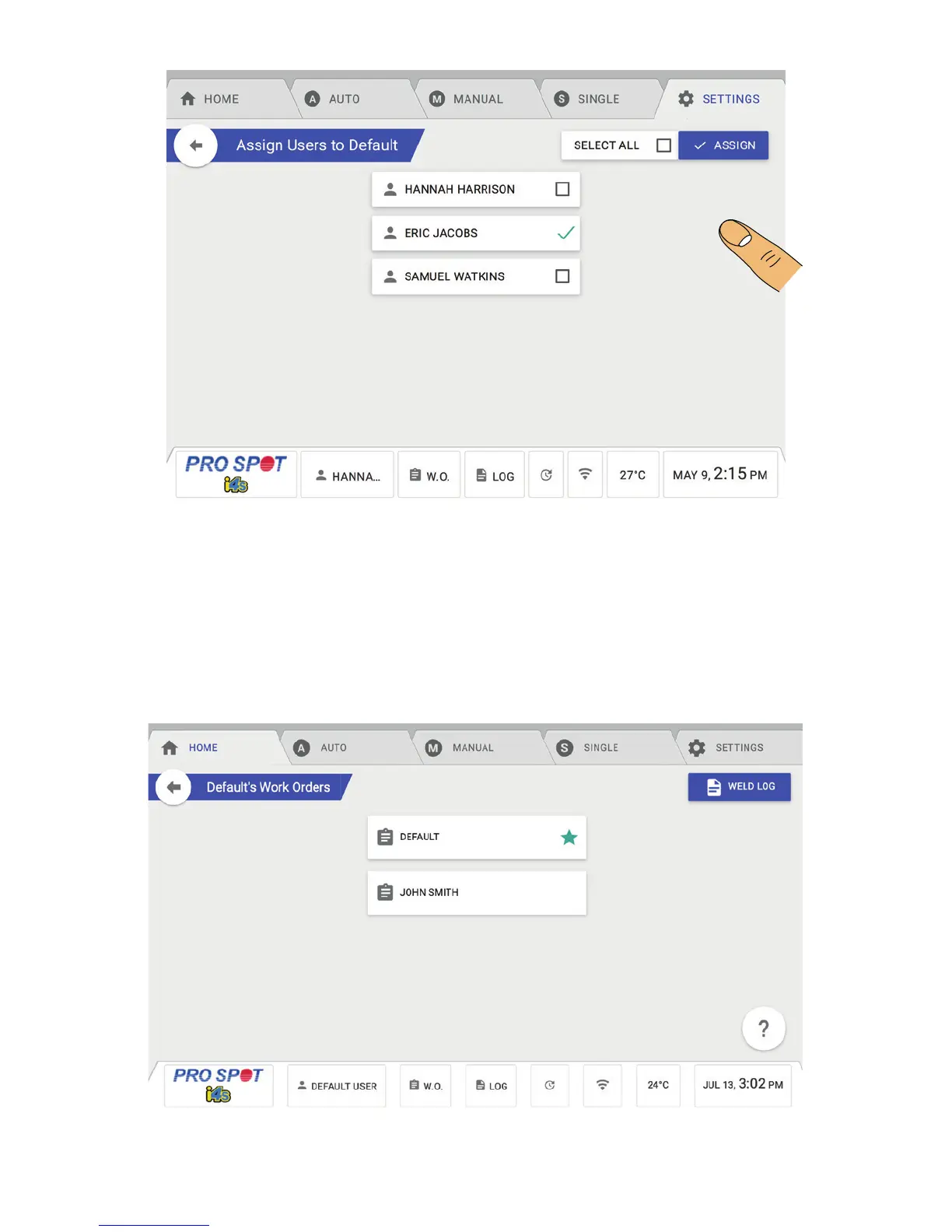
Figure 4.26
Figure 4.27


 To Next Page