Proroute GEM420 4G M2M Router
GEM420 User Manual 153
1. Status: Enable it, and you can send command “status” to query WAN connection
status. For 3G/LTE WAN, router will send back WAN IP address, network name,
network type, and connection time via SMS. For Ethernet WAN, router will send
back WAN IP address and connection time via SMS. The content would be similar
to following format:
WAN IP: [xxx.xx.xxx.xx]
Network: [carrier name] (for wireless WAN only)
Type: [GPRS, WCDMA, HSPA, HSPA+, LTE] (for wireless WAN only)
Conn. Time: [connection time]
2. Connect: Enable it, and you can send command “connect” to start WAN
connection.
3. Disconnect: Enable it, and you can send command “disconnect” to disconnect
WAN connection.
Note. If this gateway receives “disconnect” command from SMS, it won’t try to
connect again no matter WAN connection mode is set to auto-reconnect.
4. Reconnect: Enable it, and you can send command “reconnect” to disconnect
WAN connection, and start WAN connection again immediately.
5. Reboot: Enable it, and you can send command “reboot” to restart router.
**All management commands are not case sensitive**
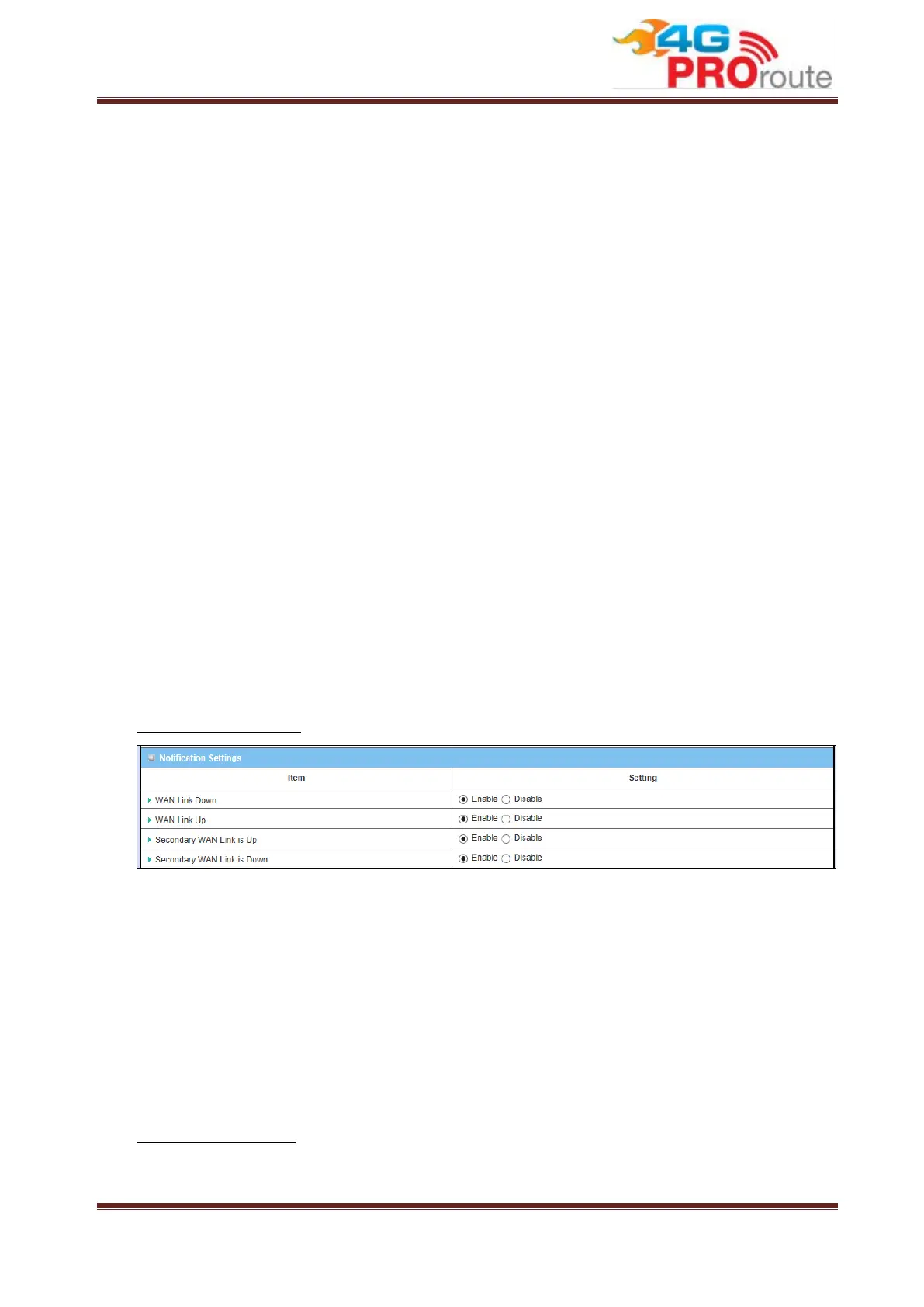
Notification Settings
1. WAN Link Down: Enable it, and this gateway will send a message to users if
primary WAN connection is dropped.
2. WAN Link Up: Enable it, and this gateway will send a message to users if WAN
connection is established. This message will also include WAN IP address.
3. Secondary WAN is Up: Enable it, and this gateway will send a message to users
if secondary WAN is connected. This message will also include WAN IP address.
4. Secondary WAN is Down: Enable it, and this gateway will send a message to
users if secondary WAN is disconnected.
Access Control List


 To Next Page