Proroute GEM420 4G M2M Router
GEM420 User Manual 116
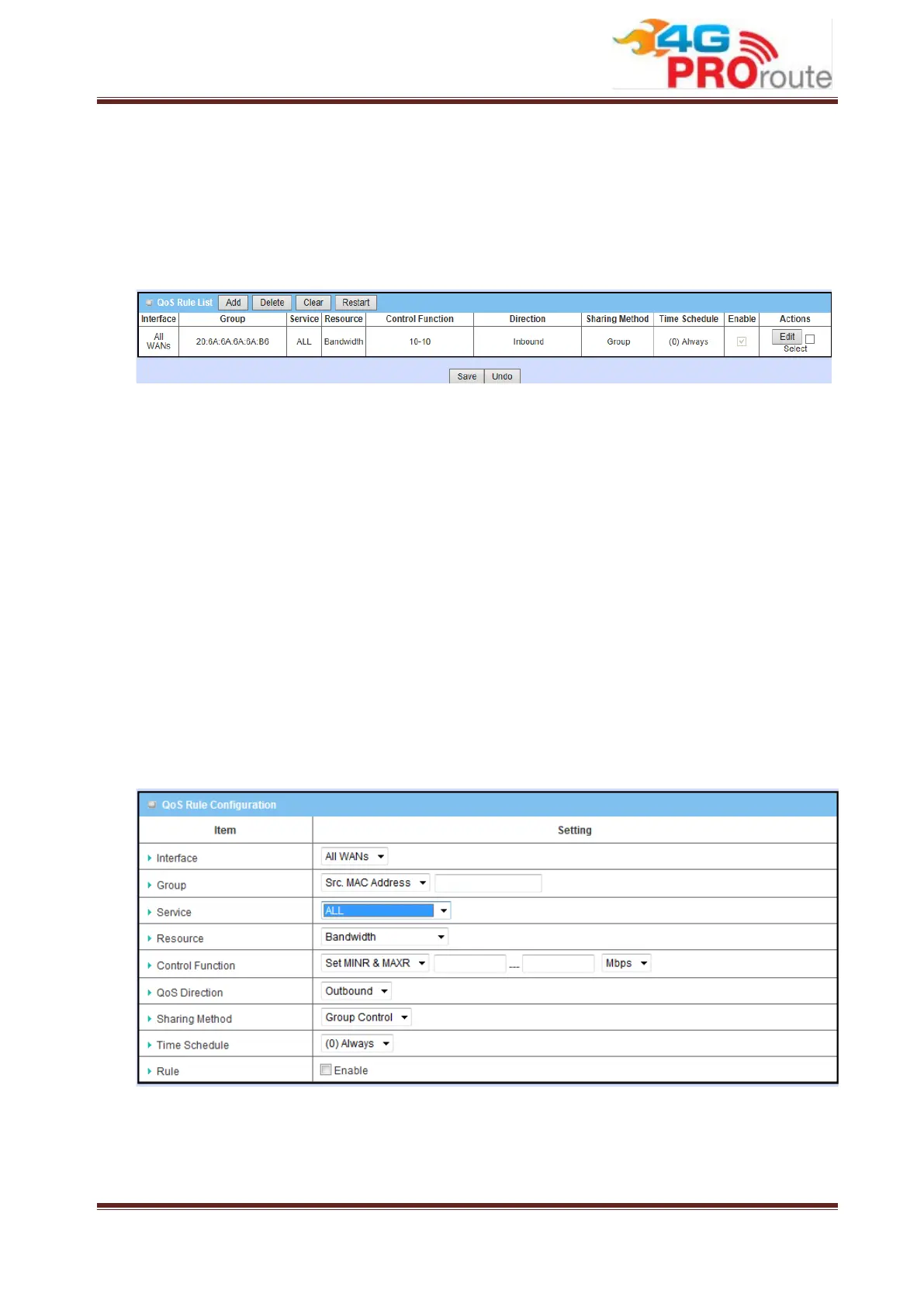
corresponding “Edit” command buttons at the end of each rule in the QoS Rule List.
Besides, unnecessary rules can be removed by checking the “Select” box for those
rules and then clicking on the “Delete” command button at the QoS Rule List caption.
One “Clear” command button can let you clear all rules and “Restart” command
button can let you restart the operation of all QoS rules.
1. Add: After you enabled the rule-based QoS function, you can click on the “Add”
button to create a new QoS rule.
2. Delete: After you selected some QoS rules by checking the “Select” box for each
rule, you can click on the “Delete” button to remove those rules from the list.
3. Clear: Delete all existed QoS rules.
4. Restart: Press “Restart” button to re-initiate all QoS rules again.
5. Edit: Configure the specific QoS rule again.
3.2.2.2.3 QoS Rule Configuration
It supports the adding of one new rule or the editing of one existed rule. There are
some parameters need to be specified in one QoS rule. They are Interface, Group,
Service, Resource, Control Function, QoS Direction, Sharing Method, Time Schedule
and finally, the rule enable.
1. Interface: Select the WAN interface for the QoS rule.
2. Group: Specify the target client members for the rule by their VLAN ID, MAC
Address, IP Address, Host Name or Group Object. “IP Address” group can be


 To Next Page