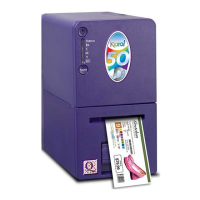
Kiaro! 50 User Guide i
Contents
Chapter: 1 Quick Start . . . . . . . . . . . . . . . . . . . . . . . . . . . . . . . . 1
Before Installing the Printer . . . . . . . . . . . . . . . . . . . . . . . . . . . . . . . 1
Choosing an Installation Location . . . . . . . . . . . . . . . . . . . . . . . . 1
System Requirements . . . . . . . . . . . . . . . . . . . . . . . . . . . . . . 2
Unpacking the Printer . . . . . . . . . . . . . . . . . . . . . . . . . . . . . . . . . . 2
Installing the Printer . . . . . . . . . . . . . . . . . . . . . . . . . . . . . . . . . . . 3
Loading Ink Tanks . . . . . . . . . . . . . . . . . . . . . . . . . . . . . . . . 4
Connecting the Power Cord . . . . . . . . . . . . . . . . . . . . . . . . . . . . . . . 8
Turning on the Printer and Initial Ink Filling . . . . . . . . . . . . . . . . . . . . . . . 9
Installing Media for the First Time . . . . . . . . . . . . . . . . . . . . . . . . . . . . 9
Installing the Printer Driver (USB) . . . . . . . . . . . . . . . . . . . . . . . . . . . . 18
Resolving Windows 7 and Windows 8 USB Installation Issues . . . . . . . . . 19
Installing the Printer Driver (Network) . . . . . . . . . . . . . . . . . . . . . . . . . . 21
Chapter: 2 Introduction . . . . . . . . . . . . . . . . . . . . . . . . . . . . . . .23
Printer Part Names and Functions . . . . . . . . . . . . . . . . . . . . . . . . . . . . 23
External View . . . . . . . . . . . . . . . . . . . . . . . . . . . . . . . . . . 23
Internal View . . . . . . . . . . . . . . . . . . . . . . . . . . . . . . . . . . 24
Transport Unit . . . . . . . . . . . . . . . . . . . . . . . . . . . . . . . . . . 24
Operation Panel . . . . . . . . . . . . . . . . . . . . . . . . . . . . . . . . . 25
Switching the Printer On and Off . . . . . . . . . . . . . . . . . . . . . . . . . . . . . 27
Switching the Printer On . . . . . . . . . . . . . . . . . . . . . . . . . . . . 27
Switching the Printer Off . . . . . . . . . . . . . . . . . . . . . . . . . . . . 27
QuickLabel Services . . . . . . . . . . . . . . . . . . . . . . . . . . . . . . . . . . . 28
Kiaro! 50 Label Materials . . . . . . . . . . . . . . . . . . . . . . . . . . . . 28
QuickLabel BPO Blanket Purchase Order Program . . . . . . . . . . . . . . 28
Media Specialists . . . . . . . . . . . . . . . . . . . . . . . . . . . . . . . . 28
QuickLabel Kiaro! 50 Support . . . . . . . . . . . . . . . . . . . . . . . . . . 29
Chapter: 3 Designing and Printing Labels . . . . . . . . . . . . . . . . . . . . .31
Designing Labels . . . . . . . . . . . . . . . . . . . . . . . . . . . . . . . . . . . . . 31
Choosing Design Software . . . . . . . . . . . . . . . . . . . . . . . . . . . 31
Disabling Anti-Aliasing . . . . . . . . . . . . . . . . . . . . . . . . . . . . . 31
Planning Full-Bleed and Non-Bleed Labels . . . . . . . . . . . . . . . . . . . 31
Printing Black . . . . . . . . . . . . . . . . . . . . . . . . . . . . . . . . . . 32
Setting up the Label Design Software . . . . . . . . . . . . . . . . . . . . . . . . . . 32
Setting up Labels in Custom QuickLabel Omni . . . . . . . . . . . . . . . . . 32
Setting up Labels in Third-Party Design Applications . . . . . . . . . . . . . . 32
Setting up the Printer Driver . . . . . . . . . . . . . . . . . . . . . . . . . . . . . . . 33
Selecting a Label Stock . . . . . . . . . . . . . . . . . . . . . . . . . . . . . 33
Setting up a Custom Label Stock . . . . . . . . . . . . . . . . . . . . . . . . 34
Setting up Appearance Options . . . . . . . . . . . . . . . . . . . . . . . . . 37
Setting Advanced Color Options . . . . . . . . . . . . . . . . . . . . . . . . 39
Setting up Layout Options . . . . . . . . . . . . . . . . . . . . . . . . . . . . 41
Printing Labels . . . . . . . . . . . . . . . . . . . . . . . . . . . . . . . . . . . . . .43
Using the Status Monitor . . . . . . . . . . . . . . . . . . . . . . . . . . . . . . . . . 44
Viewing the Printer Status . . . . . . . . . . . . . . . . . . . . . . . . . . . . 44


 To Next Page