Kiaro! 50 Maintenance Utility
Kiaro! 50 User Guide 59
Setting the Clock
1 Launch the Kiaro! 50 Maintenance Utility.
From the Windows Start Menu, choose Start > All Programs > QuickLabel
Kiaro! 50 > Kiaro! 50 Maintenance Utility. A language and printer prompt will
open.
Select a display language and the Kiaro! 50 printer you want to connect to. Choose
OK.
2 Choose the Printer Information tab.
3 To set the date/time controls to the current date/time as defined by your Windows
clock, choose Get Current Time.
4 To read the time from the printer's internal clock and set the date/time controls
accordingly, choose Read From Printer.
5 To set the printer’s internal clock, select a date/time with the controls and choose
Save to Printer.
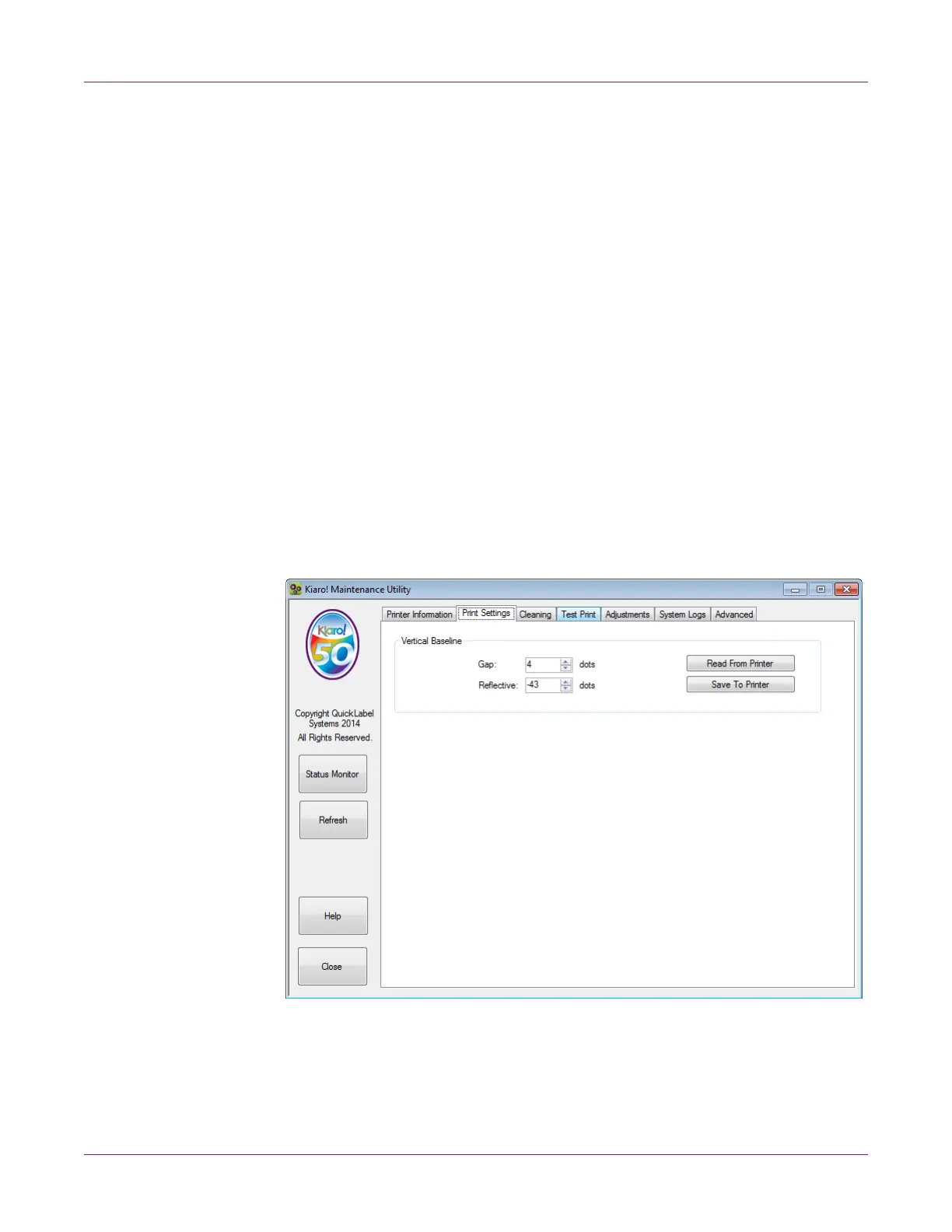
Print Settings Tab
Use the Print Settings tab to adjust the vertical baseline.


 To Next Page