3 - WEIGHING
15
3.4 Selecting Stores Index
Until a data card containing the reference files is inserted into the Data Module, the instrument will alternately
display a black screen and the message "Data Card Module Needed".
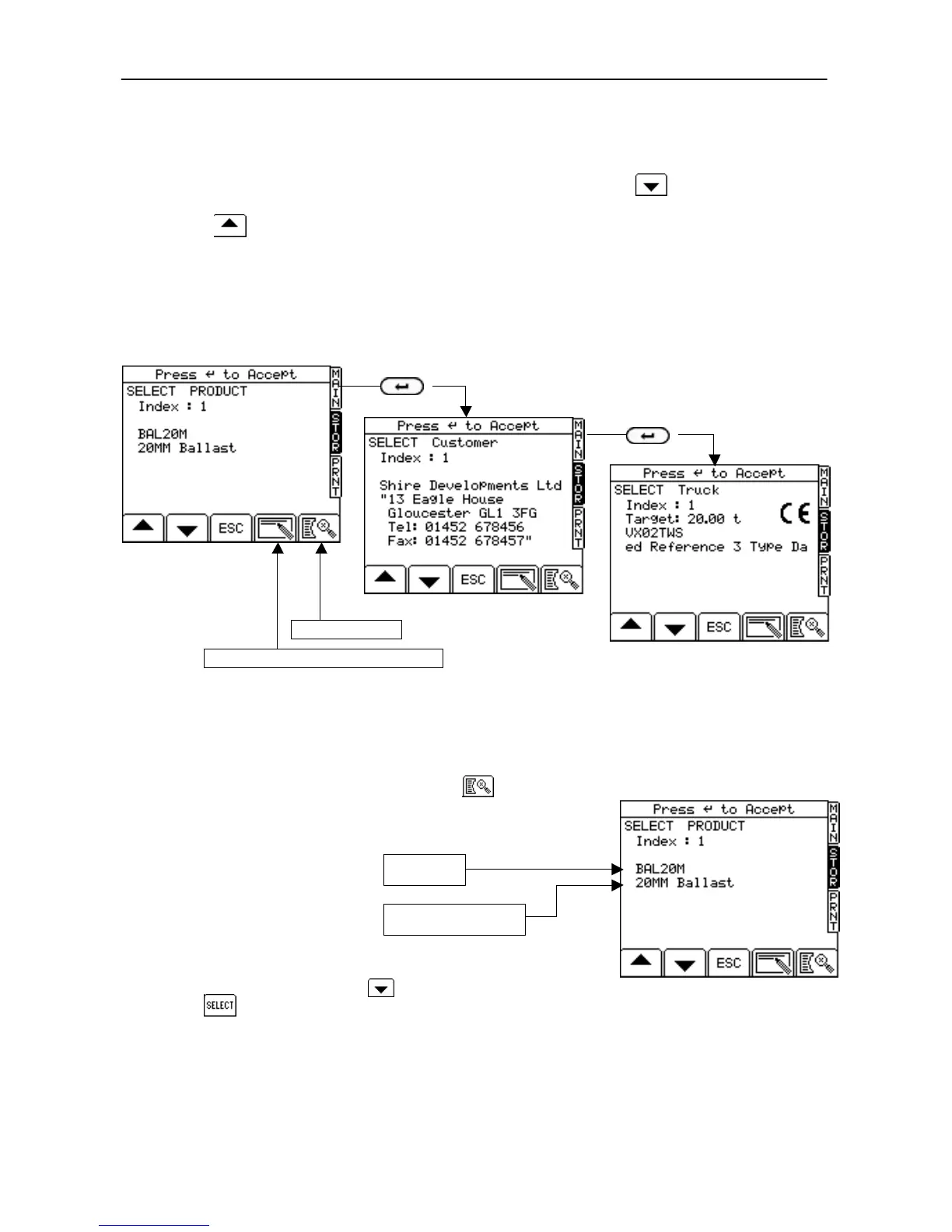
1. Select the STOR screen, then select the index required for store 1, using the key or the search function
(fig. 21a).
NOTE: Press to go step back 1 index, or press the’0’ key to return to Index '0'.
2. Press the ENTER key to confirm the store 1 entry and select store 2 (fig. 21b).
3. Repeat step 2 for further stores as applicable.
NOTE: Only the stores enabled from the 'Stores Setup' screen (section 4.1.6) will appear above.
On confirming the last store, the instrument then reverts to the MAIN screen. Only the first 3 stores can be
displayed.
On completing the load, when the CLR button is pressed the load data is automatically saved to the data card.
3.4.1 Store Index Search Function
Instead of entering the Index No. , from any of the 'SELECT <Store
Reference>'' screens (figs. 21a - 21c), press the key.
Enter one or more characters from the Index name or Extended
reference and press the enter key to begin the search.
Indexes containing those characters are then listed. Select the
appropriate one using the key, and then and press
the key.
If no information matches the search criteria, the screen remains blank.
Figure 21a: (Store Ref 1)
UK506-31.PCX
Figure 21b: (Store Ref 2)
UK506-32.PCX
Figure 21c: (Store Ref 3)
UK506-28B.PCX
Add new index entry (ref. section 4.3)
Search facility


 To Next Page