4 - STORE FUNCTIONS
27
4.6.3 View / Print Multiple Load Records
The instrument has the facility to search the database and print all load records matching a given Date /Time
and Store references specification.
NOTE: If there are more than 200 index entries for each store reference, the search procedure becomes slower.
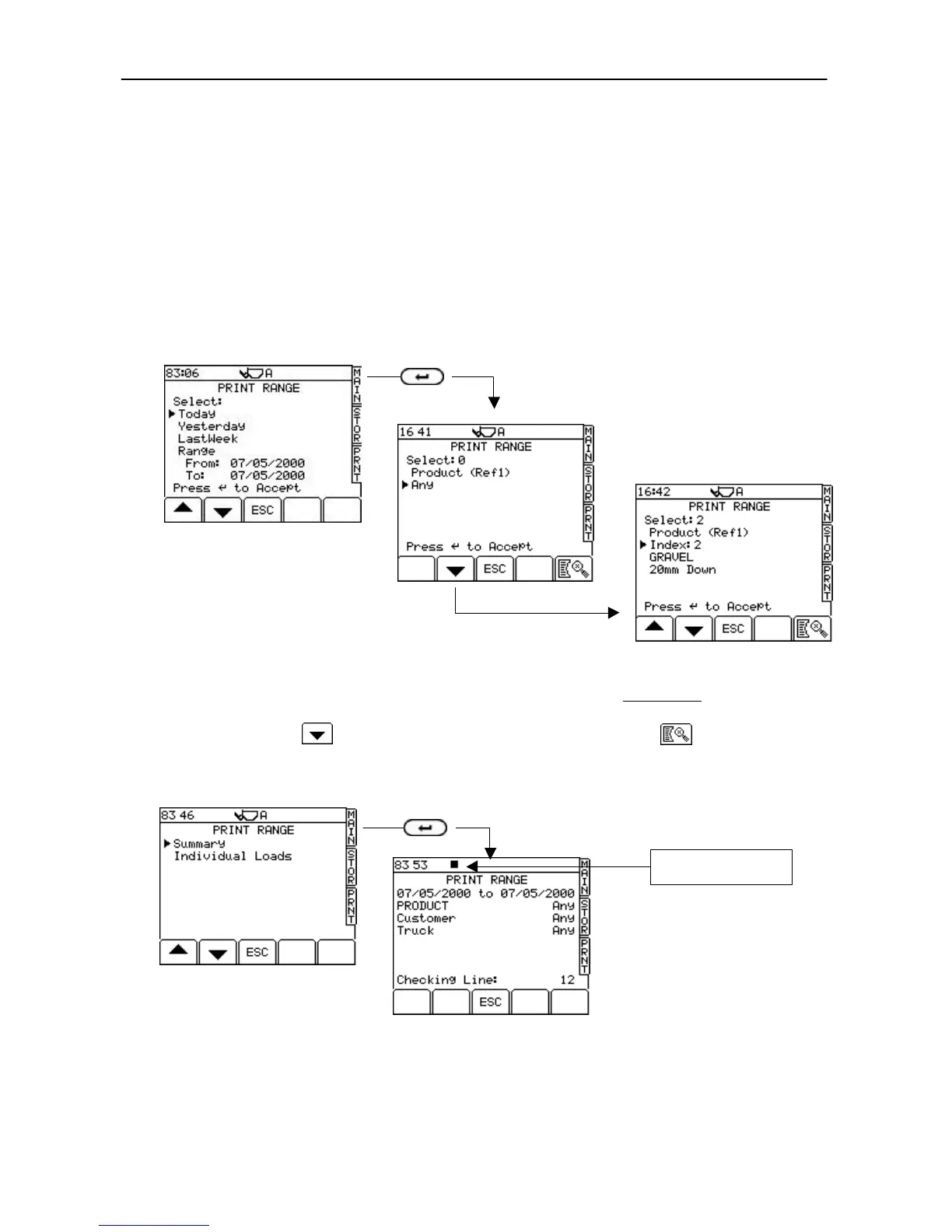
1. Press the "PRNT RANGE" key for the "PRINT RANGE" screen (fig. 36). There are 4 Date/Time search options,
"Today" Records from 00:00 hrs to the present time
"Yesterday" Records from yesterday 00:00 hrs to 24:00 hrs
"Last Week" Previous 7 days up to present time
"Select Range" Records between the specified dates (press ENTER and then key in the required dates).
2. Select the required Date/Time search option and press ENTER.
You now have two options to specify the store indexes(s) for store 1 (store 1 is "PRODUCT" in this example).
The default setting is "Any" (the instrument will search for records for all products within the Date/Time
specified - fig. 37), in which case simply press ENTER to confirm. Go to step 4.
3. Otherwise press the key to select a specific store index (fig. 38), or use the key to select a specific
store alphanumerically. Press ENTER to confirm the selection.
4. Select the store index(s) for the remaining stores 2 to 6 as applicable
5. Select the type of printout (individual REC ticket(s) or a single "Summary" printout - fig. 41).
The instrument then displays the search specification (fig. 40), searches all records (this may take some time if
there is a large number of load records saved on the card) and generates the printout.
Figure 36
UK506-36.PCX
Figure 37
UK589-


 To Next Page