repligen.com XC-LAB-UG-V4
7.11.5 Permeate (P3) pressure alarm configuration
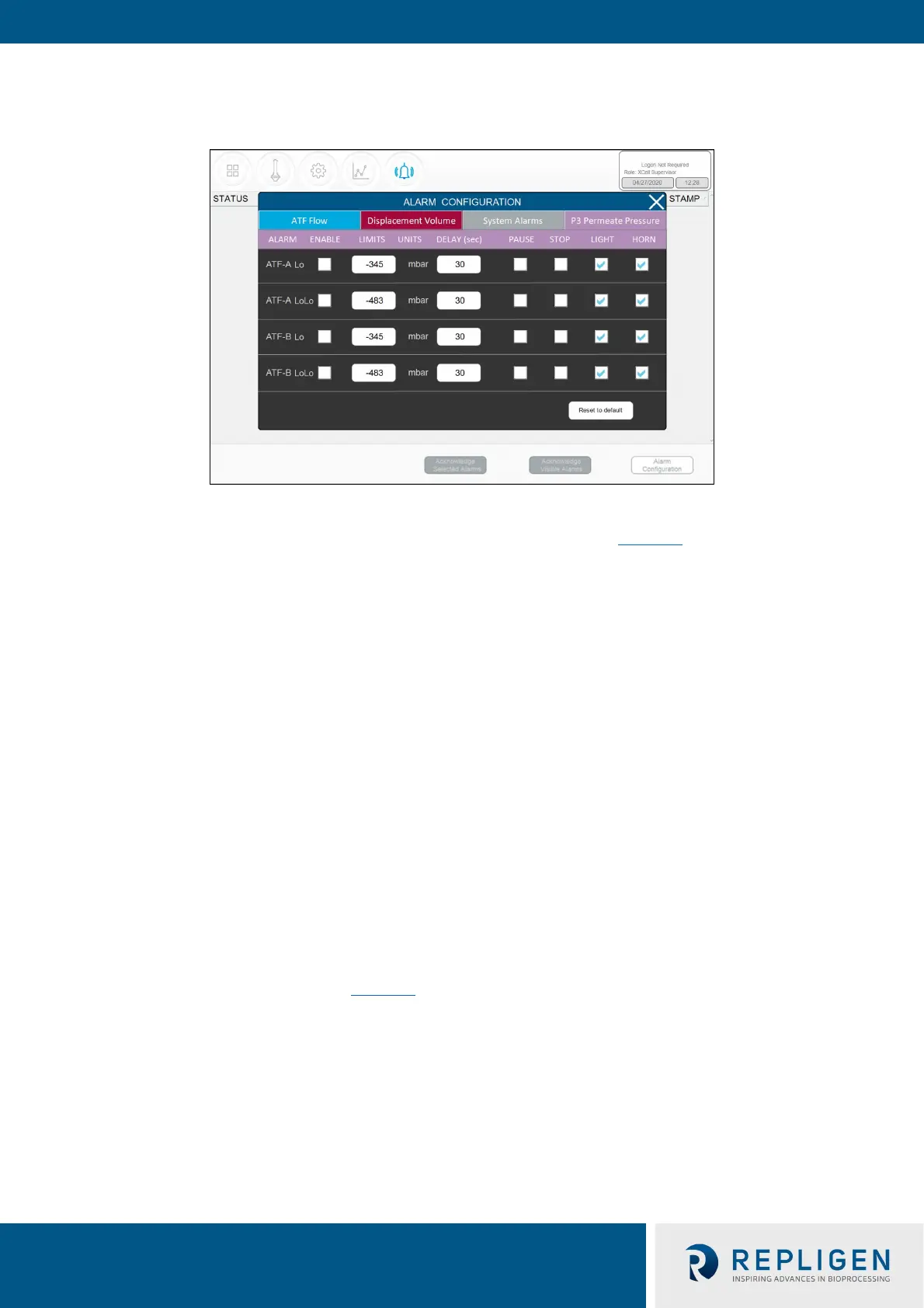
Figure 36. P3 permeate pressure alarm example
The layout of the P3 alarm configuration screen is very similar to other alarm screens. However,
there are some notable differences. The permeate pressure (P3) alarms (Figure 36
) are unique to
each XCell ATF® Device and sizes. P3 alarms for ATF-A and ATF-B may also be set independently of
one another. Note that because permeate pressure will decrease with membrane fouling, Hi or HiHi
do not apply; only Lo and LoLo options exist within the P3 pressure alarm tab. In addition, permeate
pressure is compared to the limit shown on this screen (not to a set point). Due to the variety of
processes in which the XCell ATF® Systems are employed in the industry today, operating values for
permeate pressure (P3) span a wide range. P3 pressure value is process dependent and there is no
established limit. Please ensure P3 alarms are set up correctly for each run if P3 sensor is used. Our
recommendation is to set the Lo at a point where, for one specific process, it would trigger a Light
and or a Horn warning at the first indication of filter fouling. Indications of fouling can be
documented during development runs by sampling between the retentate and the permeate
streams. The P3 alarm indicates the point where swapping should be considered. The LoLo alarm
may then be set to a point at which filter replacement is deemed urgent and critical.
7.12 Historian, Trend and Query applications
The tablet includes three Wonderware tools for additional functionality. These applications help you
get up and running quickly with a point-and-click interface to access, analyze, and graph data (both
current and historical). These tools can be accessed by all XCell™ Lab Software users and do not
require any programming or database knowledge. A touchpad is provided for ease of use.
To access these applications, start with the Windows button or swipe right on the tablet to open the
Start menu with tiles on the right (Figure 37
). You can select Trend or Query or select InTouch
Window Viewer to return to the XCell™ Lab software. Swiping right again closes the start menu and
displays all open applications.



 To Next Page