repligen.com XC-LAB-UG-V4
14.2.1 Changing usernames and passwords
To limit user access and enhance security in the XCell™ Lab software, XCell™ users can be set up in
the Windows environment and be assigned to the Roles (user groups) listed in Table 18
above.
Please see below for instructions on how to create a user account (also applies to deleting and
managing accounts). You may prefer to use the supplied touchpad for these set of actions.
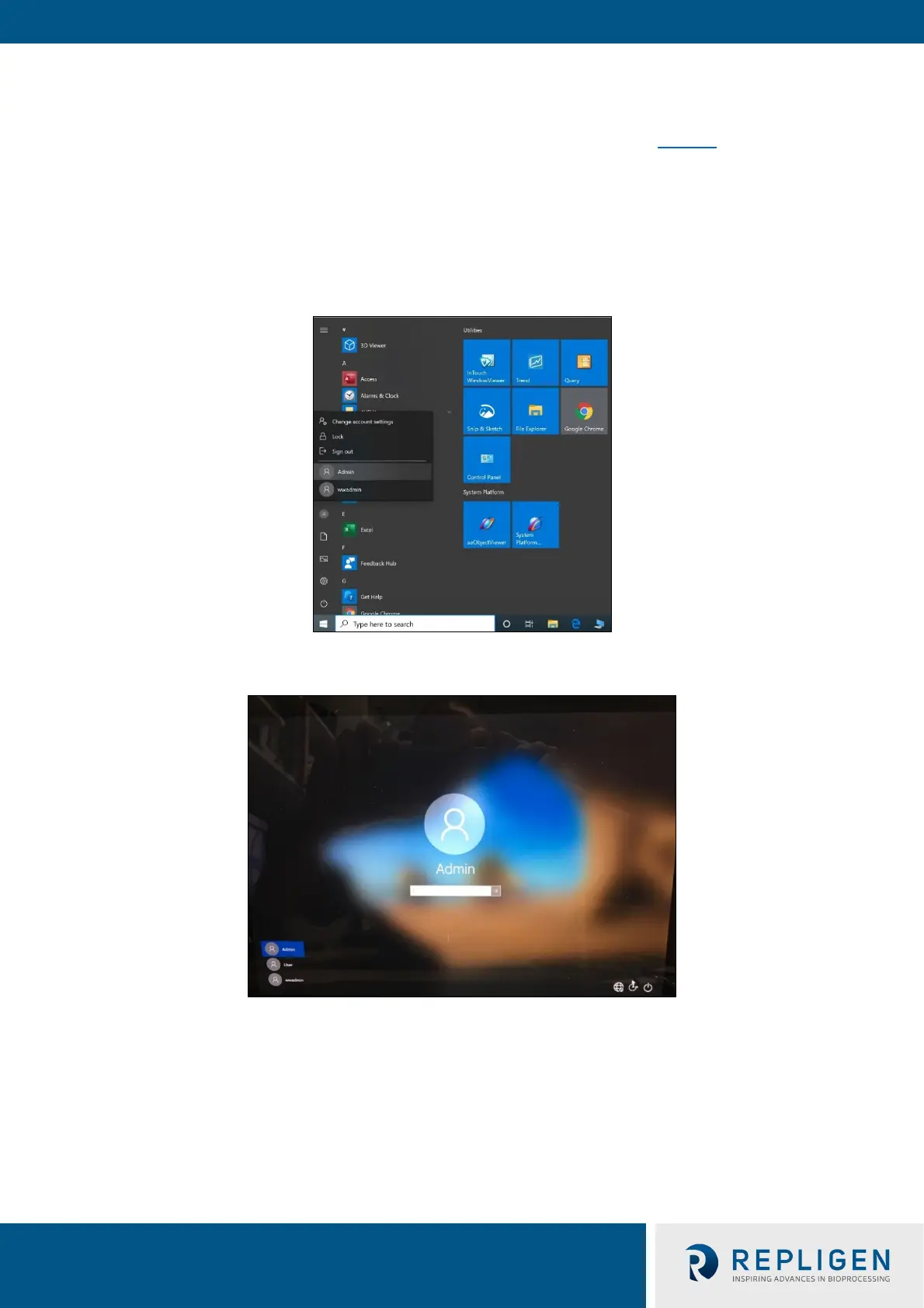
1. Press Start and prepare to log in as the Windows Administrator. If the start button (the
windows icon) is not visible, you should press the Windows/Start button on the tablet, or
swipe right.
2. Click the circular user icon and Select the Admin user (see image above).
3. Enter Password Admin123.
4. The Windows Admin is logged in.
5. Next press the Windows Start button and type PC (see below).



 To Next Page