212
9
Downloading Images to Your Computer
4
Select [DC Software], and then click the [Change/
Remove] button.
5
Confirm file deletion and click [OK].
• The [Shared File Detected] dialog box appears.
6
Select the [Don’t display this message again.] check
box, and then click [Yes].
• The uninstallation process begins. When it is finished, close the
displayed window.
1
Click [Start] on the Windows task bar.
2
Select [Settings]-[Control Panel] ([Control Panel] for
Windows XP/Windows Vista).
3
Double-click the [Add/Remove Programs] icon (or the
[Add or Remove Programs] icon in Windows XP).
4
Select [Irodio Photo & Video Studio] and then click
[Change/Remove].
5
Confirm file deletion and click [OK].
• The uninstallation process begins. When it is finished, close the
displayed window.
6
Restart your computer.
After installing the software on your computer, connect your camera
to the computer.
1
Make sure the camera power is off.
2
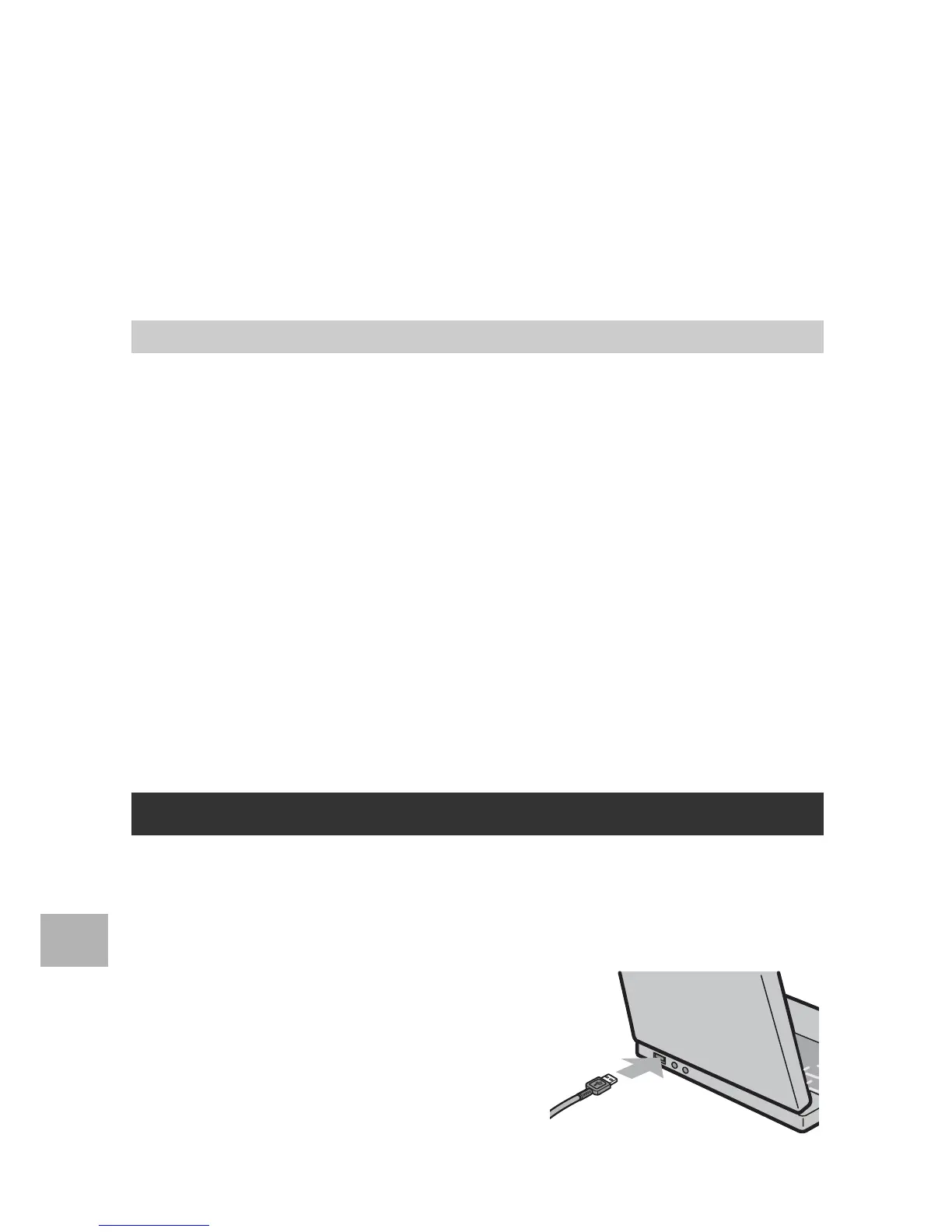
Connect the USB cable to the
USB port of your computer.
Irodio Photo & Video Studio
Downloading Images Using DL-10



 To Next Page