EXAMPLE
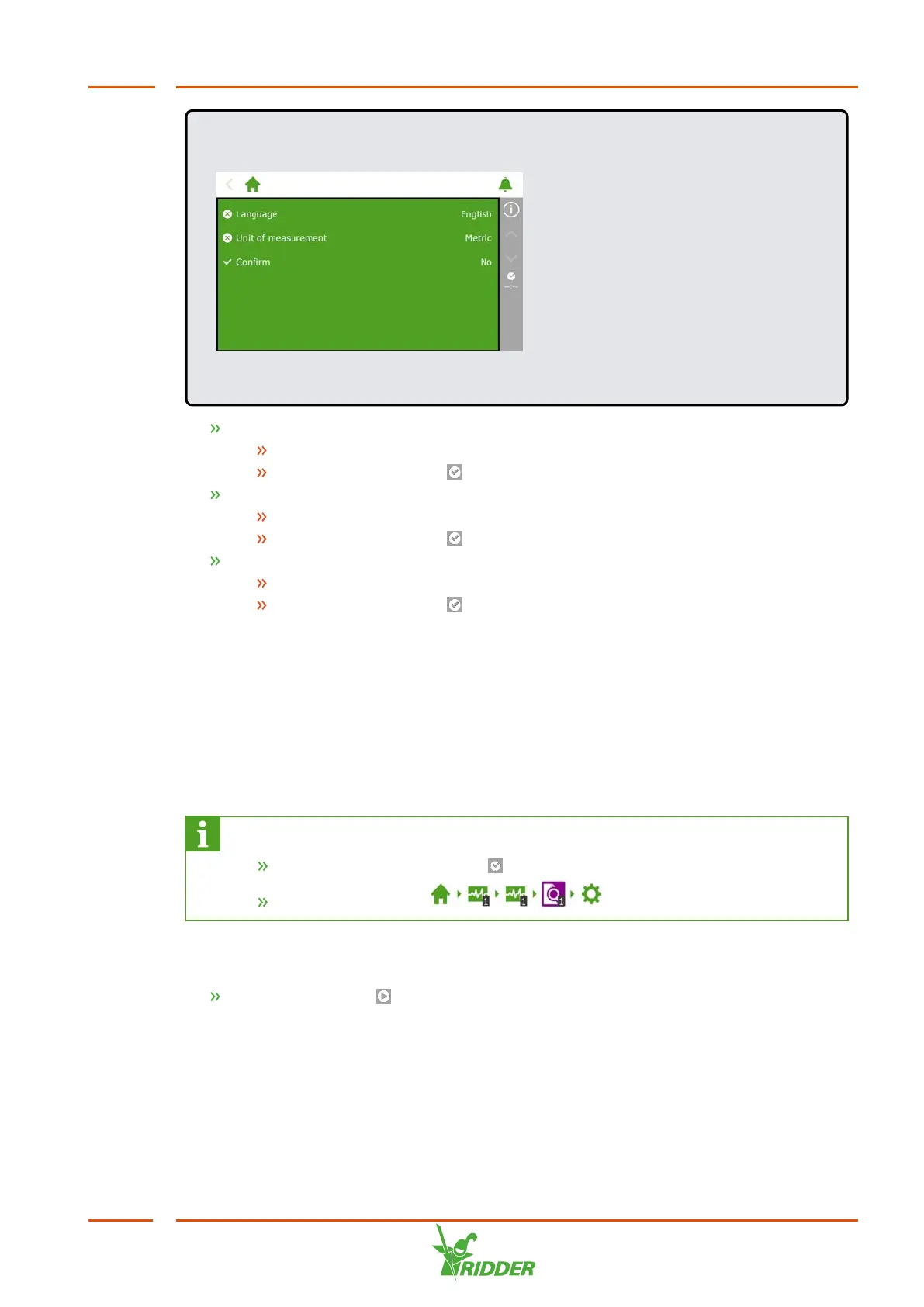
Figure 5-1: Start-up menu
Tap the Language setting. A pop-up menu appears.
Select the desired language.
Tap the Confirm icon ‘ '.
Tap the Unit of measurement setting. A pop-up menu appears.
Select the desired unit of measurement.
Tap the Confirm icon ‘ '.
Tap the Confirm setting. A pop-up menu appears.
Select Yes.
Tap the Confirm icon ‘ '.
You have completed the necessary steps in the start-up menu. The scanning screen
opens automatically.
5.2.2 Scanning
The control switches of the HortiMaX-Go! are called Smart Switches. To operate
correctly, the system needs to know which Smart Switches are present. For this
reason, you need to scan the system. You can do this using the scanning screen. This
screen opens automatically when you use your system for the first time.
To open the scanning screen manually, proceed as follows:
Tap the System Time icon ‘ ’ to open the configuration screen.
Navigate the path: .
Initially, the scanning screen is empty. This means that no Smart Switches have yet
been detected.
Tap the Scan icon ‘ '.
The system now starts scanning for Smart Switches. Once scanning is complete, all
Smart Switches detected in the system will appear.
FertiMiX
37


 To Next Page