57
Creating a Patch
8.
Repeat steps 5-7 to set each parameter you want to edit.
9.
If you wish to save the changes you’ve made, press
[WRITE] to perform the Save operation (p. 59). If you do not
wish to save changes, press [EXIT] to return to the Patch
Play screen.
If you return to the Patch Play screen without saving, an “*”
will be displayed at the left of the patch number, indicating that
the patch settings have been edited.
If you turn off the power or select a different sound while the
display indicates “*,” your edited patch will be lost.
In stead of using [F1] or [F2] in the patch edit screen, you can
also select the edit group by holding down [SHIFT] and
pressing or . It is convenient to use this feature when
the Tone SW/Select window is displayed.
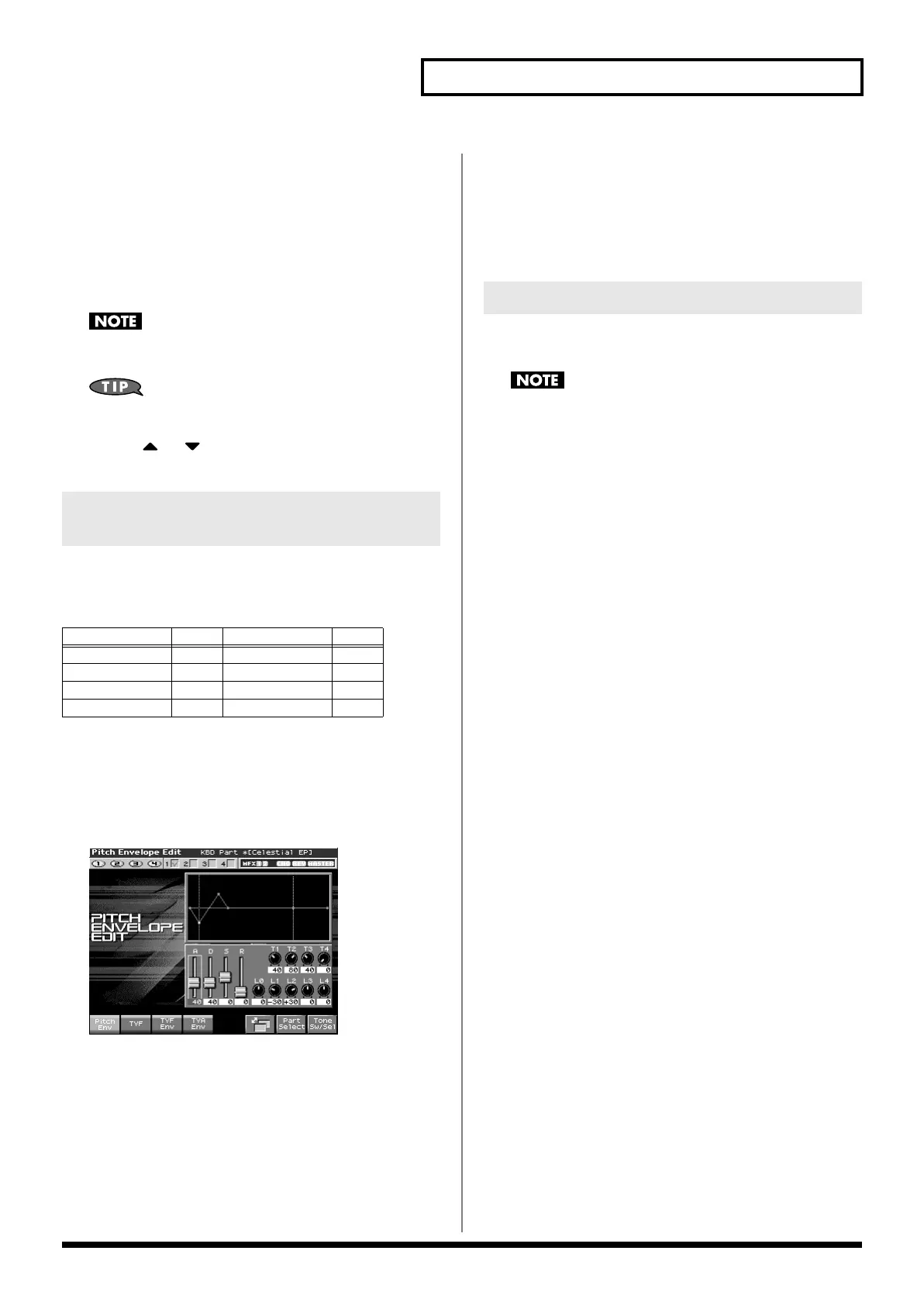
You can edit while viewing a graphic display of the most frequently
used important parameters.Zoom Edit lets you edit the following
parameters.
1.
Press [PATCH/RHYTHM] to access the Patch Play screen,
and select the part (keyboard part or pad part) and patch
that you want to edit.
2.
Press [PATCH EDIT], and then press [F3 (Zoom Edit)].
The Zoom Edit screen will appear.
fig.06-002_50
3.
The parameters are organized into several edit groups.
Press [F1]–[F4] to select the tab for the parameters that you
want to edit.
•
To switch the parameter you want to edit
Press [F6].
•
To switch to a different part for editing
Press [F7 (Part Select)].
•
To select a tone for editing or switch a tone on/off
Press [F8 (Tone Sw/Sel)].
4.
Use [CURSOR] to move the cursor to the parameter that
you want to edit.
You can use the realtime control knob to set the value.
5.
Turn the VALUE dial or use [INC][DEC] to modify the value.
6.
When you have finished editing, press [EXIT].
“Initialize” means to return the settings of the currently selected
sound to a standard set of values.
The Initialize operation will affect only the currently selected
sound; the sounds that are stored in user memory will not be
affected. If you wish to restore all of the Fantom-X’s settings to
their factory values, perform a Factory Reset (p. 235).
1.
Press [PATCH/RHYTHM] to access the Patch Play screen,
and select the part (keyboard part or pad part) and patch
that you want to initialize (p. 39).
2.
Hold down [SHIFT] and press [F1 (Init)].
A message will ask you for confirmation.
3.
Press [F8 (Exec)].
The initialization will be carried out, and you’ll be returned to
the previous screen.
To cancel, press [F7 (Cancel)].
Editing in a Graphic Display
(Zoom Edit)
Parameter
page Parameter page
Pitch Envelope
p. 68 Structure Type p. 63
TVF p. 69 LFO 1/2 p. 74
TVF Envelope p. 71 Step LFO p. 74
TVA Envelope p. 72
Initializing Patch Settings (Init)
Fantom-X678_r_e.book 57 ページ 2005年5月12日 木曜日 午後4時40分


 To Next Page