Poultry House Control
86
Control Mode, Standard Mode
1. House Mode: select whether the present
operating mode is Full House or a partial
house brood situation
2. Temperature Curve
: select whether to
follow the temperature curve specified in
Temperature and Humidity settings above.
You can turn the curve off to maintain the
current Set temperature, or to gain access to
the Set temperature in Temp & Timer
Settings above.
3. Minimum Ventilation Curve
: select
whether to interpolate minimum ventilation
timer settings between those given for
specified growth dates in the Minimum Vent
Timer menu above.
4. Natural Ventilation: select whether to
allow or disallow natural ventilation
temporarily, such as you might do during
inclement weather with young birds.
5. Tunnel
: select whether to allow or disallow
tunnel ventilation temporarily, such as you
might do during a partial house brooding
situation.
Control Mode, Precision
1. House Mode: select whether the house is in
one of the brood setups, or in full house.
2. Temperature Curve
: select whether to
interpolate temperature settings between the
set points in Control, Temperature Curve.
3. Min. Max. Level Control
: select whether
the minimum/maximum ventilation menu
programs by growth day, by time of day, or
with the soft minimum feature.
Management Menu
Bird Inventory
Maintain bird inventory by entering
quantities in the upper half of the screen. There
are separate columns for male and female; if you
do not wish to keep separate data, simply pick
one or the other.
Initially, enter the number of birds
placed. Thereafter, enter the quantity found dead
(Add Mortality), culled (Add Culled) or moved
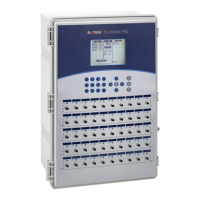
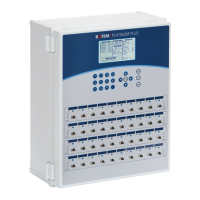
as frequently as necessary. The Platinum Plus
shows totals and subtotals in the lower portion of
the screen.
You can easily correct an error, so long
as you correct it on the same day before
midnight, by entering a negative quantity (press
the +/- key after the number) to subtract the
error. After midnight, the information transfers
to the History Menu.
Feed Inventory
If you have installed load cells and
connected feed bin scales to your Platinum Plus, it
will automatically maintain feed inventory,
including delivery dates and feed consumption data.
You can also maintain approximate feed inventory
using the digital inputs to monitor your fill system.
In this case, you will need to enter your own delivery
dates. This information transfers to the History |
Water & Feed menus daily, and optionally as often
as selected (up to by the minute) in History View.
Help | Set Parameters
1. Active Feed Bin
: you can have 1 of 2 silos
active.
2. Total Feed Bin 1
: you can edit the present
inventory in Bin 1, such as making corrections
for reclaim.
3. Total Feed Bin 2
: make corrections to feed
inventory in Bin 2.
Time and Date
1. Current Time: enter the current time in 24
hour, or military format. You need to enter both
the hours and the minutes, even if changing only
one of them. For example, to change 13:37 to
13:39, press Enter for the hours without
changing them, then type 3, 9, Enter to correct
the minutes. If you correct only the hours, be
sure to press Enter again for the minutes without
changing the minutes.
2. Date
: enter the date in day-month-year format.
First enter the date, then press Enter on the
month to pop up the pick list of months, press
enter after selecting the correct month, and
finally, type in the correct year and press enter.
3. Day of the Week
: select the correct day of the
week from the pick list.
Growth Day and Flock
1. Growth Day: enter the current growth day if
necessary. You can enter negative growth days
up to -2. If you reset the growth day for a new
flock with this tool, your old history data will
not clear. Use the New Flock function to clear
out old history in preparation for new birds.
2. Flock Number
: the controller automatically
increments the flock number each time you
choose New Flock. You can edit the flock
number to your wishes, however. Since this
field accepts six digits, some producers enter a
flock number that is made of the day, month and
year the birds arrived.
3. New Flock
: Use the new flock function on
arrival of a new set of birds to set the growth
day back to 1, and to clear out old history data.
Alarm Setting
Standard Alarms Section,



 To Next Page