SME VoIP Handset guide
Proprietary and Confidential Page | 17
6.1.1 Add Contact
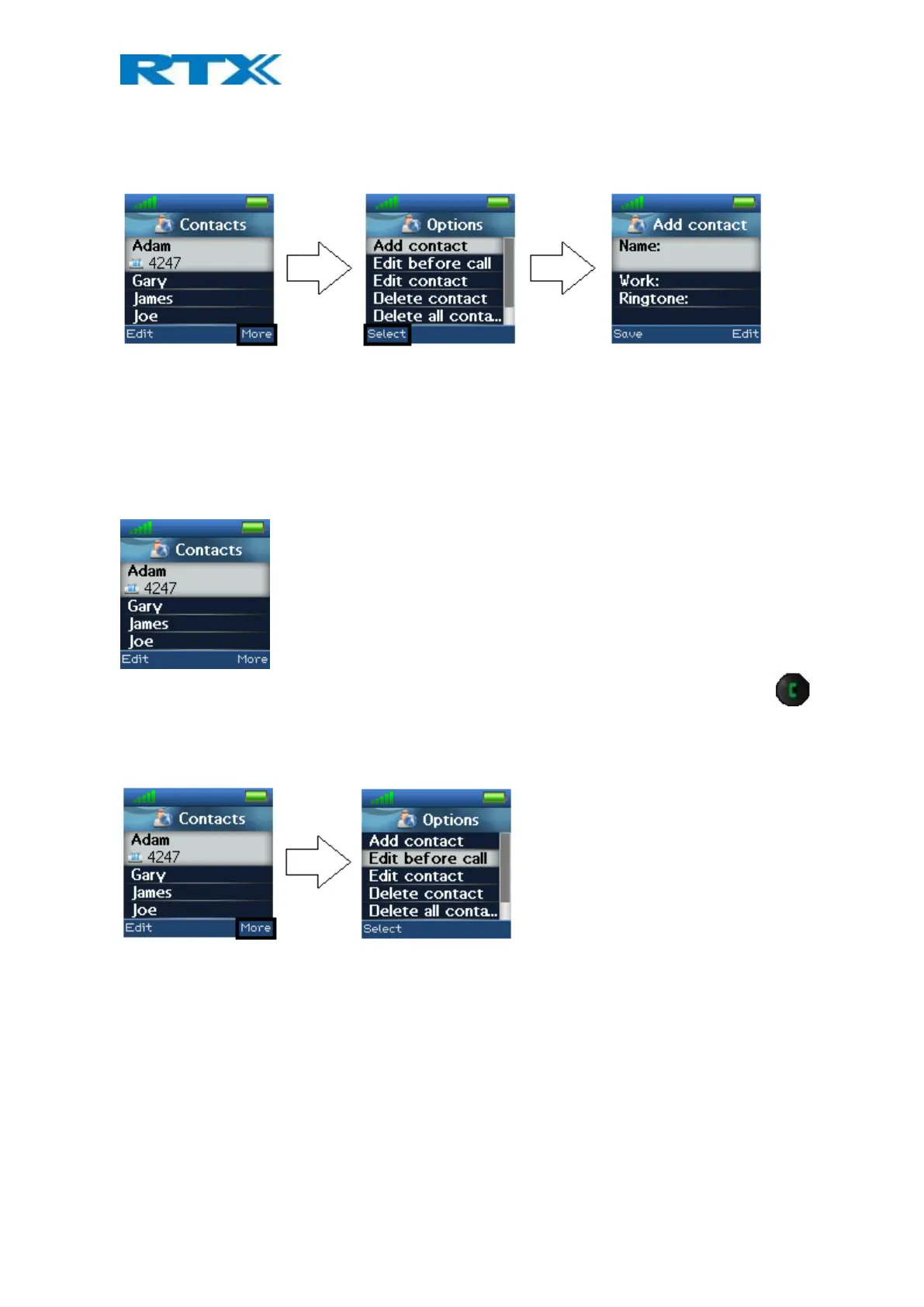
To add a new contact, press the right softkey “More”, select “Add contact” and the information displayed in the
menu tree below can be filled out for the contact.
Hereby, it is possible to edit the name, add a work phone number, and add a specific ringtone to be used for this
contact.
To save a new contact, press the left softkey “Save”.
6.1.2 Call/Edit a Contact
When the “Contacts” menu contains contacts, it is possible to edit each contact with the left softkey. When
pressing “Edit” it is possible to edit the name, work, or ringtone for the highlighted contact.
To call a contact, scroll to the contact and when the contact is highlighted, press the green off-hook key .
6.1.3 More Contacts Options
When a specific contact is highlighted, pressing “More” in the “Contacts” menu enables the features seen below.
Edit before call
This function makes it possible to edit the number of the contact before calling the contact.
Edit contact
This has the same function as pressing “Edit” directly from the “Contacts” menu, and makes it possible to edit
the name, work, mobile, home, other, or ringtone for the contact.
Delete contact
By selecting this feature, the following text message is displayed: “Delete current contact from local contact list?”
To delete the selected contact, press the left softkey “Yes”.
To go back to the “More” menu, press the right softkey “No”.
Delete all contacts
With this function all the contacts in the local contact list can be deleted, and by selecting this option the
following text message is displayed: “Delete entire local contact list?”


 To Next Page