© Safe Fleet | 2020 | All rights reserved | Part #: 700-1234 R1
DH4 Installation Guide
p. 14
DH4 Operation
Video Flagging
Flagging and Event
Under normal conditions, the DVR is continuously recording when the vehicle ignition is on. If something happens that should
time. Upon playback, any triggered Alarms are displayed, and the reviewer can jump directly to the tagged sections and see
we recommend Evidence Manager. The software is supported on a Windows-based computer. For more information, see the
Evidence Manager User Guide on the Safe Fleet Community.
If your organization uses one of our video management applications (Commander or Depot Manager), tagged video can be
automatically downloaded and made available to reviewers when your vehicle returns to the depot. Commander provides
these capabilities using a cloud-based architecture designed to simplify total deployment management and upkeep, while
Depot Manager provides the same capabilities in a non-cloud or local deployment. For more information, see the Commander
and Depot Manager guides on the Safe Fleet Community.
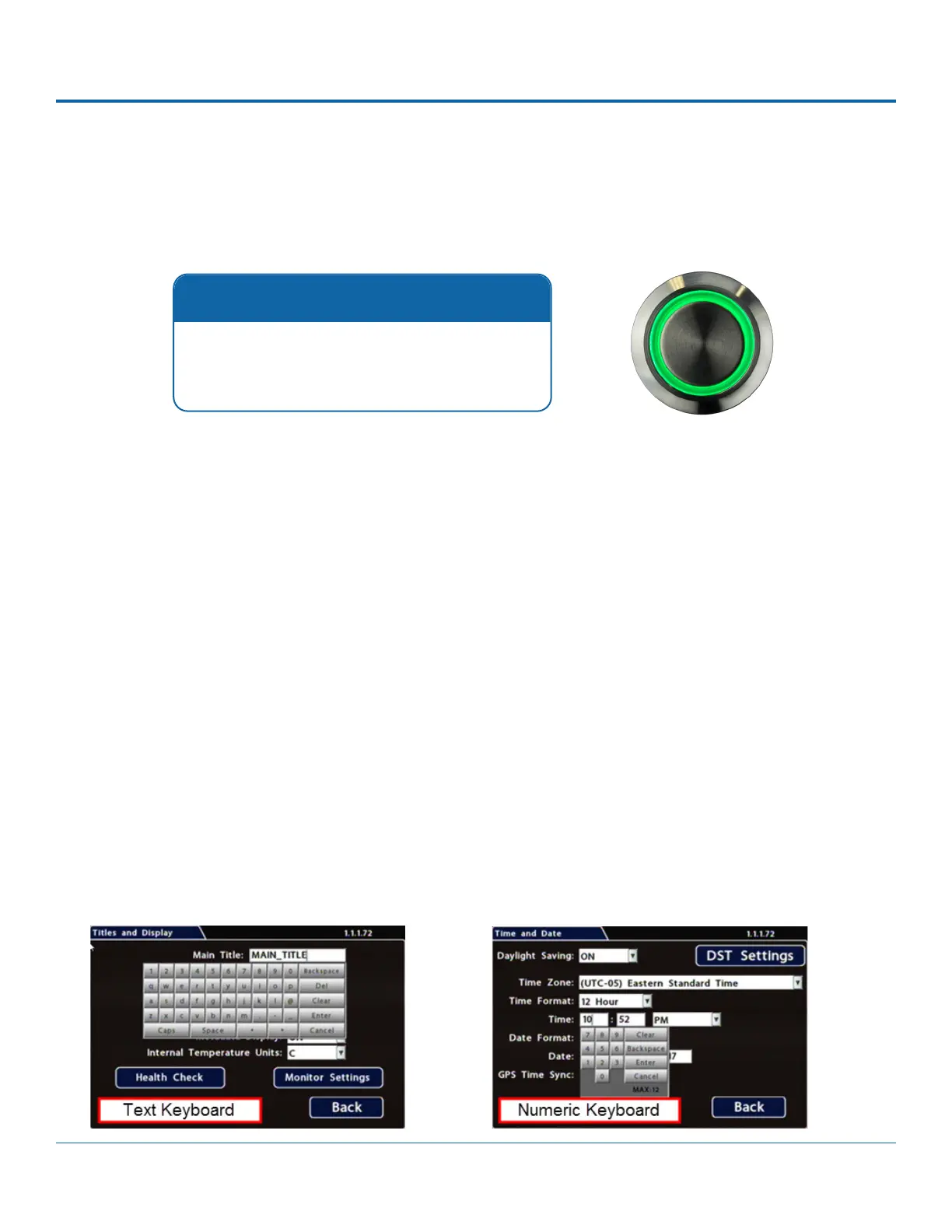
RGY Button
The RGY Button must be installed in the vehicle in
Safe Fleet.
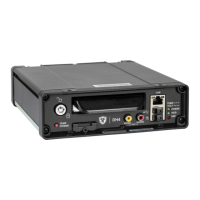
Using On-screen Keyboards
Entering Data
Before you proceed, you will need a portable video monitor and a USB mouse connected. To use a mouse for entering text
1.
pops up on the screen.
2. Click text or numbers to enter values with the virtual keys. Cancel closes the keyboard without saving changes.
3. When you're done, click Enter to save changes and close the keyboard.


 To Next Page