© Safe Fleet | 2020 | All rights reserved | Part #: 700-1234 R1
DH4 Installation Guide
p. 22
DH4 Basic Conguration
DH4 Basic Conguration
Setting up the DVR
DVR Menu Access
connected laptop. These settings can also be accessed remotely over a wireless network.
A - Local access with On-screen Display (OSD) menus:
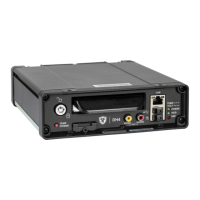
Connect a portable monitor to the VIDEO OUT RCA jack on the DVR front panel and plug a mouse into the USB port to
To set or change a password, right-click in Live view, then choose the Conguration --> System Password options.
B - Web browser access (Internet Explorer required - version 10, 32-bit or version 11):
interface differences) as well as video search, playback, and archiving features. Logging in to the DVR with a Web
user interface.
Plug an RJ-45 Ethernet cable into the front panel LAN port, or connect remotely over a network if you have Smart
Reach wireless access. Contact the Technical Support team for more information.
For information about passwords and permission levels, see "User Levels" on page 46.
Basic DVR Conguration Settings
MENU NAMES
Time and Date/DST Settings Select display formats.
Enter the current time and date, including Daylight Saving if applicable.
Select the Time Zone.
If GPS is installed, set GPS Time Sync ON to detect time and vehicle location
Time/Display Enter the vehicle number in Main Title, and choose the information that displays as
text when video appears


 To Next Page