© Safe Fleet | 2020 | All rights reserved | Part #: 700-1234 R1
DH4 Installation Guide
p. 21
DH4 Administration
To view the Search menu:
1. From the Playback Toolbar, click Search icon (B).
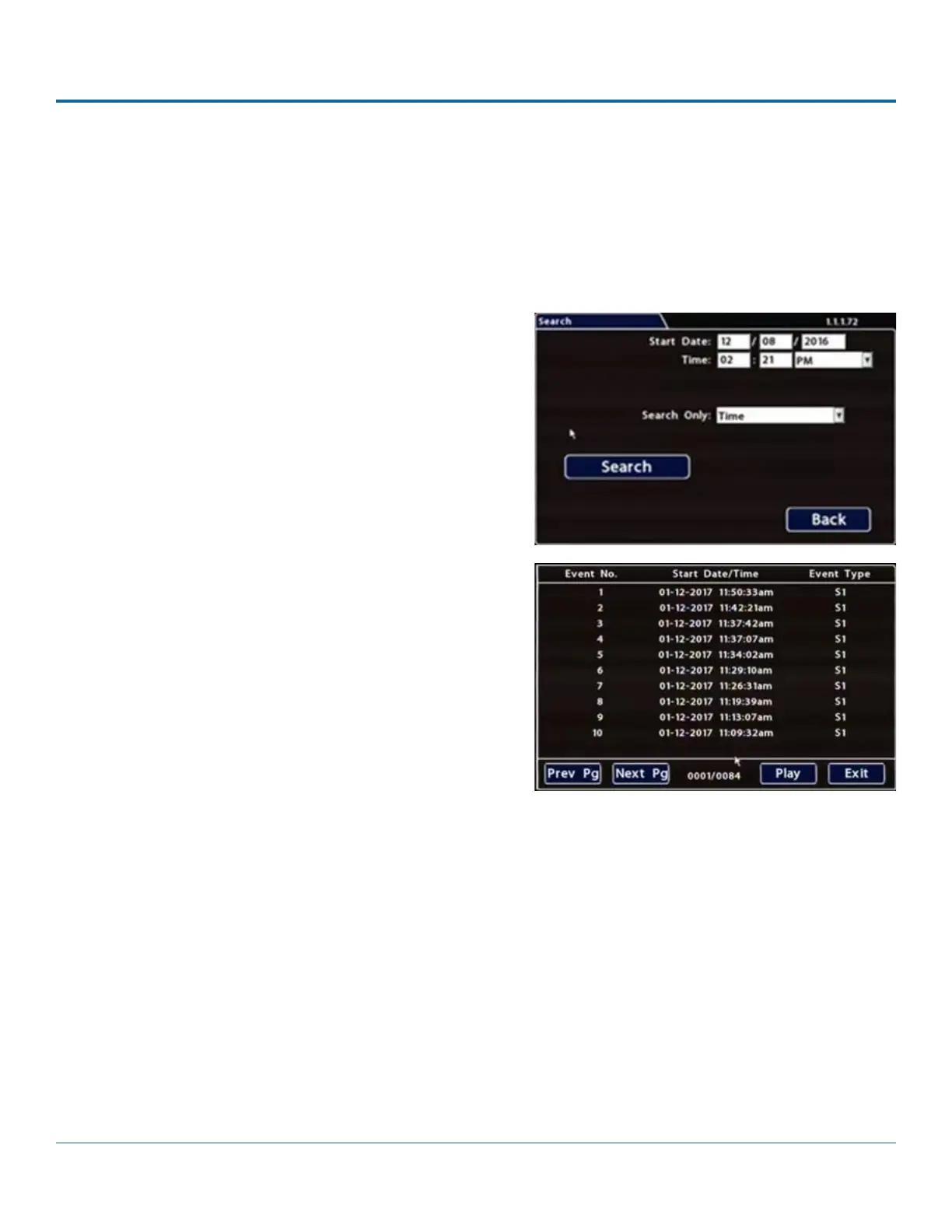
The Search tab appears (options displayed depend on the
Search Only pull-down menu selection):
2. Use the Start/End Date and Time
period to search. For instructions on how to enter numbers
DH4 Operation: Using On-
screen Keyboards.
3. If desired, use the Search Only pull-down and submenus to
specify Alarms, Signals, or System Events to search.
4. Click Search.
• If Search Only is set to Time: Playback starts from the
drive).
• If you select Alarms, Signals, or System Events,
The DVR retrieves a list of recorded video segments
the list, then click Play to view the video captured when
the event occurred.
Searching Video
or System Events


 To Next Page