© Safe Fleet | 2020 | All rights reserved | Part #: 700-1234 R1
DH4 Installation Guide
p. 47
DH4 Advanced Conguration
ITEM DESCRIPTION VALUE [DEFAULT]
Name User names for browser access to the DVR.
Names are case-sensitive, maximum 8 characters.
[Administrator] for
User 1
[Blank] for other Users
Password Set a password for each user - maximum 8 characters. [11111111]
Level
Administrator - complete DVR control; only Administrators can change User
Levels.
Playback - only viewing and archiving recorded video and viewing live video.
(cannot play or archive recorded video, edit User Levels, or reset the DVR to
default conguration).
Viewer - only live camera feeds (no viewing or archiving recorded video)
[Administrator] for
User 1
[Playback] for other
Users
Viewer
Menu Options
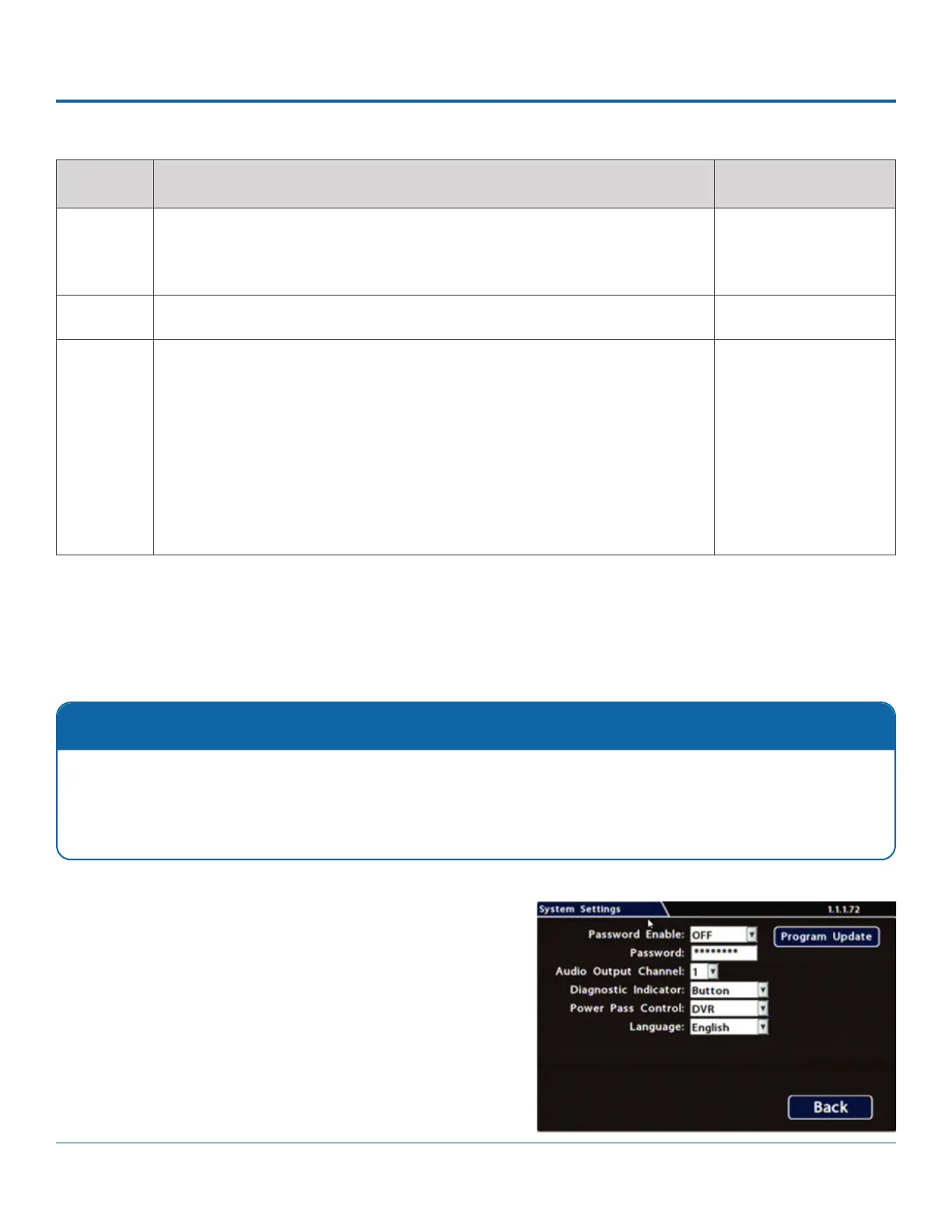
System Settings
Conguring System Settings
1. Select System to open the tab.
2. Adjust system settings as required.
For details, see Menu Options, below.
3. Click Back to save changes.
Settings and Password
This tab allows control of system-level settings and functions that should only be changed by authorized individuals.
The Password applies to local DVR access, and generates a prompt when the unit powers up, before any other features
become available. The default password is 11111111. For security purposes, We recommend that the default password
should be changed. Keep a copy of your password in a secure place, in case it is lost or stolen.


 To Next Page