© Safe Fleet | 2020 | All rights reserved | Part #: 700-1234 R1
DH4 Installation Guide
p. 15
DH4 Operation
Health Check
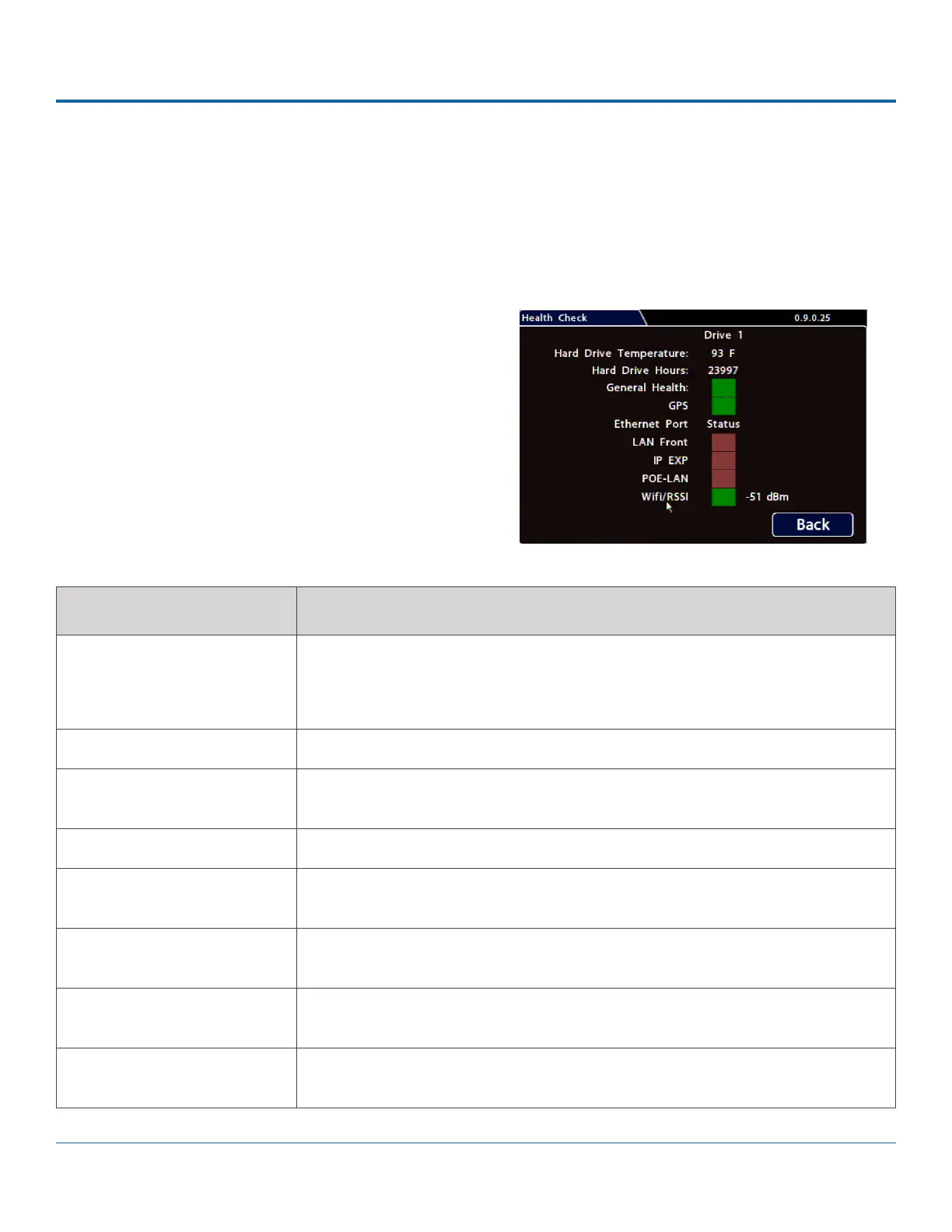
The Health Check tab provides information on hard drive temperature, hard drive operational hours, GPS and Ethernet
connectivity, WIFI status, and general DVR health.
Before you begin a Health Check, power up the DVR with a monitor and USB mouse connected, then right-click in Live view
To display Health Check information:
1. Select Title/Display
2. Health Check.
MENU ITEM DESCRIPTION
HARD DRIVE TEMPERATURE Current temperature inside the drive.
To choose whether this value displays in Fahrenheit (USA) or Celsius (Canada), use
the Titles and Display o Internal Temperature Units setting.
HARD DRIVE HOURS The number of hours the drive has been powered on since it was manufactured.
GENERAL HEALTH Result of the drive subsystem self-check: green indicates normal operating status,
while red means a drive failure was detected.
GPS
LAN FRONT Connectivity indicator: green when a cable is connected from the DVR's front LAN
port to an operational network device; otherwise red.
IP EXP Connectivity indicator: green when a cable is connected from the DVR's rear IP EXP
port to an operational network device; otherwise red.
POE-LAN Connectivity indicator: green when a cable is connected from the DVR's rear POE-LAN
port to an operational network device; otherwise red.
WIFI RSSI Relative radio frequency signal strength: the lower the dBm value, the stronger the
signal. Reported dBm of between 50-75 indicates a strong signal.


 To Next Page