© Safe Fleet | 2020 | All rights reserved | Part #: 700-1234 R1
DH4 Installation Guide
p. 24
DH4 Basic Conguration
Time/Date Tab
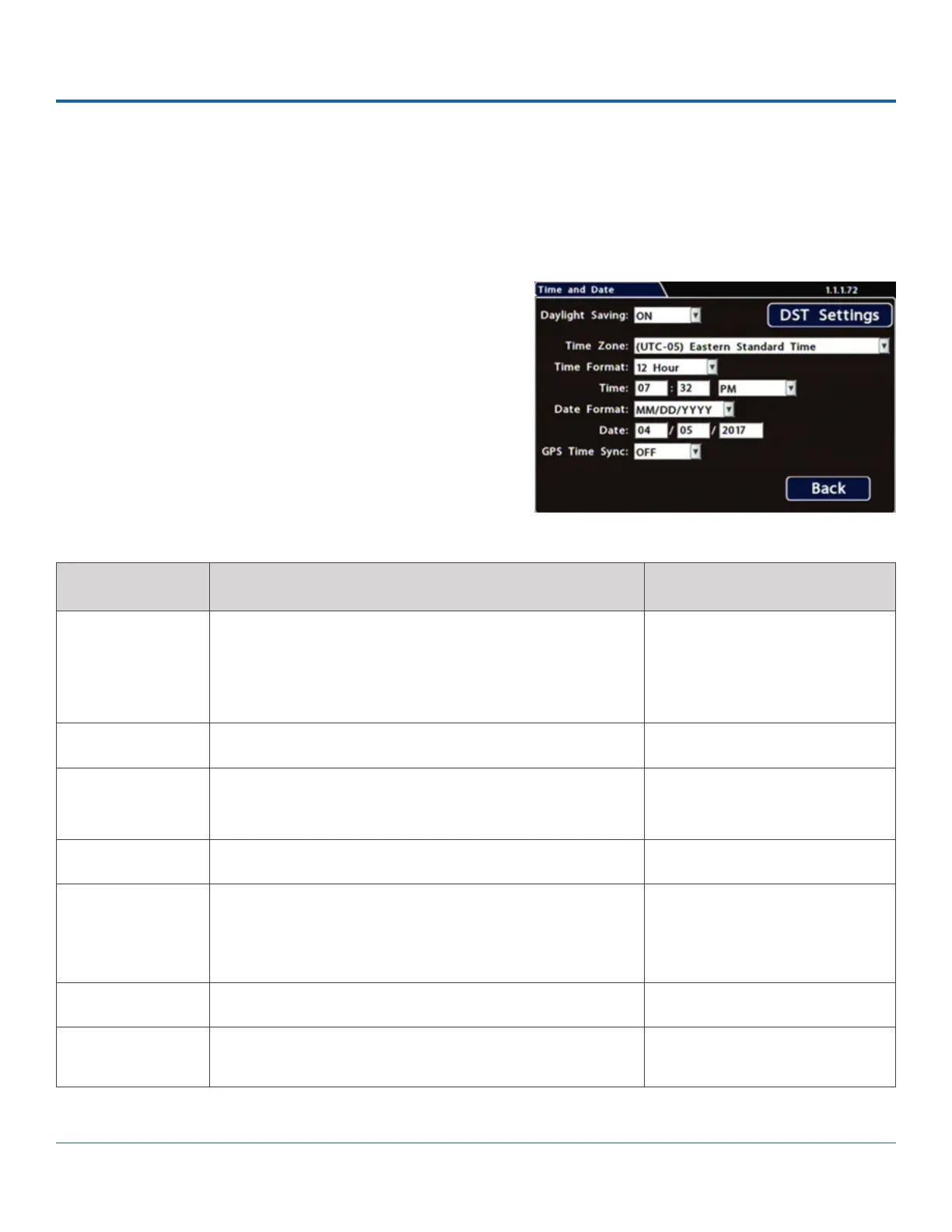
Ensure that the Time/Date settings are correct for the customer location/time zone - the DVR date and time are used as an
index for searching, archiving, and downloading video, and appear during playback.
To update Date/Time settings:
1. Select Time/Date to display the tab.
2.
(menu options are described below). For details on entering
data with the mouse, see DH4 Operation: Using On-screen
Keyboards.
3. Click Back to save the settings and return to the
MENU ITEM DESCRIPTION
Daylight Saving Leave ON and at default dates unless in an area that does
not use daylight savings (e.g. Arizona, Saskatchewan).
Click DST Settings and ensure the Start/End dates and
times apply to your location.
[ON]
Time Zone Select your local time zone. [UTC-05 Eastern Standard Time]
Time Format Choose 12 or 24-hour display. [12 hour]: 12:00 am to 11:59 pm
[24 hour]: 00:00 to 23:59
Time Input the correct time
Date Format Select the preferred date format [MM/DD/YYYY]
[YYYY/MM/DD]
[DD/MM/YYYY]
Date Set the date for the DVR.
GPS Time Sync If GPS is installed, set this ON to have the system time
automatically updated when satellites are detected.
[OFF]
Menu Options


 To Next Page