Using NOVA chat Menus
The Menu and Back button icons only appear when you tap
them.
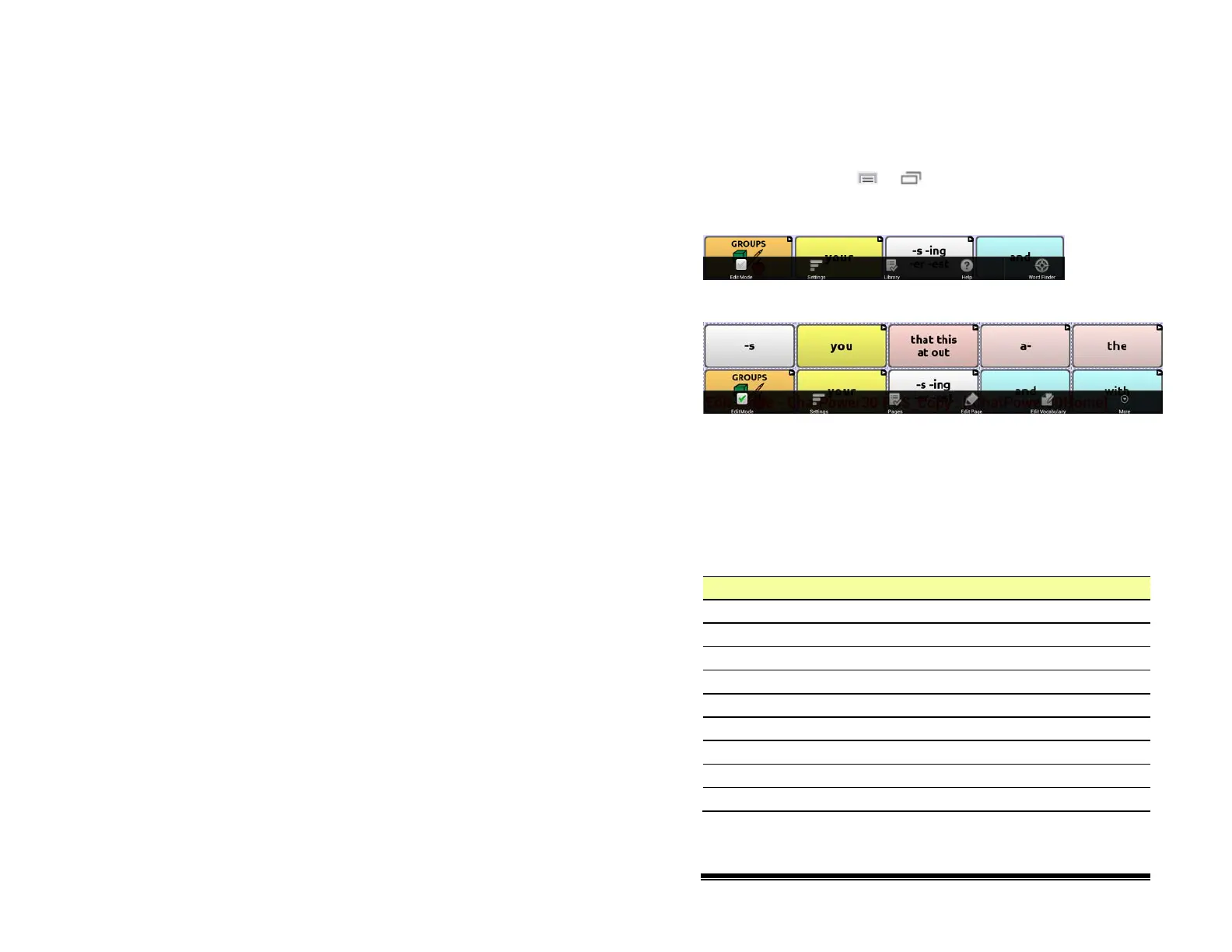
After choosing Menu or , groupings of menus appear.
These menus vary depending on other settings in the
application.
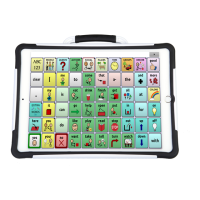
In Edit Mode
In Edit Mode, all the buttons are outlined, indicating that they
can be edited. When the menu disappears, you’ll also see that
the words “Edit Mode”, followed by the name of the vocabulary
file and the name of the current page, appear in red across the
bottom of the screen.
Note: Chat Editor displays the menus at the top of the screen.
Option Description
Edit Mode Turn editing on or off
Settings Customize Chat features
Library View the Vocabulary files
Help View help and other information
Pages View a list of pages
Edit Page Edit the current page
Edit Vocabulary Edit the current Vocabulary
More View additional options
Hide Mode Turn Hide Mode on or off
NOVA chat User’s Guide 10022 Dedicated Version 1.4 Page 32


 To Next Page