8. Follow the on-screen instructions.
9. When the installation process is complete, remove the CD
from the drive. The CD is not needed to run the Editor.
Configuring Chat Editor
The first time you open Chat Editor after installing it, you will
be prompted to set up a configuration.
1. Select NOVA chat from the Choose Product window and
click OK.
2. Select your language from the Choose Language window
and click OK.
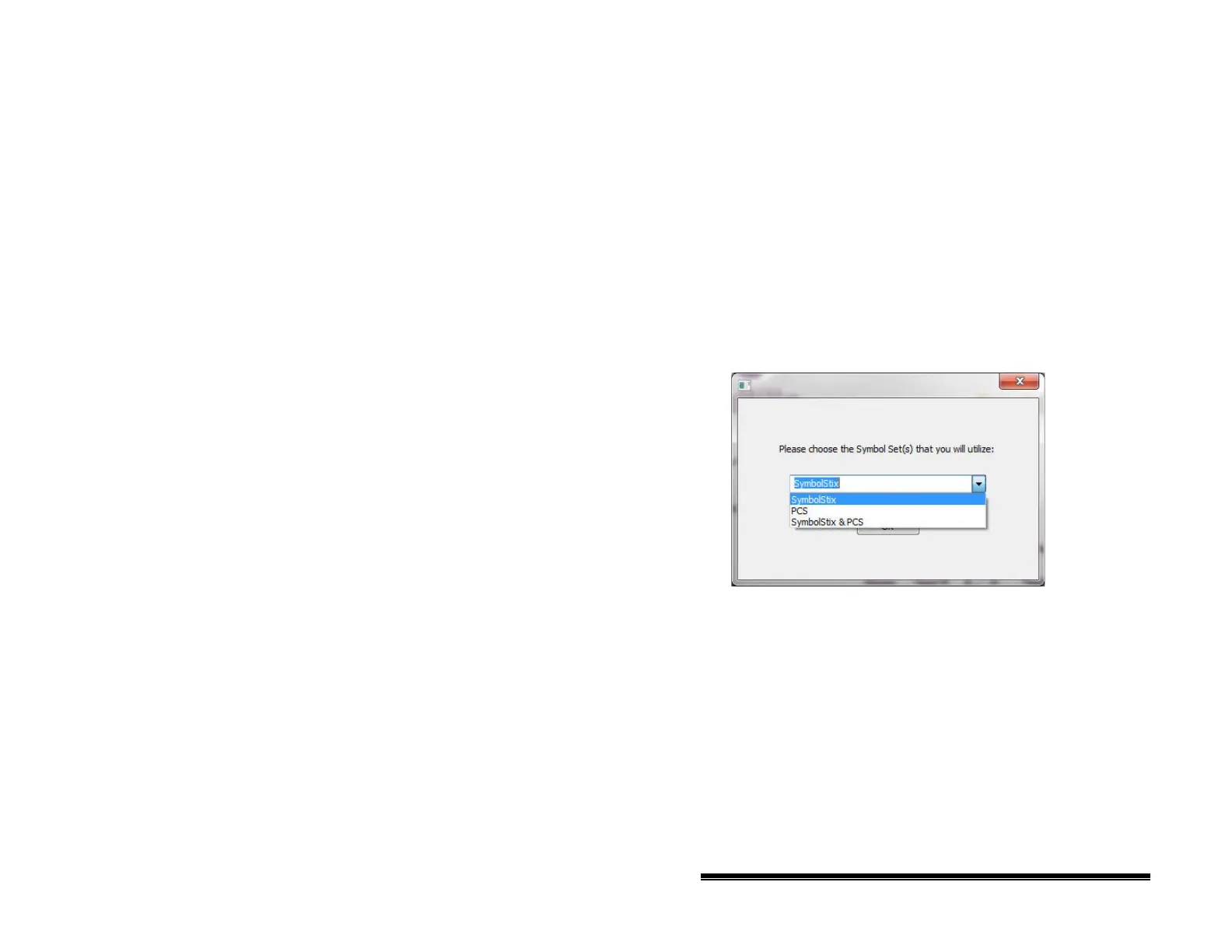
3. Select one or more symbol sets from the Choose Symbol
Sets window.
Important! This symbol set must match what is on the
device you are supporting.
4. Click OK.
5. Type a descriptive name for the configuration in the Enter
Name window and click OK.
6. Chat Editor will open.
Note: You may need to set up multiple configurations if you
support more than one client. For example: Tommy with
only SymbolStix images and Sarah with both SymbolStix
and PCS symbols.
NOVA chat User’s Guide 10022 Dedicated Version 1.4 Page 41


 To Next Page