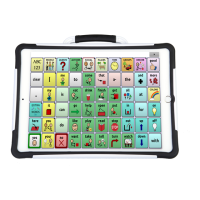
To skip empty areas during scans:
Turn scanning of empty button areas on or off by choosing
Menu
or > Settings > Input > Scanning > Patterns >
Skip Empty Areas. When selected, scanning will skip over an
area without a button or a button that only has a speech message
action but no text.
Setting Scan Speed
This is the amount of time it takes for your device to move from
one button, row, or column to the next in a scan. The default
scanning speed is one second. This means it takes one second
from the time one key is highlighted until the next key is
highlighted.
To set scanning speed, choose Menu
or > Settings >
Input > Scanning > Scan Timing > Scan Speed.
To increase the time, tap
+ (the plus sign). To decrease the time,
tap
– (the minus sign). Then choose OK.
Configuring Re-scans
Select the number of times you want your device to
automatically scan the page. Once you reach the set number of
re-scans, the scan will stop until a switch is activated again.
To set the number of re-scans, choose Menu
or >
Settings > Input > Scanning > Scan Timing > Number of Re-
scans.
To increase the number of re-scans, tap
+ (the plus sign). To
decrease the number of re-scans, tap
– (the minus sign). Then
choose OK.
Setting Activation Delay
This option gives you a chance to change your mind when you
have selected a button. The option is automatically set to your
scanning speed.
For example, let's say your scanning speed is set to one second
(1.0). You scan to and select a button, then realize it's not the
button you want. You have one second to activate your switch
again to "de-select" the button and then scan to a new button.
NOVA chat User’s Guide 10022 Dedicated Version 1.4 Page 78


 To Next Page