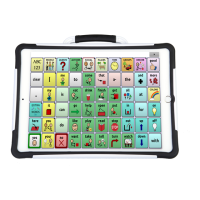
Modifying a Vocabulary Button Style
The Button Style Override menu offers the ability to modify all
buttons in an entire vocabulary file at one time.
1. Open the vocabulary file you want to modify.
2. Choose Menu
or > Edit Mode.
3. Press and hold anywhere on the page. (Right-click if you are
using the Editor.) A list of button options appears.
4. Choose Button Style Override. The Button Properties
screen opens to the Button tab.
5. Choose the Vocabulary tab.
6. Choose the style options you want to change.
7. Choose Save.
Overriding a Button Style
This option is typically used only when the style for an entire
page or entire vocabulary file has been set, but you can make an
exception for one particular button.
1. Choose Menu
or > Edit Mode.
2. Press and hold on the button you want to modify. (Right-
click if you are using the Editor.) A list of button options
appears.
3. Choose Button Style Override. The Button Properties
screen opens to the Button tab.
4. Check the style options you want to change.
5. Choose Save.
NOVA chat User’s Guide 10022 Dedicated Version 1.4 Page 55


 To Next Page