ADN Digital Conference System | 99
Using the “Conference Manager” software
왘 In the menu bar, click “Settings” > “Network...”.
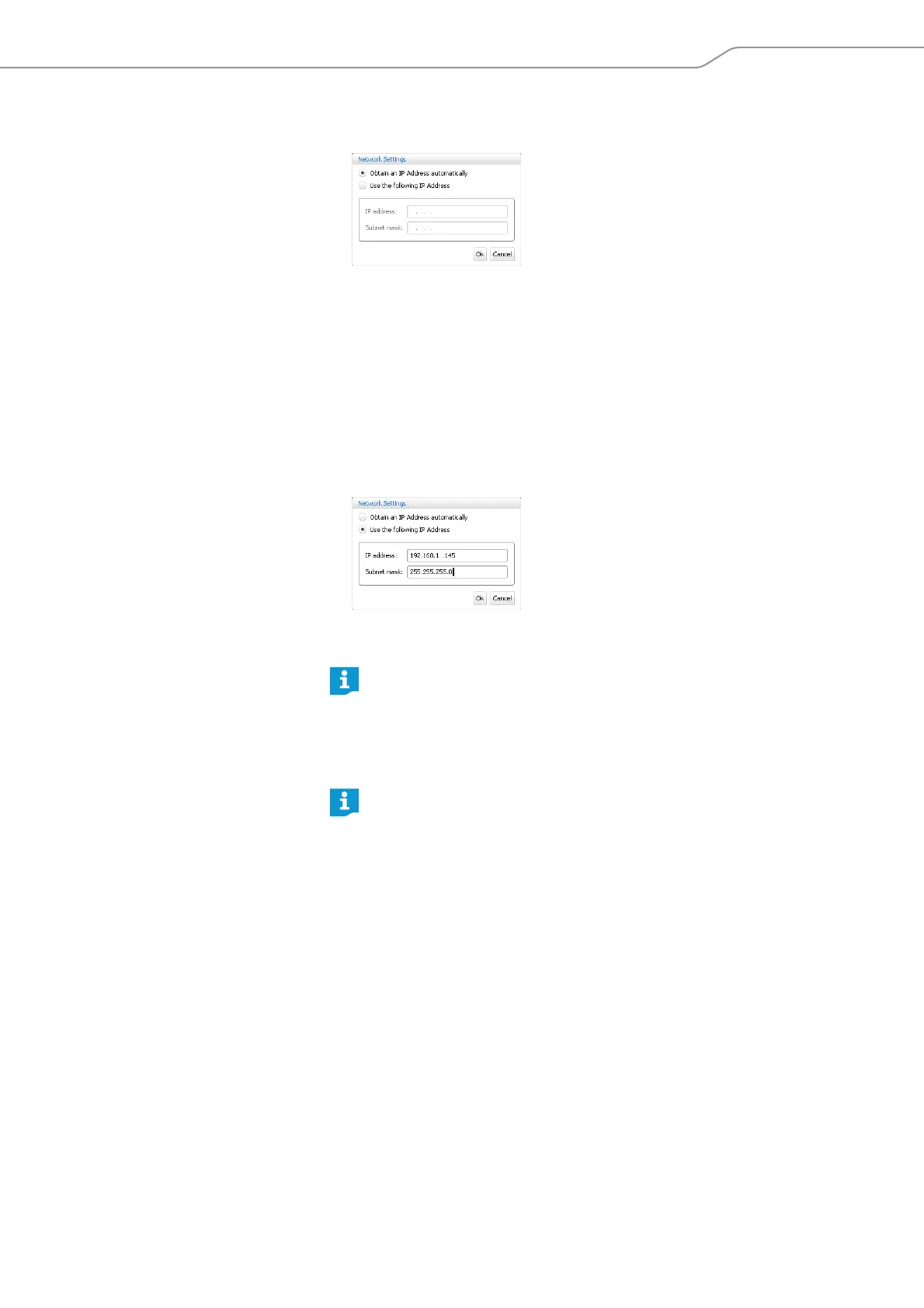
The “Network Settings” window appears.
To automatically integrate the central unit into a network using a dynamic IP
address:
왘 Select the “Obtain an IP Address automatically” option button.
왘 Click “OK”.
The setting is applied and the “IP Address” and “Subnet mask” fields display
the automatically assigned addresses.
To manually integrate the central unit in a network using a static IP address:
왘 Select the “Use the following IP Address” option button.
왘 Enter the desired IP address into the “IP address” field.
왘 Enter the desired subnet mask address into the “Subnet mask” field.
왘 Click “OK”.
The setting is applied.
Loading the factory default settings
왘 In the menu bar, click “Settings” > “Restore Factory Settings”.
All software settings are reset to default.
For further information on the network configuration of the conference
system, refer to page 84.
If the screen connected to the central unit does not show anything, it may
be that the screen resolution is set too high. In this case, reset the screen
resolution:
왘 Press the key combination “CTRL” + “SHIFT” + “F1”.
The screen resolution is reset to 800 x 600 pixels.



 To Next Page