ADN Digital Conference System | 119
Using the “Conference Manager” software
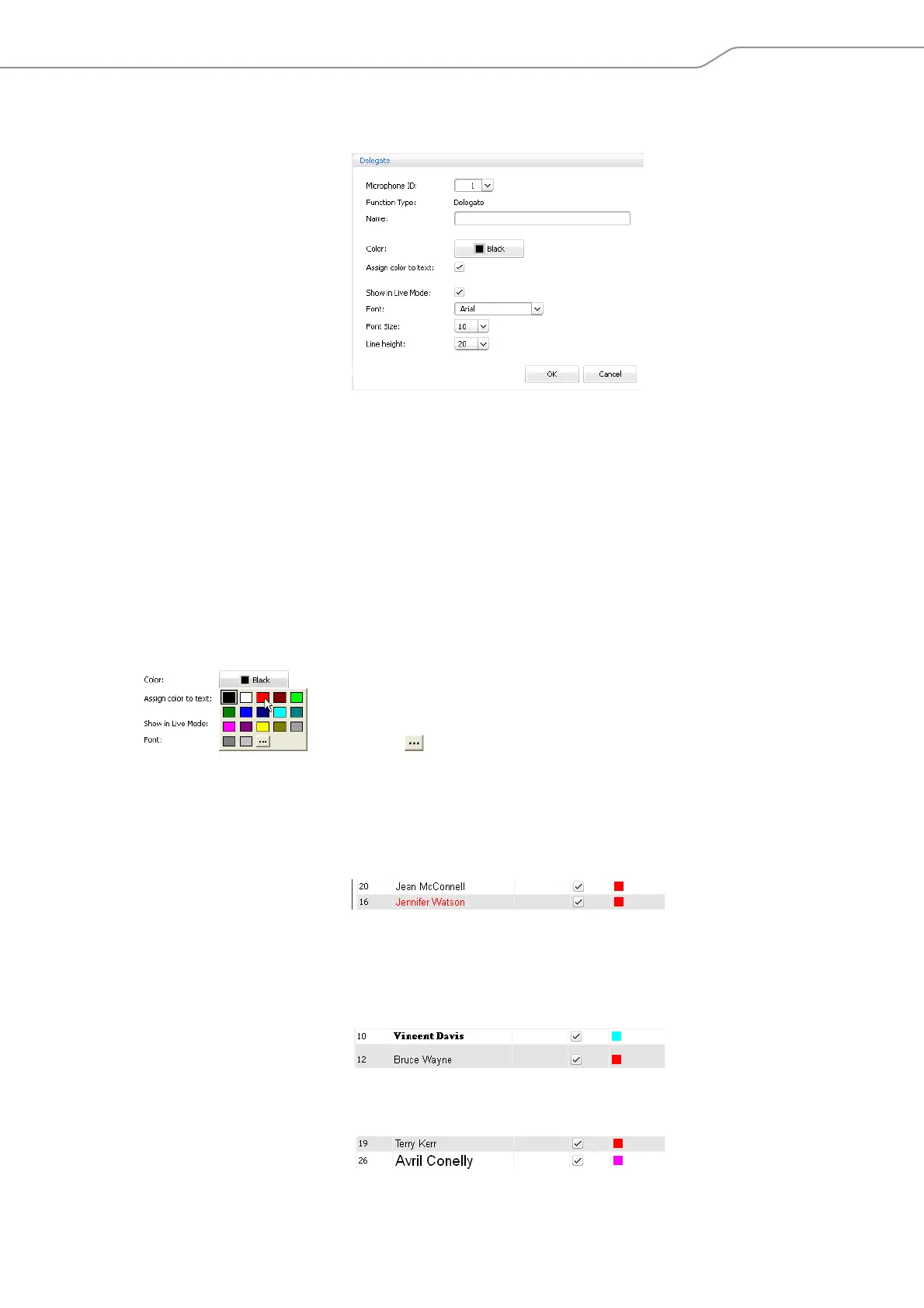
왘 Click the “Add...” button.
The “Delegate” window appears.
To assign an already numbered and initialized conference unit to a delegate (only
possible, if the conference units have been initialized, see page 122):
왘 Select the number of the conference unit you want to assign from the
“Microphone ID” drop-down list.
Or:
왘 Enter the number of the conference unit into the “Microphone ID” field.
왘 Depending on the number of the conference unit, the type of conference unit
(“Delegate” or “Chairperson”) is displayed behind “Function Type” after
saving.
To enter a delegate name:
왘 Enter the delegate name into the “Name” field.
To assign a color to a delegate:
왘 Click the “Color” button.
왘 Select a standard color.
Or:
왘 Click the button.
The “Select color” window appears.
왘 Select a color.
왘 Click “OK”.
To also assign the selected color to the text in the delegate list:
왘 Tick the “Assign color to text” check box.
To not display a delegate in “Live” operating mode:
왘 Untick the “Show in Live Mode” check box.
To change the font type of the text in the delegate list:
왘 Select the desired font type from the “Font” drop-down list.
To change the font size of the text in the delegate list:
왘 Select the desired font size from the “Font Size” drop-down list.



 To Next Page