Using the “Conference Manager” software
138 | ADN Digital Conference System
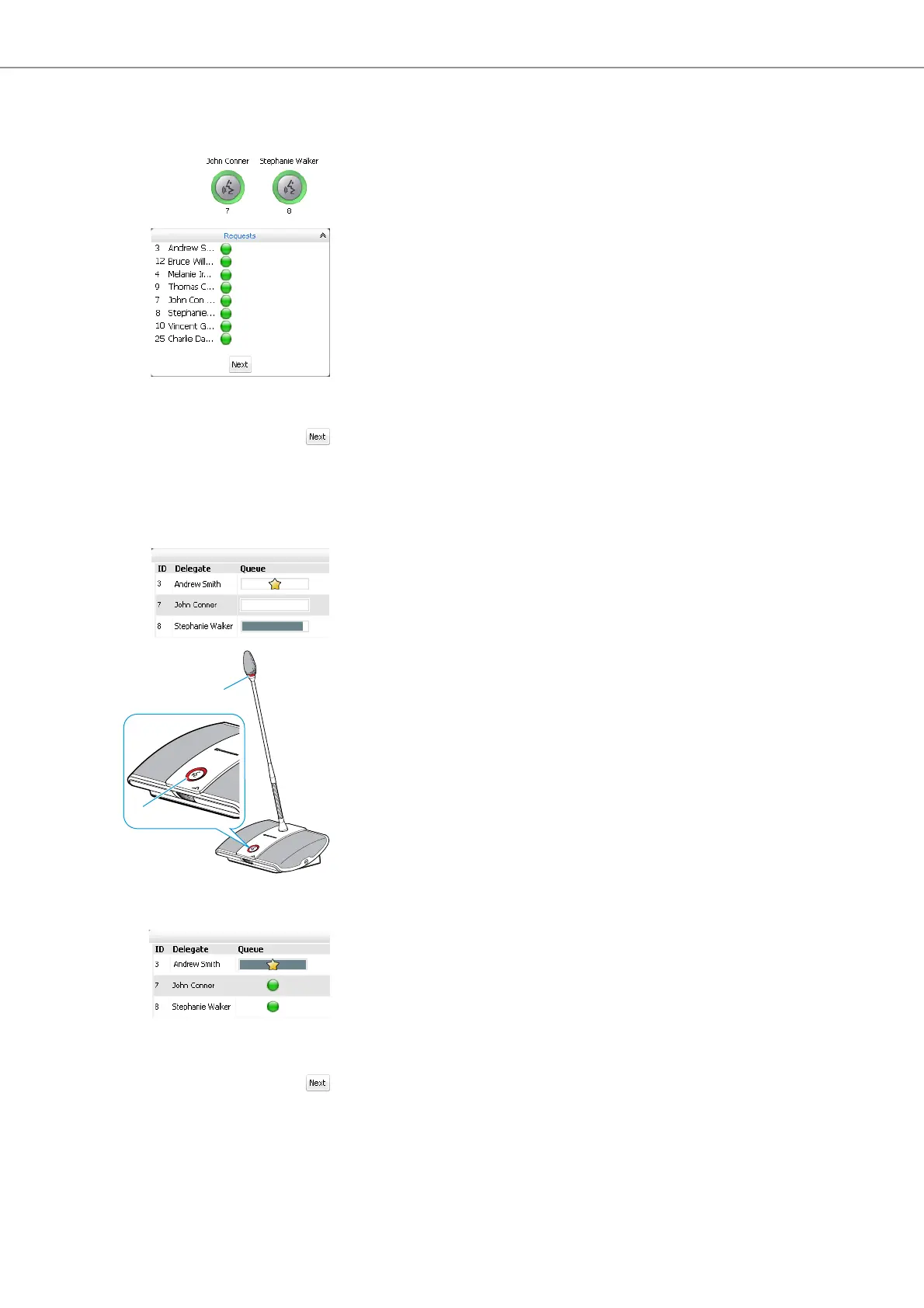
To arbitrarily grant speaking privileges to a conference unit that has made a
request to speak (in “Request” and “Direct Access” mode):
왘 Click a green flashing conference unit icon.
Or:
왘 In the “Requests” box, click the conference unit to which you want to grant
speaking privileges.
The conference unit is granted speaking privileges (see above) and is removed
from the “Requests” box.
To grant speaking privileges to a conference unit by the order of the request-to-
speak list (in “Request” and “Direct Access” mode):
왘 Click the “Next” button.
The conference unit is granted speaking privileges (see above) and is removed
from the “Requests” box.
Granting/withdrawing
speaking privileges using the
Delegate View window
To grant speaking privileges to a conference unit:
왘 Click the name of the delegate to whom you want to grant speaking privileges.
The bar graph displays the current speaking privileges status. The conference
unit is granted speaking privileges and the signal light ring and the micro-
phone LED light up red.
To withdraw speaking privileges from a conference unit:
왘 Click the name of the delegate whose speaking privileges you want to with-
draw.
The bar graph displays that the conference unit is deactivated. The conference
unit loses its speaking privileges and signal light ring and the microphone
LED go off.
To arbitrarily grant speaking privileges to a conference unit that has made
a request to speak (in “Request” and “Direct Access” mode):
왘 Click the name of the delegate to whom you want to grant speaking privileges.
The conference unit is granted speaking privileges.
To grant speaking privileges to a conference unit that has made a request to speak
in the order of the request-to-speak list (in “Request” and “Direct Access” mode):
왘 Click the “Next” button.
The conference unit is granted speaking privileges.



 To Next Page