Running a conference
78 | ADN Digital Conference System
Storage location The audio recordings are filed in the “ADN” folder on the USB mass storage device.
For each recording of a conference, a new folder is created whose name consists of
the name of the conference and the starting time (date and time). The name of the
conference can be set via the “Conference Manager” software by saving the con-
ference under an unambiguous name (see page 103).
Example: ADN/CEO-Meeting_2011-05-02_160923
File names The file names of the audio recordings consist of the following:
• Floor channel:
Name of the conference and starting time (date and time)
Example: .../CEO-Meeting_2011-05-02_160923.wav
• Conference unit channel:
Type of conference unit, serial number of the conference unit, starting time of
the contribution (date and time)
Example: .../D1_SN104264_2011-05-02_162543.wav
If a file name is already in use, the existing file will not be overwritten. The new file
is automatically given a consecutively numbered suffix (“_01”, “_02”, etc.).
Starting and monitoring audio recordings
You can start and monitor the audio recording via the central unit’s operating
menu or use the recording function of the “Conference Manager” software (see
page 141).
Starting the recording 왘 Make sure that the USB mass storage device is correctly connected to the
ADN CU1 central unit (see page 39).
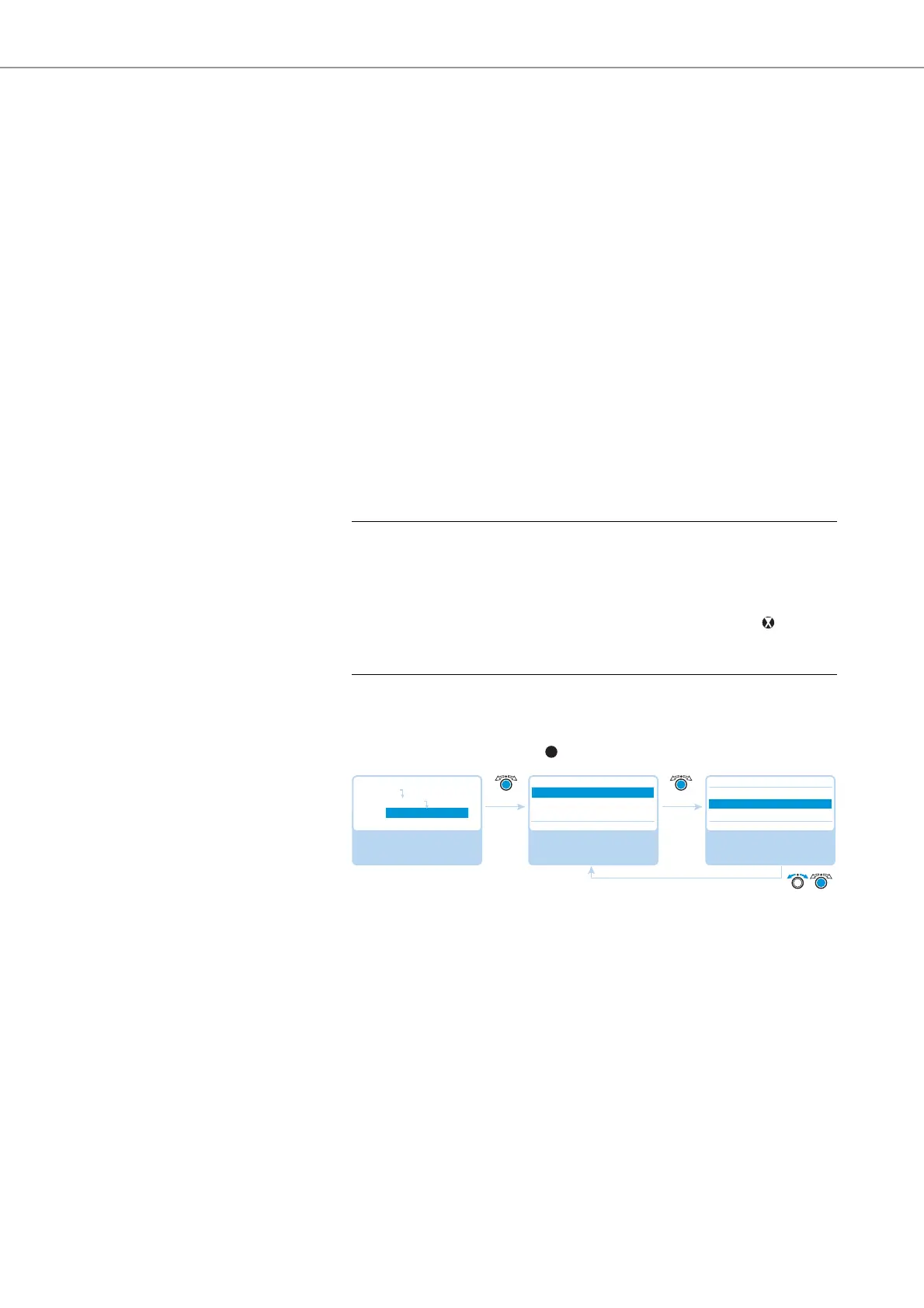
왘 Call up the “Record” menu item and select “On”.
The recording is started. The icon
is displayed in the CU1 display panel.
CAUTION
Loss of an audio recording!
If you disconnect the USB mass storage device from the central unit during an audio
recording, the audio recording can be rendered unusable due to faulty data.
왘 Stop the audio recording (see page 79) and make sure that the icon is no
longer displayed in the CU1 display panel before disconnecting the USB mass
storage device from the central unit.
Select and call up the
“Conference Recording”
submenu
Select and call up the
“Record” menu item
Select the desired
setting; store the
setting
Conference Recording
Record
Recording status
Off Off
Record
On
Off
Main Menu
Audio Menu
Conference Recording



 To Next Page