Configuring the conference system
36
If the PC is to be configured as a slave PC:
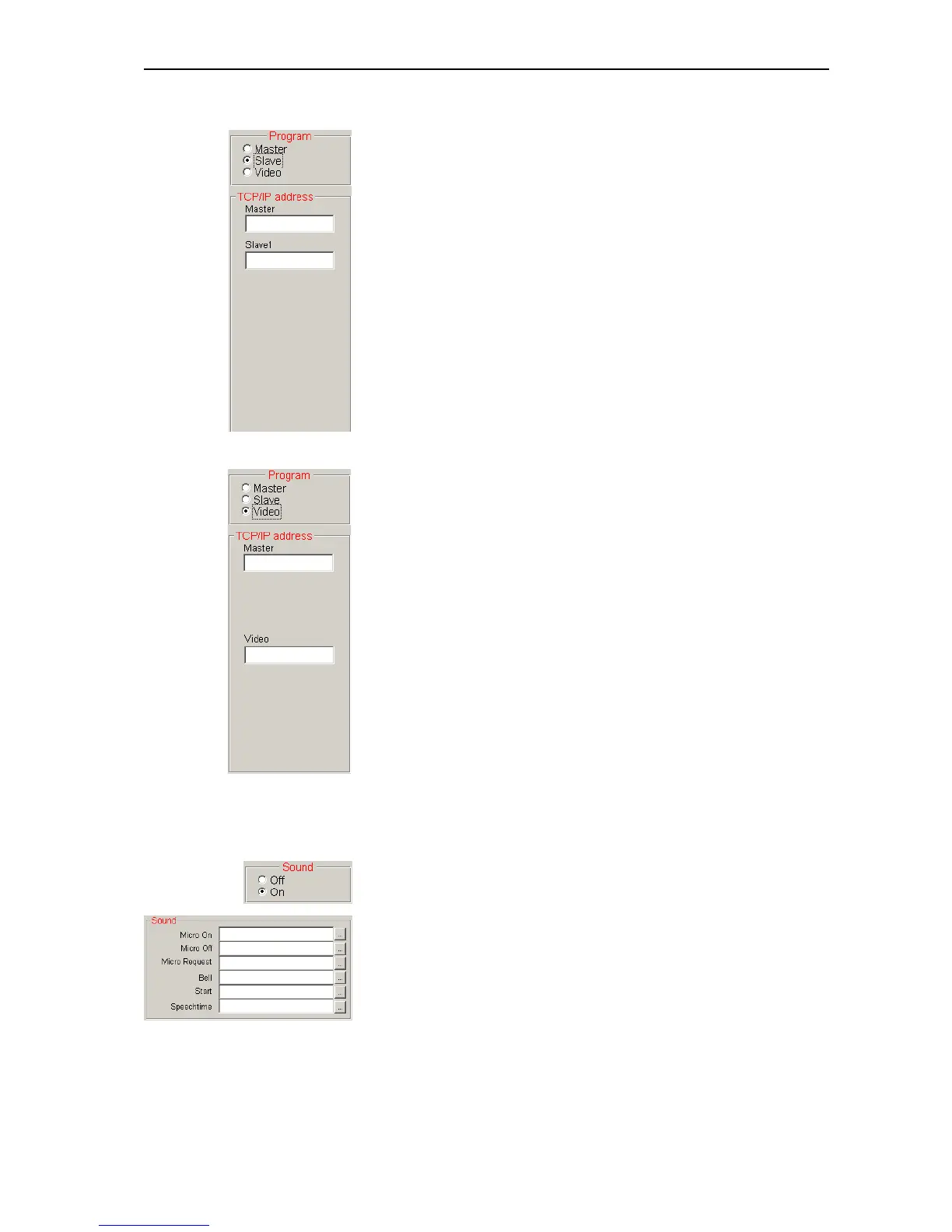
왘 In the “Program” box on the “1” tab, click the “Slave” option button.
왘 Enter the TCP/IP address of the master PC in the “Master” box of the
“TCP/IP address” box.
왘 Enter the TCP/IP address of the first slave PC in the “Slave1” box of the
“TCP/IP address” box.
This PC is now configured as a slave PC.
If the PC is to be configured as a video PC:
왘 In the “Program” box on the “1” tab, click the “Video” option button.
왘 Enter the TCP/IP address of the master PC in the “Master” box of the
“TCP/IP address” box.
왘 Enter the TCP/IP address of the video PC in the “Video” box of the “TCP/
IP address” box.
This PC is now configured as a video PC.
To prevent the video PC, at which no-one is working because it is used for
display purposes only, from starting the screensaver:
왘 Make sure that the screensaver of the video PC is deactivated.
Configuring acoustic signals
To couple different system events with an acoustic signal:
왘 In the “Sound” box on the “1” tab, click the “On” option button.
왘 Specify *.wav files for the different system events.
y If you enter a *.wav file in the “Micro On” box, it will be played each
time a microphone is activated.
y If you enter a *.wav file in the “Micro Off” box, it will be played each
time a microphone is deactivated.
y If you enter a *.wav file in the “Micro Request” box, it will be played
each time a delegate makes a request to speak.



 To Next Page