4
Getting Started
Sequential
How to Check a Parameter Setting in a Preset
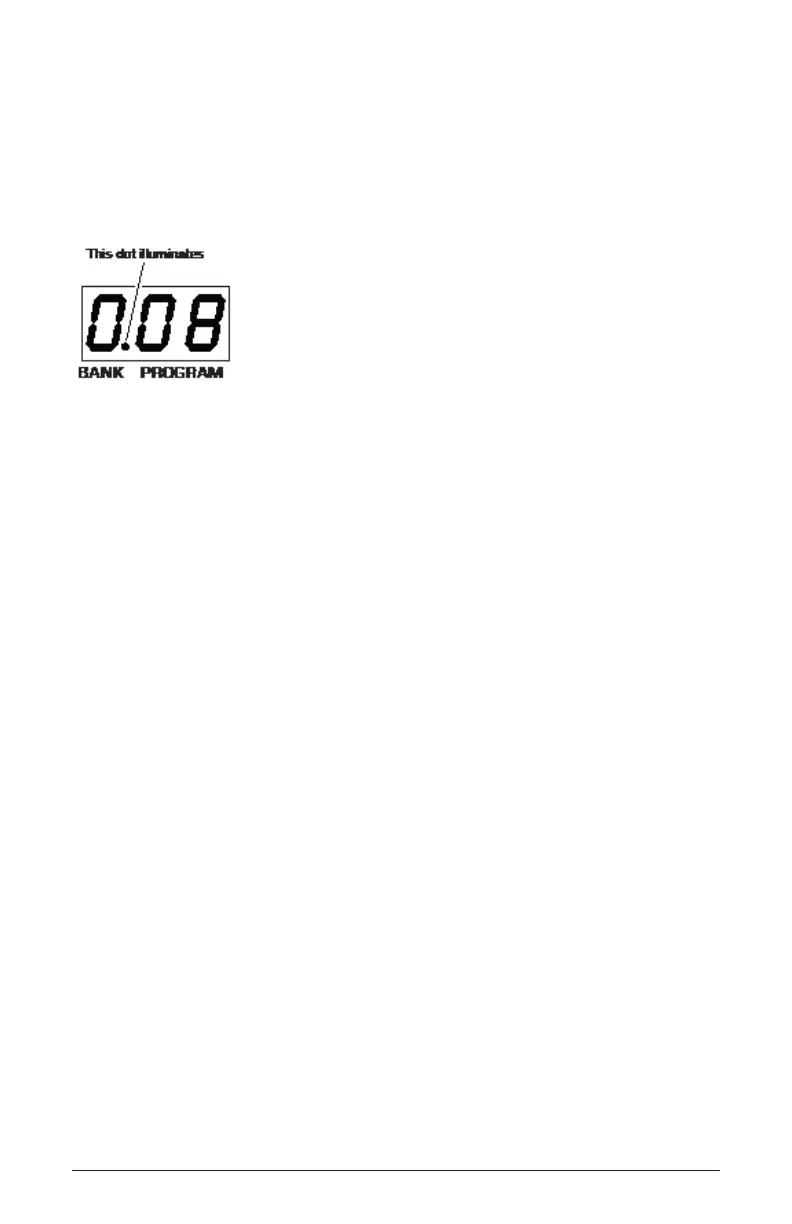
When you’re editing a preset, the Trigon-6 has a convenient way of indicat-
ing the programmed (saved) value for any knob parameter: Whenever you
turn a knob and reach the saved value of a given parameter, an LED dot in
the main Trigon-6 display will illuminate.
The dot illuminates when a knob position matches a preset’s saved parameter value
Comparing an Edited Program to its Original State
When editing a program, it’s often useful to compare its edited state to
its original state to evaluate your edits. Alternatively, before saving a
program to a new location you may want to check the program in the
target location before you overwrite it.
To compare an edited program to a saved version:
1. Edit a program.
2. Press the write button. It starts ashing.
3. Press the global button. Both LEDs on the button light up, indicating
compare mode.
4. Play the keyboard to hear the saved version of the sound.
5. To disable the compare function and return to the edited sound, turn off
the global button. Programs can’t be written while in compare mode.
6. If you want to save the edited sound, the write button is still ash-
ing and ready to save, so enter a location with the program selector
buttons. The sound is saved.
7. Alternatively, if you want to cancel saving and continue editing, press
the write button. It stops ashing and saving is canceled.















 To Next Page