Chapter 6 Output Settings
6.1 Keyboard Conversion
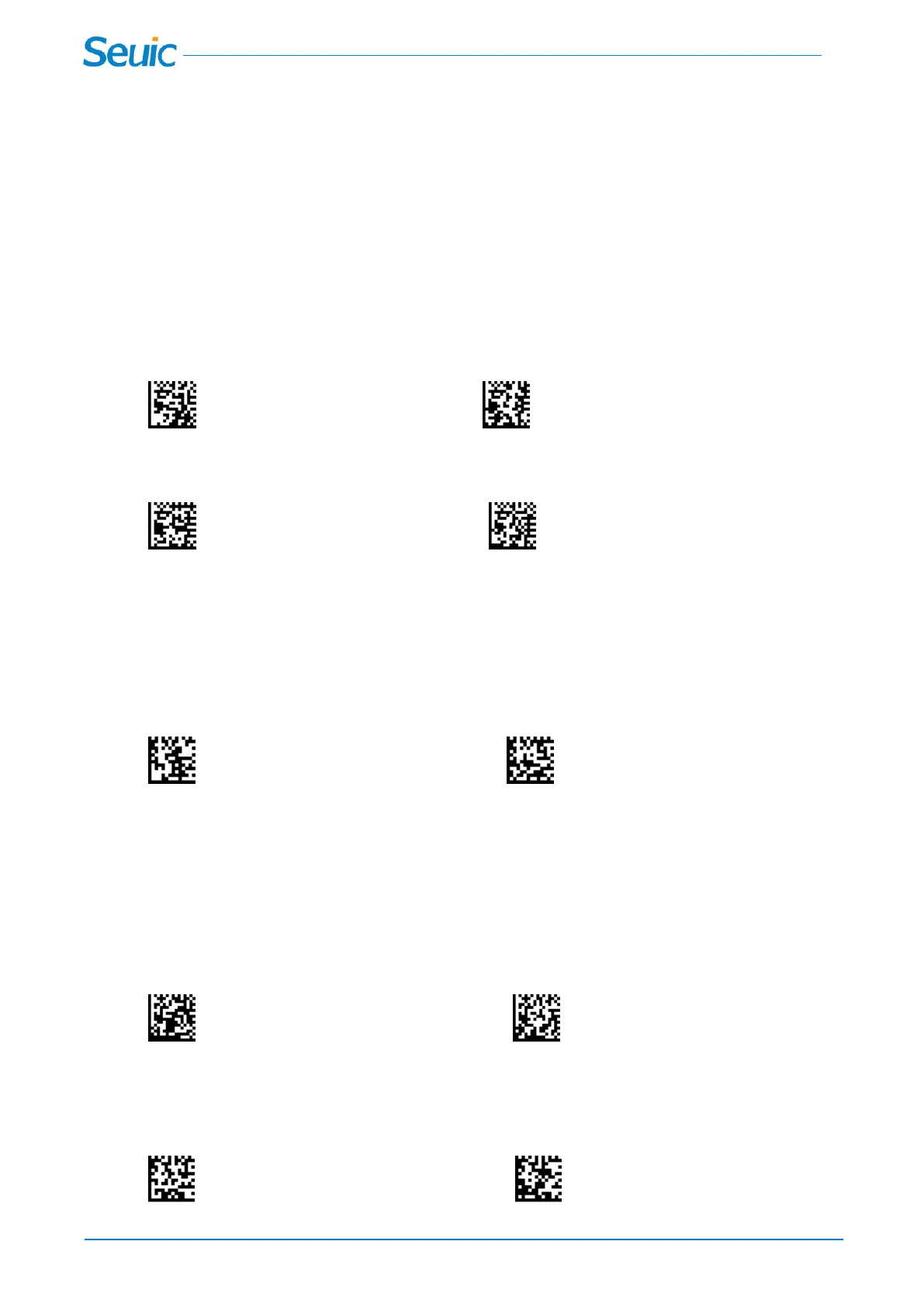
Alphabetic keyboard characters can be forced to be all upper case or all lower case. So if you have the
following barcode: “abc123DE”, you can make the output “ABC123DE” by scanning Convert All
Characters to Upper Case, or to “abc123de” by scanning Convert All Characters to Lower Case.
Note: Please make sure Caps Lock key is Off. If Caps Lock key is On, the output will be Reversed.
Regular is used when you normally have the Caps Lock key off, and the scanner has a Normal output.
* Regular Reversed
Convert All Characters Convert All Characters
To Upper Case To Lower Case
6.2 Shift Lock
Shift Lock is used when you normally have the Shift Lock key on (not common to U.S. keyboards).
*Shift Lock Off Shift Lock On
6.3 Control + ASCII Mode
The scanner sends key combinations for ASCII control characters for values 00-1F. Windows is the
preferred mode. All keyboard country codes are supported.
* Control + ASCII Mode Off Windows Mode Control + ASCII On
6.4 Show Decoding time
*Decoding time Off Decoding time On



 To Next Page