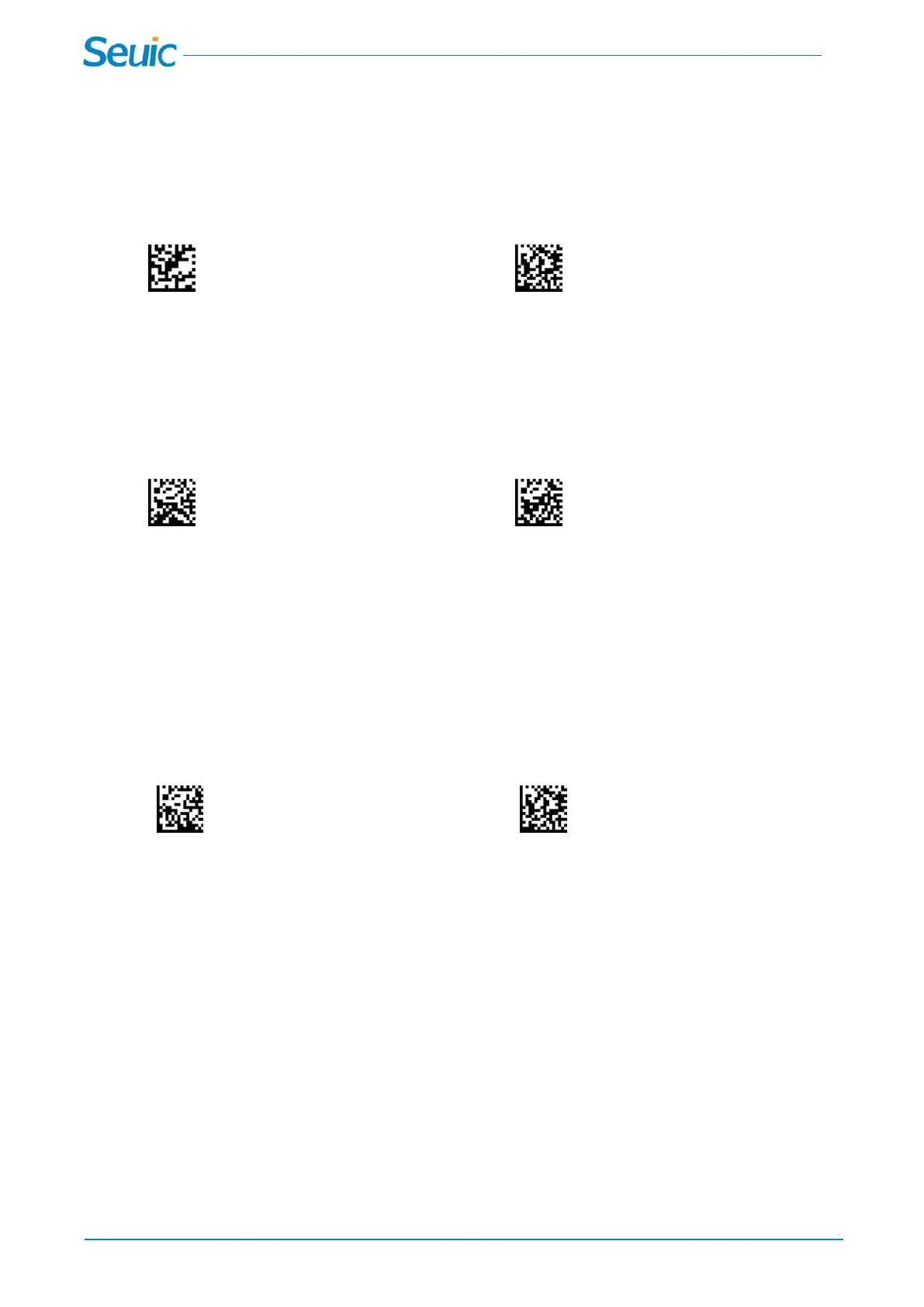
*Multiple Off Multiple On
9.2 Multiple Symbols Number set
When the Multiple Symbols is turned On, it allows you to set the barcode number.
Multiple Symbols Number Save
9.3 Output Sequence Overview
When turned off, the barcode data will be output to the host as the Scanner decodes it. When turned on,
all output data must conform to an edited sequence or the scanner will not transmit the output data to the
host device.
* Sequence Off Sequence On
9.4 Output Sequence Editor
This programming selection allows you to program the scanner to output data (when scanning more than
one symbol) in whatever order your application requires, regardless of the order in which the barcodes
are scanned. You should tune the Multiple On and set the Symbols Number.
Note: To make Output Sequence Editor selections, you’ll need to know the code I.D., code length, and
character match(es) your application requires. Use the Alphanumeric symbols (inside back cover) to read
these options. You must hold the trigger while reading each barcode in the sequence.
Enter Sequence Save
To Add an Output Sequence:
① Scan the Enter Sequence symbol
② Code ID
On the Symbology Chart, find the symbology to which you want to apply the output sequence format.
Locate the Hex value for that symbol ogy and scan the 2 digit hex value from the Programming Chart
(inside back cover).
③ Length
Specify what length (up to 9999 characters) of data output will be acceptable for this symbology. Scan
the four digit data length from the Programming Chart. (Note: 50 characters is entered as 0050. 9999
is a universal number, indicating all lengths.)
④ Character Match Sequences
On the ASCII Conversion Chart, find the Hex value that represents the character(s) you want to
match. Use the Programming Chart to read the alphanumeric combination that represents the ASCII
characters. (00 is the Universal number, indicating all characters.)



 To Next Page