EasyManua.ls Logo

Sharp AM-400 - User Manual

Sharp AM-400
162 pages
Print Icon
To Next Page IconTo Next Page
Loading...
DIGITAL MULTIFUNCTIONAL SYSTEM
ONLINE GUIDE
MODEL
AM-400
1. Installation
2. Copying
3. Sending Faxes
4. Receiving Faxes
5. Special Fax Functions
6. Printing
7. Scanning
8. Printing Lists
9. Maintenance
10. Troubleshooting

Table of Contents

Other manuals for Sharp AM-400

Questions and Answers

  • M
    Melissa StoutSep 9, 2025
    What to do if there is no dial tone on Sharp AM-400 All in One Printer?
    • M
      Matthew YoungSep 9, 2025
      If there's no dial tone on your Sharp All in One Printer, make sure the telephone line is properly connected to both the TEL. LINE socket and the wall socket. Also, ensure that the telephone line is functional.
  • J
    Jessica JohnsonSep 8, 2025
    Why is dialing not possible on my Sharp All in One Printer?
    • S
      Shannon MuellerSep 8, 2025
      If dialing is not possible on your Sharp All in One Printer, ensure the power cord is properly plugged into the power outlet. Also, make sure that the telephone line is properly connected to both the TEL. LINE socket and the wall socket. Lastly, ensure that the machine is set to the correct dialing mode for your telephone line.
  • C
    carmen80Sep 7, 2025
    Why won't my Sharp AM-400 All in One Printer transmit even though the power is on?
    • E
      Eugene ArmstrongSep 7, 2025
      If your Sharp All in One Printer has power but won't transmit: * Make sure the receiving machine has paper. * Ensure the telephone line cord is in the TEL. LINE socket, not the TEL. SET socket. * If the receiving machine is in manual mode without an attendant, reception isn't possible. * Check the display for error messages. * If there's an extension phone, check for a dial tone and ensure the receiving machine responds with a fax tone. If no extension phone is available, use the Line Monitor function.
  • U
    umoyerAug 22, 2025
    How to fix LINE ERROR on Sharp AM-400 All in One Printer?
    • J
      john53Aug 22, 2025
      A LINE ERROR on your Sharp All in One Printer indicates a communication problem with the other fax machine, usually due to a phone line issue. Try the transaction again. Check the connection, ensuring the cord from the TEL. LINE socket to the wall socket is no longer than two meters. Ensure no modem devices share the same telephone line. Verify the other party's fax machine is working. Have your telephone line checked for noise. Try a different telephone line. If the issue persists, your machine may need service.
  • S
    Scott GarzaSep 4, 2025
    Why are characters missing from printed output on my Sharp All in One Printer?
    • J
      Jeffrey JimenezSep 5, 2025
      If characters or parts of the image are missing from printed output on your Sharp All in One Printer, remove the drum cartridge and wipe the surface of the drum (the green cylinder) with a dry cotton swab. If print quality does not improve after wiping with a dry cotton swab, you can try moistening the swab with isopropyl alcohol or ethanol. However, do not moisten the swab with isopropyl alcohol or ethanol unless absolutely necessary, as this may cause stains or smears to appear on the first pages printed after cleaning and the stains may never completely disappear.
  • A
    Alyssa MillerSep 3, 2025
    How to adjust the printed image size on my Sharp All in One Printer?
    • D
      David OchoaSep 3, 2025
      To adjust the printed image size on your Sharp All in One Printer, make sure an appropriate enlarge/reduce setting is selected.
  • M
    millerchristineSep 2, 2025
    Why do dots appear at regular intervals on copies from my Sharp AM-400?
    • A
      Amber RiveraSep 2, 2025
      If dots appear at regular intervals on copies from your Sharp All in One Printer, the drum cartridge may be damaged. Replace the drum cartridge.
  • P
    Patricia RossSep 1, 2025
    Why is the paper blank when I make a copy on my Sharp AM-400 All in One Printer?
    • M
      Mr. Robert Gamble Jr.Sep 1, 2025
      If the paper is blank when making a copy on your Sharp All in One Printer: * If using the document feeder, ensure the original is face up. * If using the document glass, ensure the original is face down.
  • R
    Rachel ClarkAug 31, 2025
    Why do dots appear on printed output from my Sharp All in One Printer?
    • J
      Jim FullerAug 31, 2025
      If you notice dots appearing at regular intervals on printed output from your Sharp All in One Printer, the drum cartridge may be damaged. Replace the drum cartridge.
  • D
    Dr. Monica BradyAug 29, 2025
    Why does the paper come out blank when I receive a fax on my Sharp All in One Printer?
    • T
      Timothy BuchananAug 30, 2025
      If the paper comes out blank when receiving a fax on your Sharp All in One Printer, ensure the document is properly loaded in the transmitting machine's feeder. Make a copy or print a report to confirm your machine's printing ability.

Summary

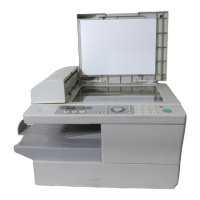
A Look at the Operation Panel

Display

Shows messages and prompts to help you operate the machine.

ZOOM key

Press this key to select an enlargement or reduction setting when making a copy.

MENU key

Press this key, followed by the left or right arrow key, to access special functions and settings.

COPY key

Press this key to select copy mode.

FAX key

Press this key to select fax mode.

Number keys

Use these keys to enter numbers for copies, fax numbers, and letters.

Start key

Press this key when you are ready to begin copying, faxing, or scanning.

1. Installation

Installing the Software

Overview and steps for installing printer and scanner software.

Installing the Toner Cartridge and Drum Cartridge

Procedure for installing toner and drum cartridges.

9. Maintenance

10. Troubleshooting

Problems and Solutions

Common issues and their corresponding solutions.

Clearing Paper Jams

Detailed steps for removing jammed documents and paper.

Sharp AM-400 Specifications

General IconGeneral
FunctionsPrint, Copy, Scan, Fax
Automatic DuplexingYes
Fax Speed33.6 Kbps
Monthly Duty CycleUp to 100, 000 pages
Printing TechnologyLaser
Print Speed (Black)40 ppm
Print Resolution1200 x 1200 dpi
ConnectivityUSB, Ethernet
Mobile PrintingYes
Scanner TypeFlatbed
Scan Resolution600 x 600 dpi

Related product manuals