
 To Next Page
C
Charles WestAug 6, 2025
What to do if Simrad GPS position is not updating?
- JJeremy RiceAug 6, 2025
If you are experiencing no GPS position update on your Simrad device, replace the antenna or cable.

What to do if Simrad GPS position is not updating?
If you are experiencing no GPS position update on your Simrad device, replace the antenna or cable.
How to fix a Simrad GPS when there is no picture on the display screen?
If there is no picture on the Simrad GPS display screen, first press the [PWR] key on the keypad. If that doesn't work, replace the fuse, ensuring you use only type F6.3A.
Why does my Simrad GPS delete all data after turning it off and on?
If all data is deleted after turning your Simrad GPS unit off and on, it's likely due to the internal battery's lifetime, which is typically 3-5 years. In this case, the internal battery must be replaced by an authorized dealer.
How to adjust brightness on Simrad CP50 GPS?
If the picture on the Simrad GPS display screen appears, but the image is too dark or too bright, adjust the image as desired by pressing the [PWR] key, adjust light/contrast, and then press the [ENT] key.
What to do if Simrad GPS has no normal picture or key operation?
If your Simrad GPS has no normal picture or key operation, try the following steps: * Turn the unit off and on again. * Remove the C-MAP chart if you suspect it's defective. * Disconnect the power and then reconnect it.
Why is my Simrad CP50 screen update extremely slow?
If the screen update on your Simrad GPS is extremely slow, turn off 'Course line' in the 'Edit route' display for each stored route, and turn off 'Display track' in the 'Track' display.
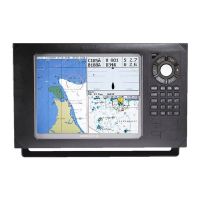
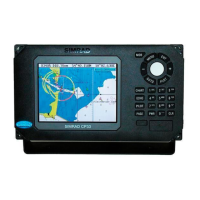
Overview of the SIMRAD CP42/50/52 MKII DGPS Chartplotter and GPS.
Essential safety precautions for operating the chartplotter unit.
Explains the multi-function screen data presentation system and screen combinations.
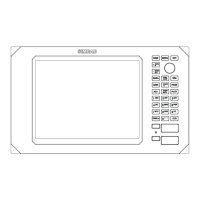
Description of the main key functions and their operations on the chartplotter.
Details on how to use the menu bar for accessing functions and settings.
Overview of the chartplotter's menu structure and available options.
Explanation of the symbols used on the screen for waypoints and points.
Step-by-step guide for the initial power-on and start-up procedure.
Accessing and using the chart menu for chart-related functions.
Information on loading and managing C-MAP electronic chart cartridges.
Details on accessing and using pop-up INFO windows for chart data.
How to use the GOTO function for navigation modes and waypoint selection.
Instructions for using the PLOT function to mark positions and create routes.
Configuration options for customizing chart display settings and features.
Details on the position display, including datum, speed, course, and status.
Information on the dual speed display and its analogue differential indicator.
Displaying speed, course (magnetic/true), and depth from connected sensors.
Overview of satellite reception status, SNR, and GPS data quality.
Details on Differential GPS (DGPS) setup and beacon station information.
Information regarding Satellite Differential GPS (SDGPS) select modes.
Managing and editing stored waypoints, including their positions.
Viewing and managing saved routes, including waypoints and route details.
Calculating route details such as distance, time, and arrival.
Instructions for starting and stopping the track recording function.
Managing and viewing stored targets on the chart.
Accessing navigation modes when navigation is not active.
Accessing navigation modes when navigation is active.
Configuring navigation parameters like alarms and shift modes.
Setting up and managing the anchor alarm function.
Activating and using the Man Overboard (MOB) function.
Practical examples of different navigation modes and their usage.
Displaying depth and temperature data graphically over time or distance.
Viewing wind direction and speed data from connected instruments.
Displaying the last activated Man Overboard (MOB) position.
Performing data transfers using DataCards or discs.
Transferring data to and from a PC using the NMEA connection.
Setting speed alarms, measurement units, and display language.
Configuring NMEA interface settings for data communication.
Setting up Decca chain selections for position readouts.
Selecting Loran C chains and managing slave and time delay settings.
Customizing display colors and selecting predefined palette setups.
Restoring the unit to factory default settings and managing data.
Instructions for mounting the CP42 unit in various configurations.
Instructions for mounting the CP50 unit in various configurations.
Instructions for mounting the CP52 unit in various configurations.
Suggestions for optimal placement of the display unit for operation.
Guide for installing the Dual Station remote control units.
Proper placement and mounting procedures for GPS and DGPS antennas.
Wiring diagrams and pin assignments for all electrical connectors.
Information on unit servicing, warranty, and spare parts.
Guidance for diagnosing and resolving common faults and issues.
Technical specifications for the chartplotter hardware and components.
 General