14 SIVISION 3 Sirona Dental Systems GmbH
14.10 Switching between VIDEO mode and PC mode Operating Instructions C4
+
59 06 313 D 3382
96 D 3382.201.01.13.02
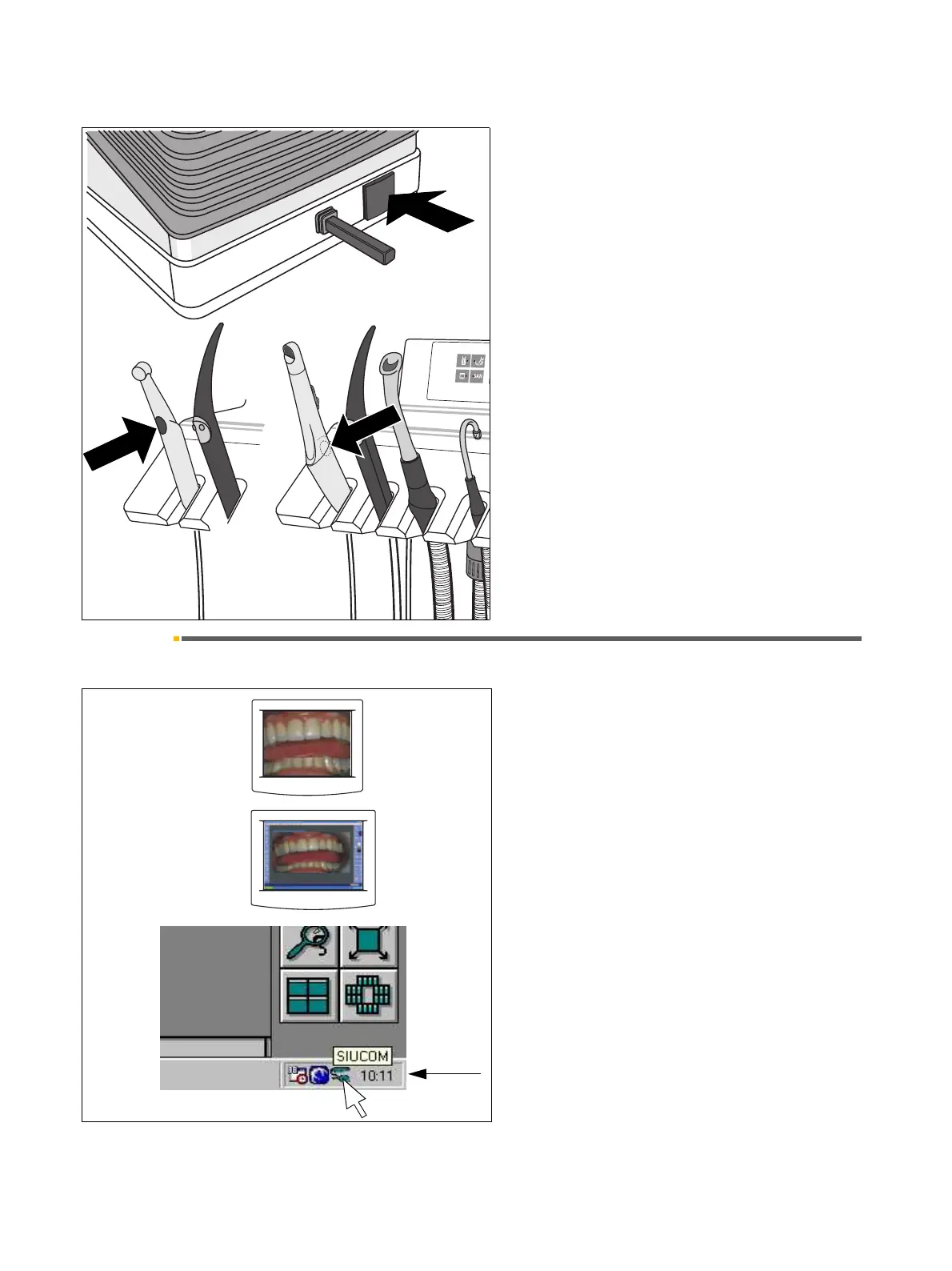
USING THE CAMERA BUTTON AND THE FOOT BUT-
TON AS FUNCTION KEYS
The camera must be placed in its holder.
Further functions, such as WHITE SCREEN, BLACK
SCREEN or the SIDEXIS/VIDEXIS functions
Tile, Next Image, Full Frame, Zoom In, Zoom Out,
Rotate Image as well as other PC controls can be
assigned as desired to the camera button and the foot
button.
The factory settings as well as the configuration proce-
dure are described in the “Installation manual for PC
software“, REF 59 11 719 Operator’s Manual.
14.10 Switching between VIDEO mode and PC mode
Only with SIROCAM 3 / SIROCAM C in the assistant
element and a connected PC
The system can be used in two operating modes:
• Video mode
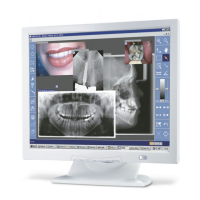
The video image from the camera is directly dis-
played on the SIVISION monitor.
•PC mode
The video image is processed on the PC. The SIVI-
SION monitor shows the PC user interface.
To toggle between the two modes, the popup menu of
the Siucom program on the PC is used.
The SIROCAM 3 / SIROCAM C camera is always in
video mode after the treatment center is switched on or
the camera is connected to the assistant element.
When the Siucom program is running (executes simul-
taneously with SIDEXIS/VIDEXIS) and the entry
“PC_MODE_ON” has been activated (factory setting),
the SIROCAM 3 / SIROCAM C camera automatically
switches to the PC mode.
The SIROCAM 3 / SIROCAM C camera remains in PC
mode until one of the following occurs: video mode is
activated on the PC, the camera is disconnected from
the treatment center or the treatment center is switched
off.
Video mode
PC mode
Systray


 To Next Page