Extended Settings and Functions
smart CX01 117
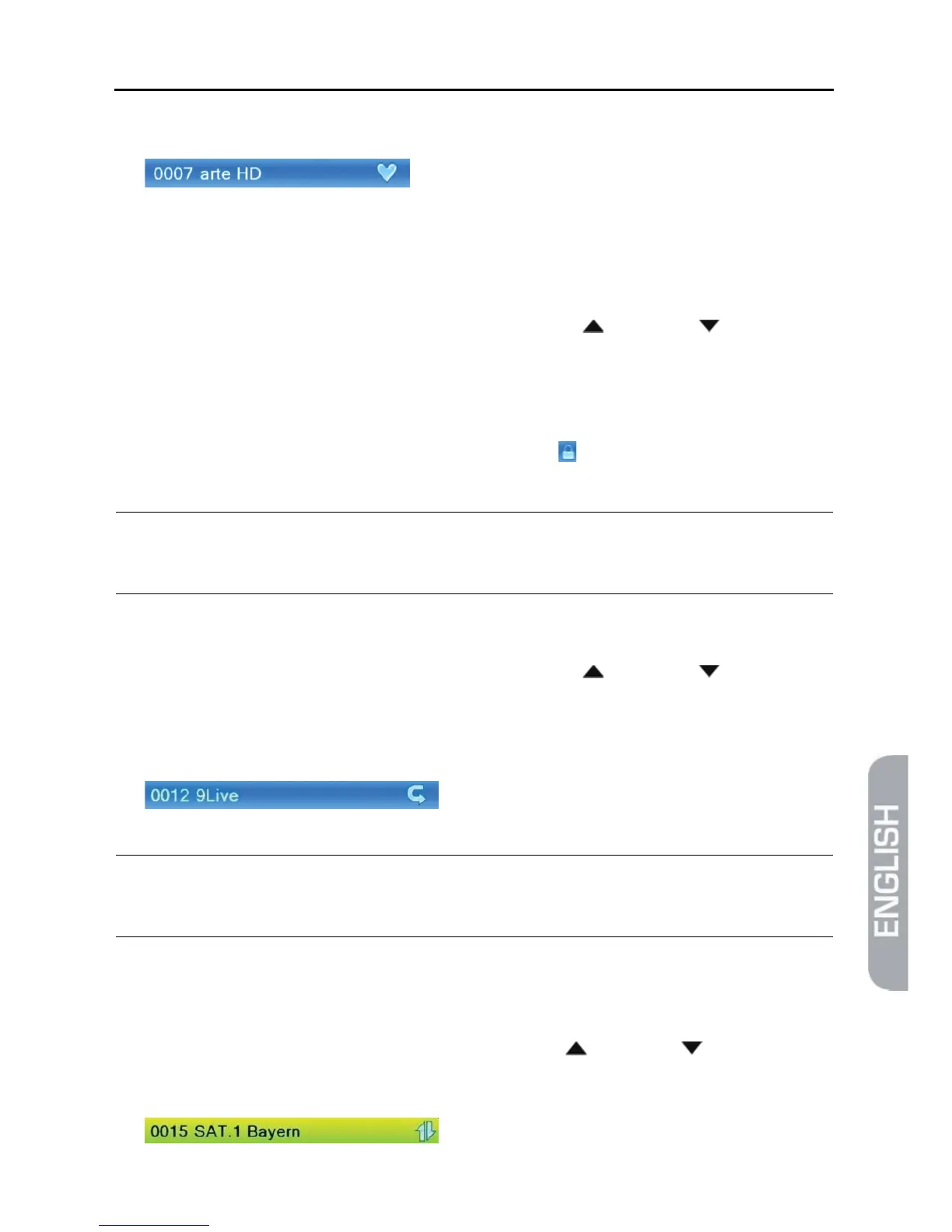
4. The channels allocated to a group of favorites will be marked in the channel
lists.
5. Press the key FAV once again or the key EXIT to leave the function Favorite.
7.1.1.2 Provide Channels with Password Protection (Lock Against Unau-
thorized Access)
1. Mark the corresponding channel by using the keys / PR+ and / PR-.
2. Press the red function key (SHIFT).
3. Confirm by pressing OK. You will be requested to enter a password.
4. Enter a password.
Locked channels are marked in the channel lists .
5. Again press the red function key (SHIFT) to leave the function Lock.
)
From now on, first the password has to be entered to be able to
watch such a locked channel.
7.1.1.3 Skip Channels when Switching from Channel to Channel (Zapping)
1. Mark the corresponding channel by using the keys / PR+ and / PR-.
2. Press the green function key.
3. Confirm by pressing OK.
Channels to be skipped are marked in the channel lists.
4. Again press the green function key to leave the function Lock.
)
From now on, the channel is skipped when switching from one
channel to the next (zapping).
7.1.1.4 Move Channels to Another Channel Position:
1. Press the yellow function key to activate the function Move.
2. Mark the channel to be moved by using the keys / PR+ and / PR-, and
confirm by pressing OK.
The channel to be moved is marked in the channel list.
. If you want to move more than one channel,


 To Next Page