Extended Settings and Functions
122 smart CX01
)
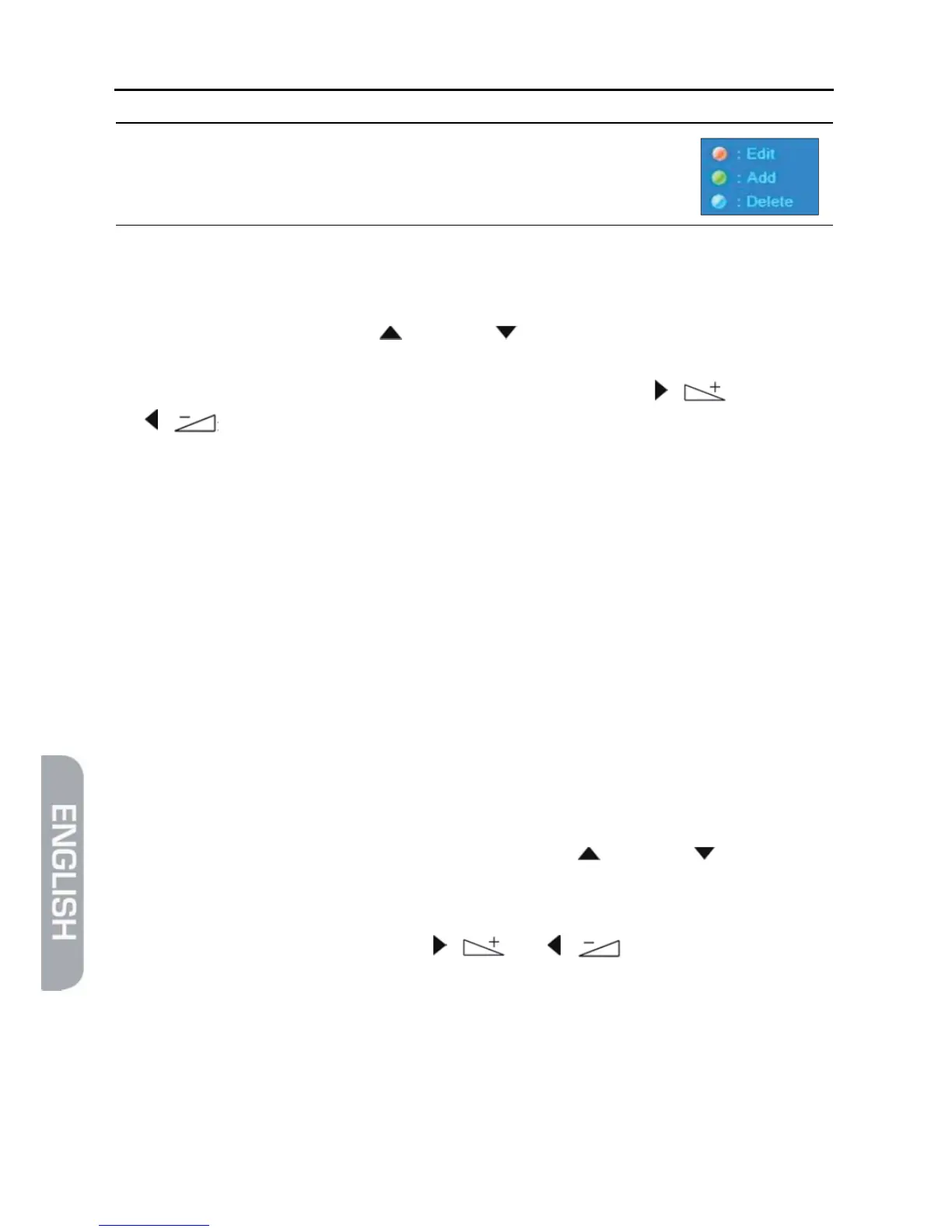
You may also edit the satellite list by selecting
one of the buttons on the right edge of the
menu window.
To change an entry:
1. Press the red function key (SHIFT).
2. Select by pressing the keys / PR+ and / PR- if you want to change name or
longitude (position).
3. Select the text position to be changed by pressing the keys / and
/ :
Enter the numbers and letters using the numeric keys of the remote control.
Press the red function key (SHIFT) to switch between upper case and lower
case.
Press the green function key to delete the currently selected position.
Press the yellow function key to confirm your changes and to return to the
satellite list.
Press the blue function key (L/R) to cancel changes and to return to the
satellite list.
To add an entry:
1. Press the green function key.
2. Enter name and longitude (entering of text as described in the section Change).
To delete an entry:
1. Select the satellite to be deleted by using the keys / PR+ and / PR-.
2. Press the blue function key (L/R). A window will open, stating the question if
you really want to delete the entry.
3. Select OK or No by using the keys / and / , and confirm your selec-
tion by pressing OK.
You will be directed back to the satellite list.
¾ Press EXIT to leave the submenu Satellite List.
¾ Press EXIT to leave the menu Installation and to return to TV operation.


 To Next Page