Wire EDM Machine Operation Chapter 15
Copyright November, 98 Page 15-25 Sodick Inc.
R
R
U
U
N
N
S
S
C
C
R
R
E
E
E
E
N
N
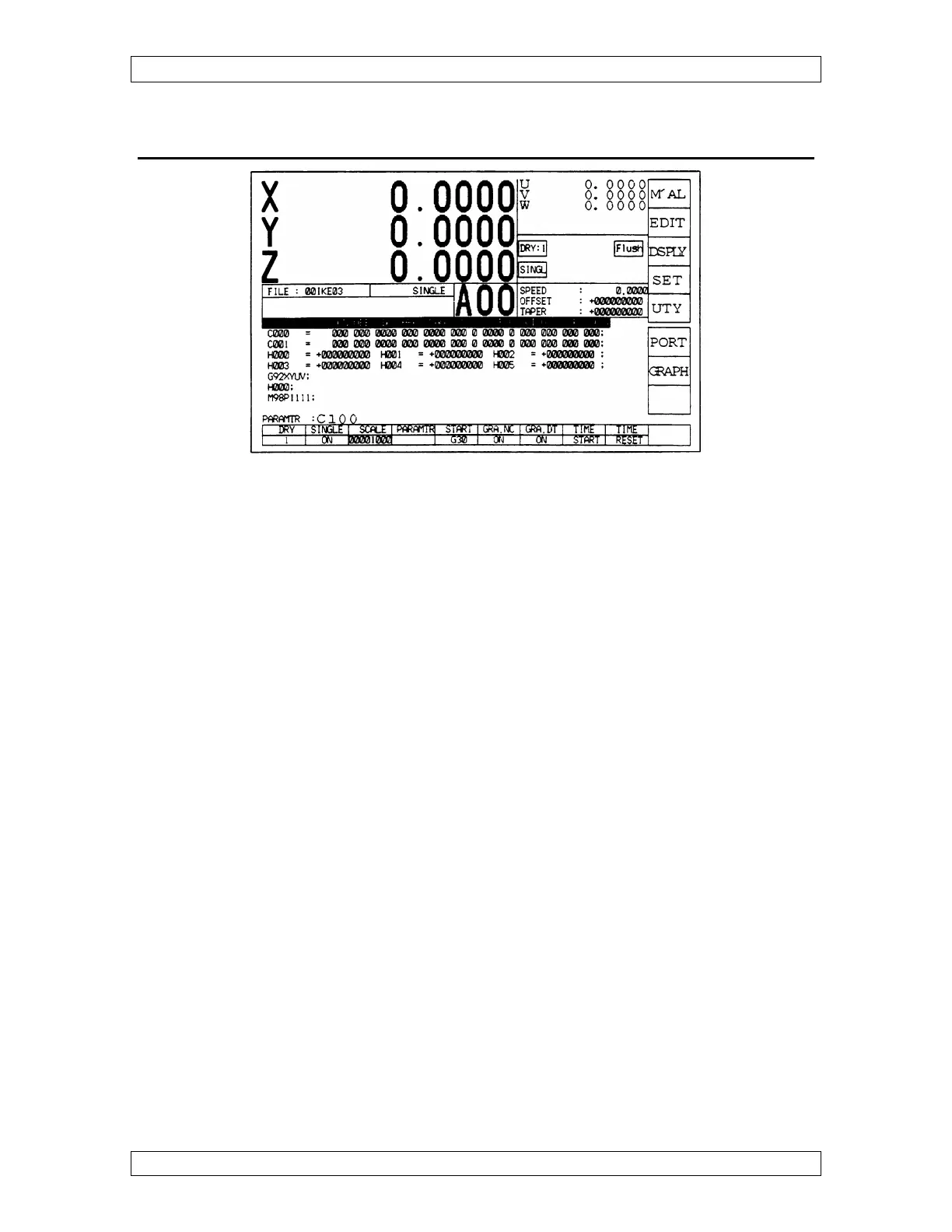
This screen is normally used to start and monitor the program. Press the bottom soft key,
of the vertical keys. This key toggles between the run screen and a directory screen. The
run screen displays the XYZUV and W axis readouts. The box below the UVW axis will
display icons for various functions when they are not at the normal setting to remind you.
The box below the icons will display the speed the machine is cutting, the offset being
used and the taper angle being cut. Below the Z display is the file that is being executed.
The capitol letter A in the middle of the screen means the machine is in absolute mode
and the letter I means incremental. The numbers after the A or I represents what work
coordinate screen or (run screen) the machine is running in. There are 59 different run
screens. The program will be displayed in the middle of the screen for viewing only.
Below the program will be the condition number that is being used. There is a menu
along the bottom of the screen that contains several choices. To choose a item, press the
softkey below the choice and it turns blue. Some of the choices allow numerical values to
be entered to alter the setting. In that case, highlight the choice, type the new value and
then press the softkey to enter it the new value.
If parameter is highlighted, it shows the parameters that make up the cutting condition
that is being used. Press the more key to view the remaining parameters. These can be
changed while the machine is cutting. NOTE: If WT or WS are at 0 ,the knobs on the
control panel are affecting wire speed and tension. If a number is entered ,the knobs are
overidden. WP and WC are not used. Press the more key again to return to the first
parameters screen or the return fey to return to the main menu. If start G30 is highlighted,
press the enter key prompt appears up above where the name of the program is displayed.
When enter is pressed, the machine moves to the G92 location. GRA.NC and GRA.DT is
for graphics. When the picture of the program is on the screen, you can have the NC
program on or off the screen by using the GRA.NC key. There is also other data that can
be turned on or off with the GRA.DT key.



 To Next Page